

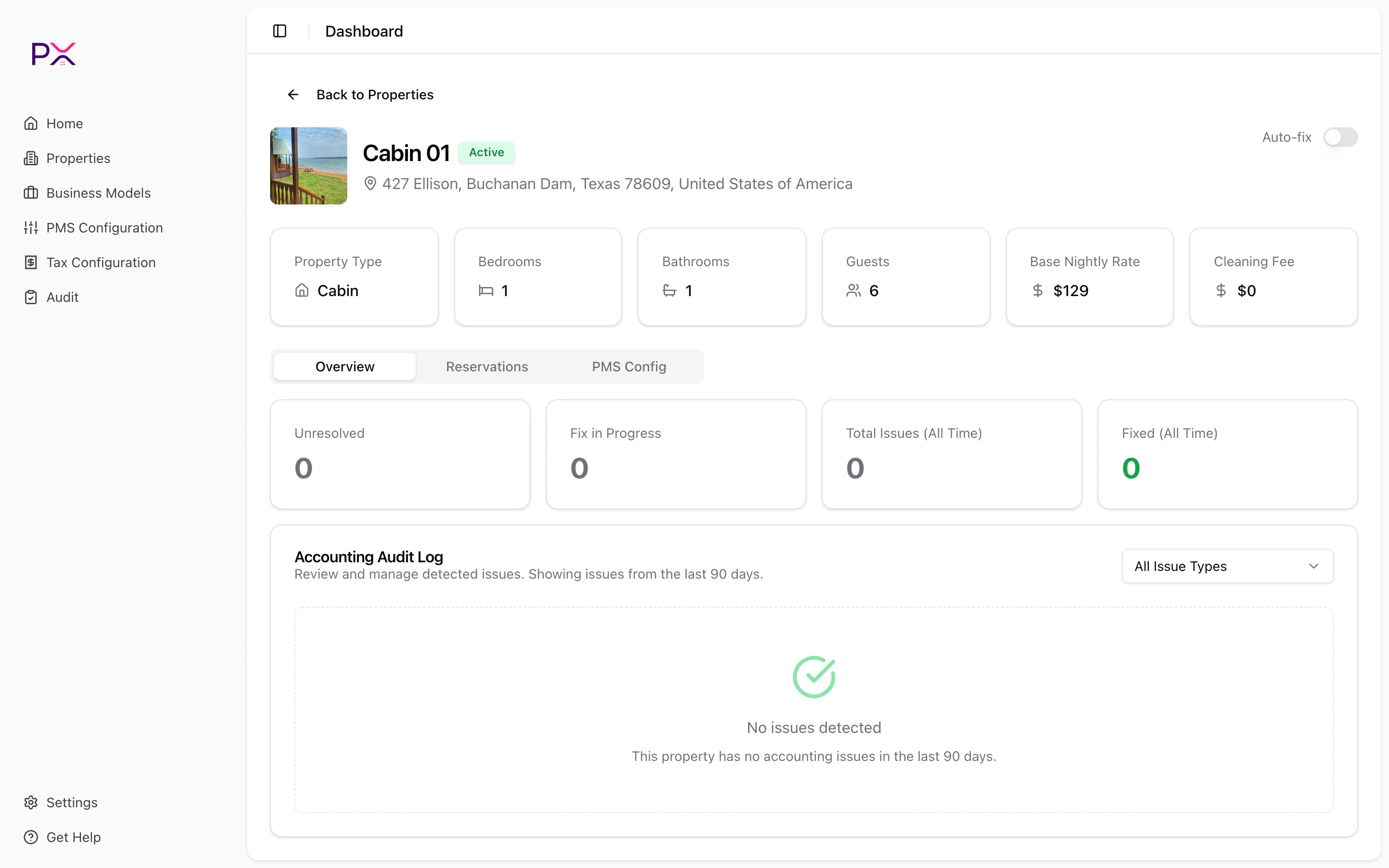
Owner info appears below the property header on the property detail page
Where you see owner info
- Property detail page - the Owner card sits below the property info grid, showing the owner’s name, email, and phone.
- Reservations - business model assignments and statement reconciliation use the owner mapping.
How owner sync works
PX pulls owner records from your PMS during the regular property sync, then maps them to properties through a join table. You do not have to do anything to trigger this - syncing properties syncs the related owners too. The mapping is stored in PX, so even if a property’s PMS record loses its owner reference temporarily, PX preserves the last-seen mapping until the next successful sync.What if my property has no owner?
Some properties (your own listings, manually added entries) have no owner mapping. PX simply hides the Owner card on those properties - no error, no warning. If a property should have an owner but does not show one:- Confirm the owner is associated with the listing in your PMS.
- Click Sync from [PMS] on the Properties page.
- Open the property and refresh. The Owner card should appear.