

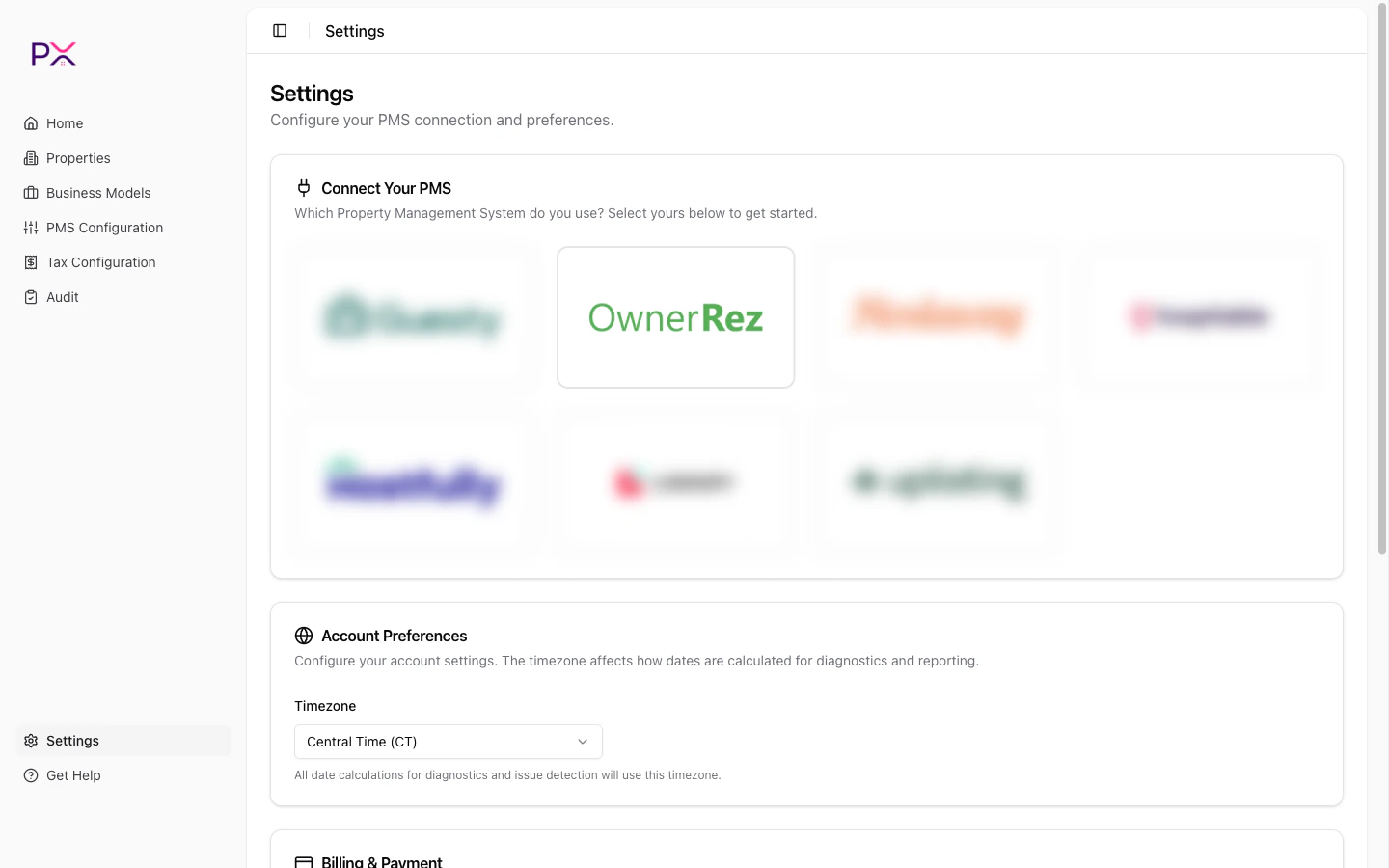
Selecting OwnerRez on the Connect Your PMS card
Before you start
You will need:- An OwnerRez account with API access enabled (most plans include this; contact OwnerRez support if API is locked).
- An owner-level login - sub-users may not have permission to authorize third-party apps.
Step 1 - authorize PX
- In PX, open Settings.
- In the Connect Your PMS card, pick OwnerRez.
- Click Connect with OwnerRez.
- Sign in to OwnerRez when prompted.
- On the consent screen, click Authorize PX.
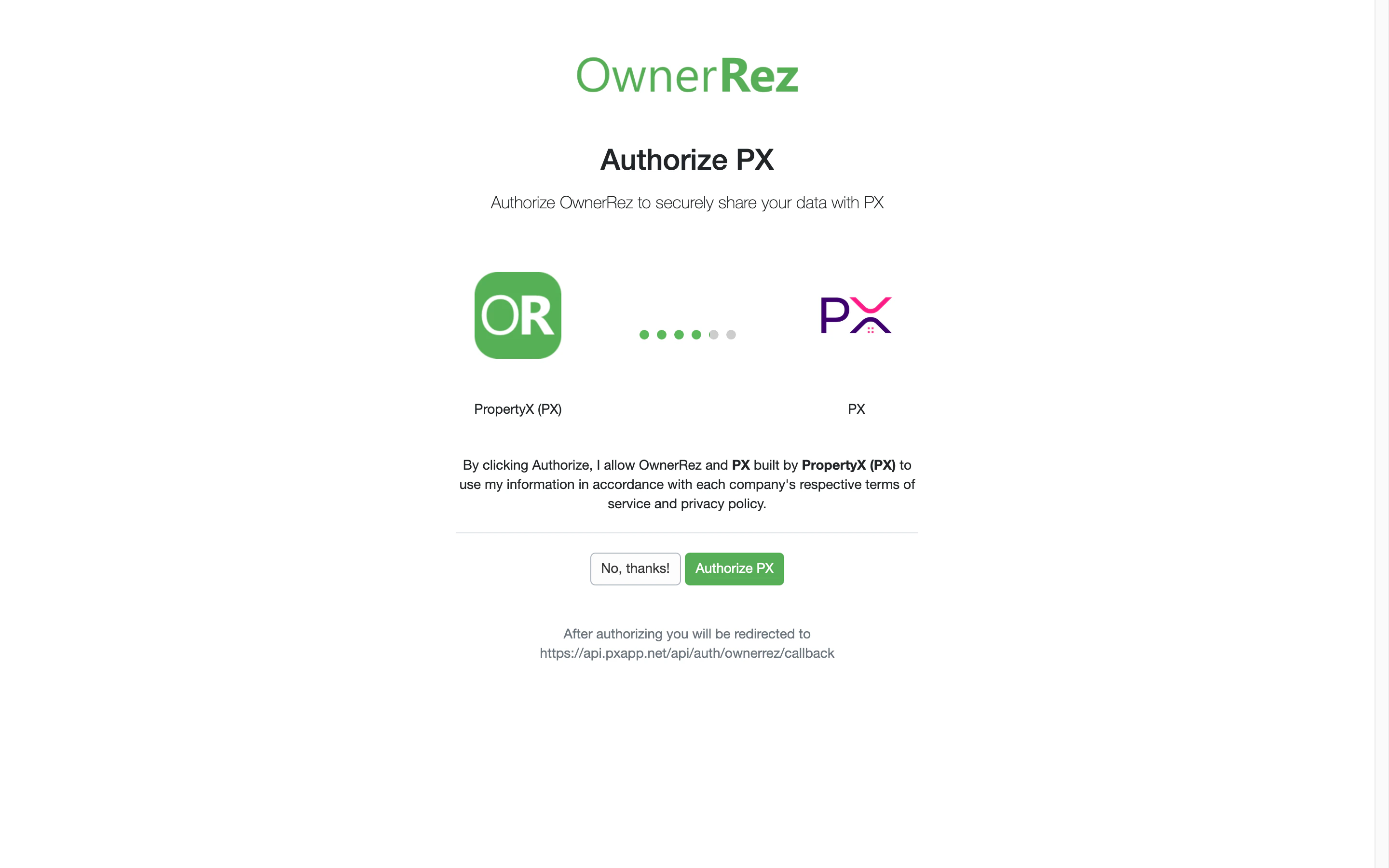
OwnerRez OAuth consent screen
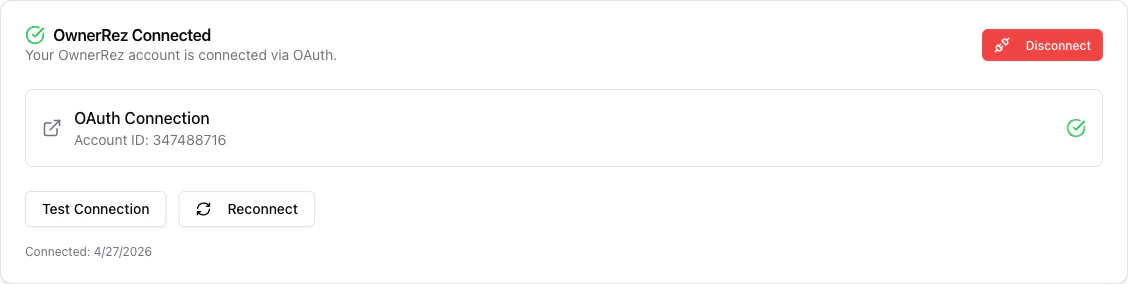
OwnerRez connected
Step 2 - confirm the OwnerRez catalog
This step is unique to OwnerRez. You must do it before audits return useful results. The moment you authorize the connection, PX:- Scans your last 18 months of bookings.
- Infers a catalog of taxes, fees, and commission rates from the line items it sees.
- Loads them into your OwnerRez Catalog marked
inferred, ready for review.
- Open PMS Configuration in the sidebar.
- Walk through each row and:
- Click Confirm if the inferred rate matches what you actually charge.
- Edit the rate, unit (percent vs fixed), or applicability scope if needed.
- Click Add row for any tax or fee PX did not pick up.
- Archive entries that are out of date.
- Use Detect from bookings later if you want to rescan after a rate change or new booking history.
- inferred - PX detected this from booking history. Not yet used by audits.
- user-added - you created it manually.
- confirmed - reviewed and approved. Used by audits.
- archived - hidden, not used.
CATALOG_EMPTY finding instead of running.
See OwnerRez Catalog for the full UI walkthrough.
What PX reads from OwnerRez
PX has read-only access. Nothing is written back. Properties - id, name, address, bedrooms / bathrooms / max guests, currency, owner id. Synced on connect and on OwnerRezproperty webhooks.
Owners - id, first / last name, email, properties owned.
Synced with the parent property.
Reservations (bookings) - id, property, status, check-in / check-out, guest name and count, channel and the channel’s reservation number, currency, totals (amount, paid, balance, refunded, host fees), block flag, cancellation snapshot.
Synced on demand, on booking webhooks, and during audits.
Per-charge financial data - line amount and type (accommodation / surcharge / tax / expense), taxable flag, per-charge owner-vs-commission split. Plus payments, refunds, and deposits read separately so payouts can be reconciled to bookings.
Synced with the parent booking and on payment / refund / deposit webhooks.
Tax / fee / commission catalog - inferred from the last 18 months of bookings, then confirmed by you in PMS Configuration -> OwnerRez Catalog. OwnerRez’s UI stays the system of record; PX’s catalog is the audit baseline.
Built on Detect from bookings; not synced thereafter.
Webhook events - entity_create / entity_update / entity_delete on bookings, properties, payments, refunds, and deposits, plus application_authorization_revoked (cleanly tears down the OAuth credentials).
Removing the connection
Open Settings, go to the OwnerRez Connected card, and click Disconnect. Confirm in the dialog. This revokes the OAuth token, unregisters webhooks, and removes your synced properties. Your business models, tax configuration, and audit history are account-level and stay in place, and you can reconnect at any time.Troubleshooting
OAuth pop-up does not return to PX. Pop-up blockers are a common cause. Allow pop-ups forpxapp.net and try again.
Webhook status is red.
OwnerRez may have rejected the webhook URL. Verify your OwnerRez plan includes webhook access and click Refresh.
Audits return no results.
The OwnerRez catalog is probably empty. Open PMS Configuration, run Detect from bookings, and confirm at least the taxes and any commission rules you charge.
A booking has no inferred catalog rules.
This is expected for one-off charges (cleaning fee on a single trip, manual adjustment). PX only infers rules that repeat. Add custom rows in the catalog for anything systematic.
What’s next
OwnerRez Catalog
Confirm and edit the audit baseline.
Run an audit
Once the catalog is confirmed, run your first audit.