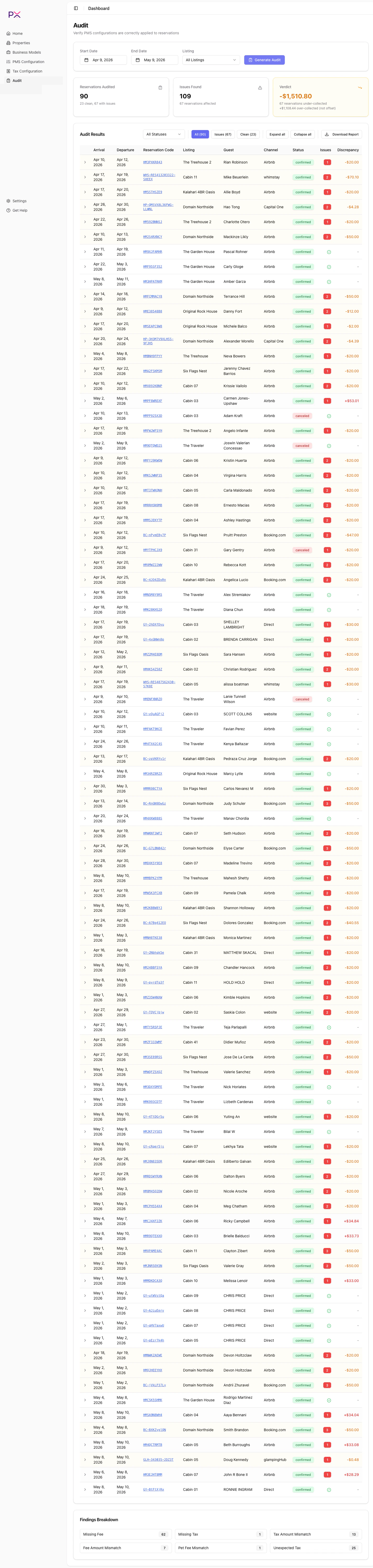
This walkthrough takes you from a fresh account to a complete audit. Set aside about 15 minutes the first time.
1
Sign in to PX Accounting
Open pxapp.net and sign in. Use Google, Microsoft, or email - whichever you registered with.First-time visitors are taken straight to Settings because PX needs a PMS connection before it can do anything useful.
2
Connect your PMS
On the Settings page, find the Connect Your PMS card and pick your provider. Each PMS has a dedicated setup guide:
Once connected, the Integration Status panel shows a green Webhooks row reading Registered and active, and your properties are pulled in automatically.
Connect Your PMS card with provider options
3
Configure taxes (and Airbnb remittance)
Open Tax Configuration. PX reads the taxes you have set up in your PMS and shows them in two tabs:
Account-level - taxes that apply to every listing.
Per-listing - listings grouped by whether they inherit account taxes or override them.
Most users only need to do two things on this page:
Set channel sync overrides if a tax should not sync to specific channels (Airbnb, Booking.com, etc.). PX uses these overrides during audits.
Run the Airbnb remittance wizard to tell PX which taxes Airbnb collects on your behalf. Findings for Airbnb-remitted taxes are suppressed once configured.