

Adding a payment method
- Open Settings.
- Find the Billing & Subscription card.
- Click Add Payment Method.
- Card - card number, expiry, CVC. PX accepts Visa, Mastercard, Amex, Discover.
- Bank account - routing number, account number. ACH transactions take 3-5 business days to clear.
Billing card with method on file
Replacing a payment method
To swap one card for another:- Click Remove on the current method.
- Click Add Payment Method.
- Enter the new details in Stripe Checkout.
Removing a payment method
Click Remove on the Billing card. PX:- Detaches the payment method from your Stripe customer record.
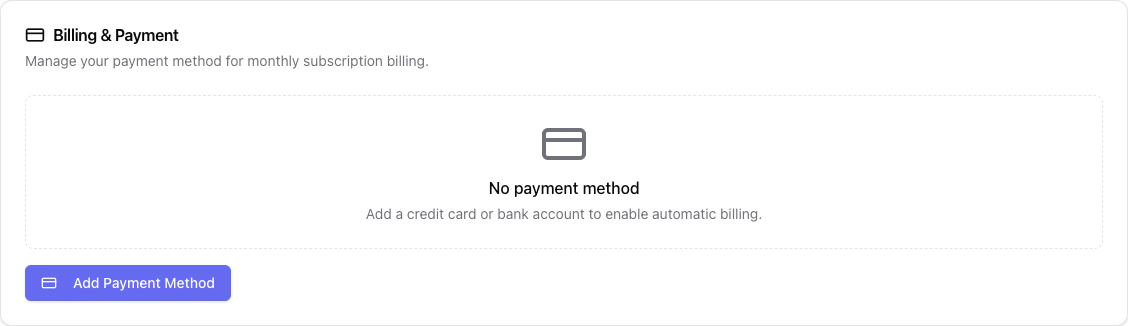
- Updates the card to show No payment method.
What gets charged
PX bills monthly based on:- Your subscription plan.
- (For metered plans) the number of properties under management during the month.
Failed payments
When a charge fails:- PX retries automatically per Stripe’s smart retry logic.
- You receive an email with the failure reason and a link to update your payment method.
- Repeated failures eventually pause the account - you will not be locked out, but new audits may be disabled until billing is current.
Receipts
Stripe emails receipts after every successful charge. To resend a receipt:- Open Stripe’s billing portal (link in any prior receipt email).
- Find the invoice.
- Click Email receipt.