

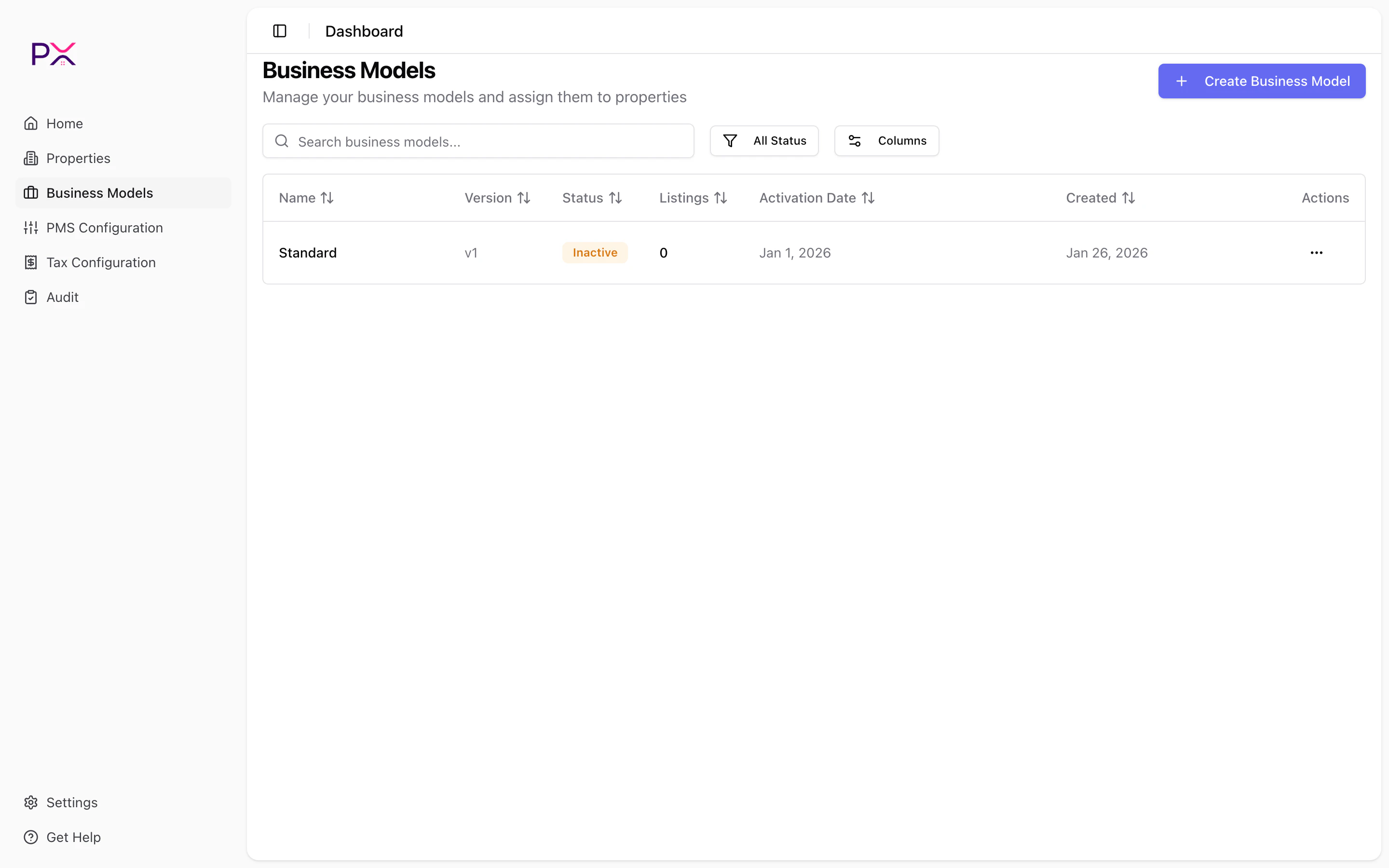
Business Models list
Step 1 - welcome
A quick intro screen explaining what the wizard sets up. Click Let’s Get Started to continue. The model is created in Draft status when you save it at the end of the wizard.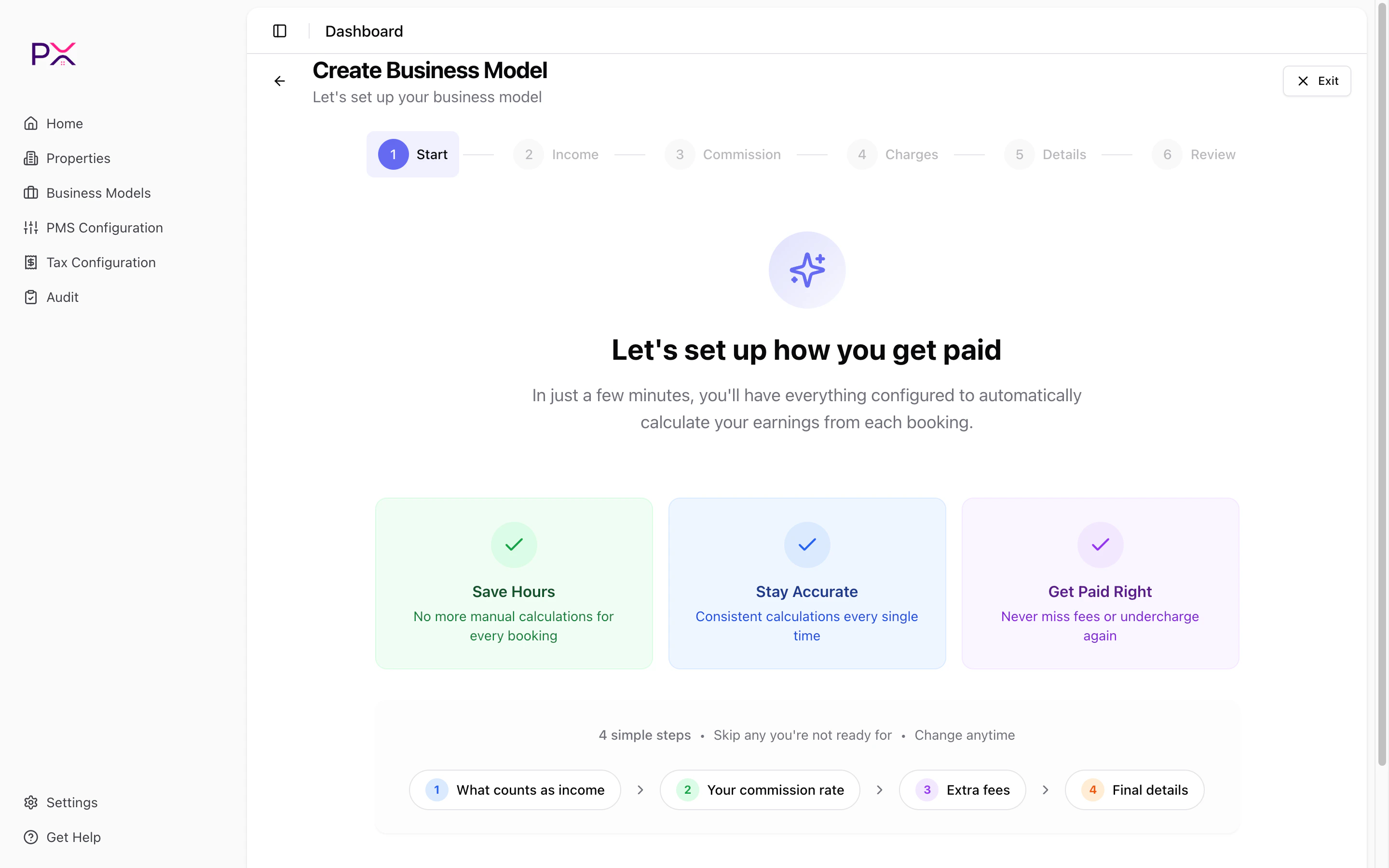
Step 1 - Welcome
Step 2 - what counts as income
Define which fees count as income vs expense for the purpose of net rental income.- Income items - check the items you want included in net rental income. Anything checked here adds to revenue when audits compute the income total.
- Expense items - check the items you treat as deductions from gross revenue.
- Excluded items (expandable) - everything else that PX detects but should not affect the income total. Useful for refunds, security deposits, and pass-through fees.
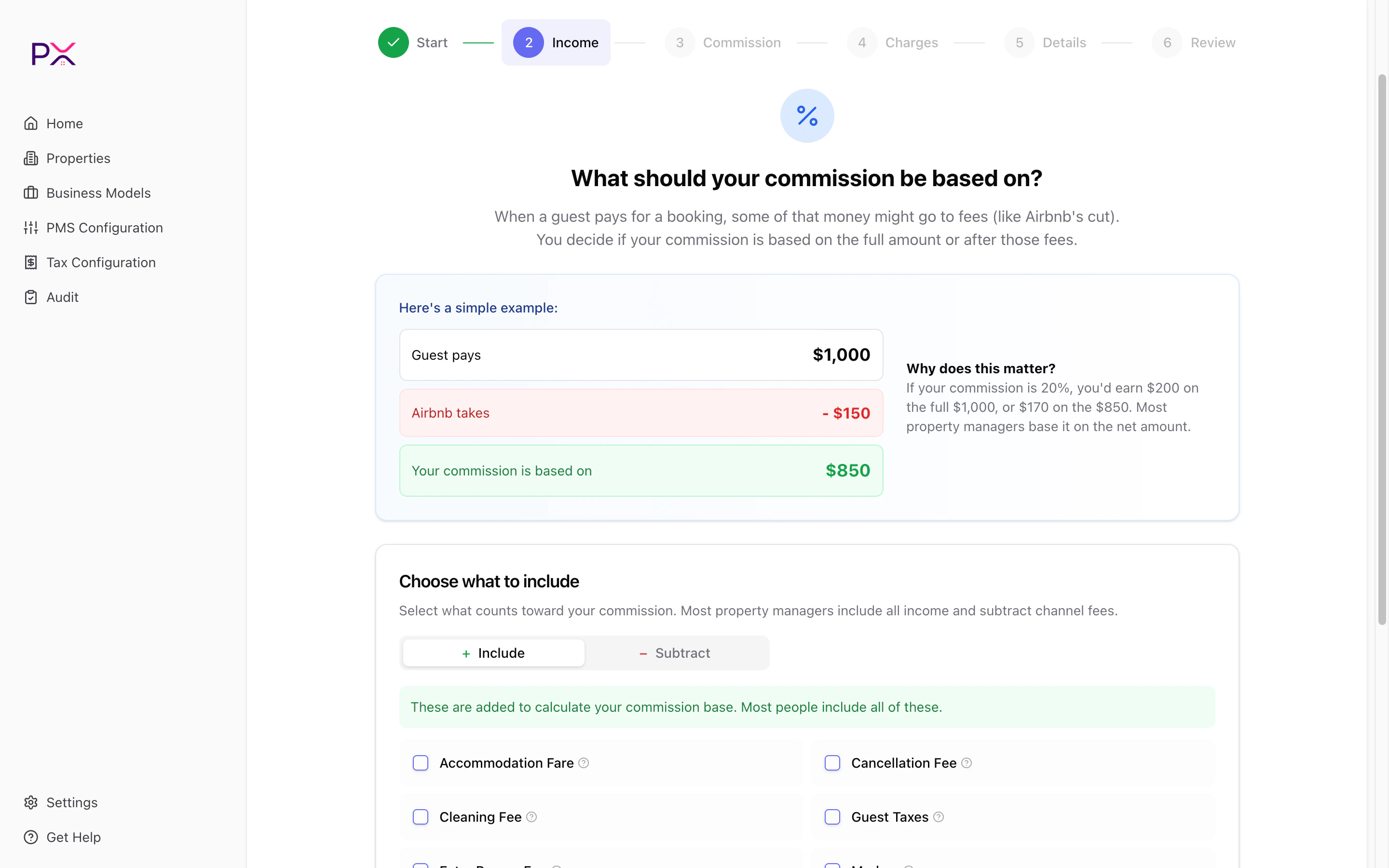
Step 2 - What counts as income
Step 3 - your commission rate
Set the percentage you keep from each booking and when that revenue is recognized.- Commission rate - the default percent you earn (e.g.
20). - Recognition timing - When guest checks in, When guest checks out, or Daily (spread per-night).
- Owner GST/VAT on commission (optional) - charge the owner a tax on top of commission. Pick a category and percent.
- Per-channel overrides (optional) - different rates for different channels (e.g. Airbnb 18%, Vrbo 22%).
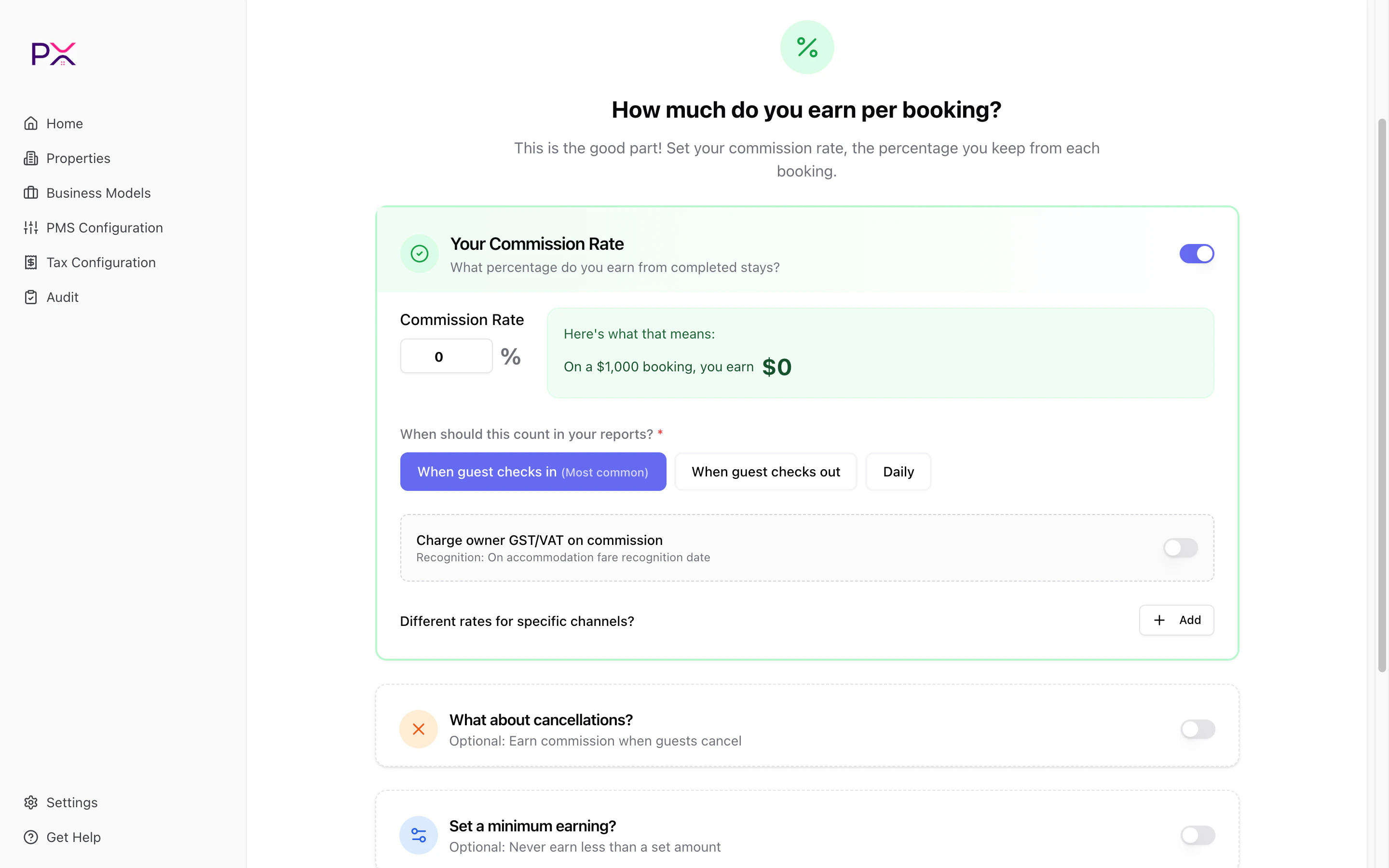
Step 3 - Commission
Step 4 - recurring charges (optional)
Add charges that recur on every reservation - cleaning, gift baskets, wifi, maintenance, owner-paid insurance, and so on. There are two buckets:- Revenue items - amounts that flow to you as income.
- Owner charges and expenses - amounts the owner pays out.
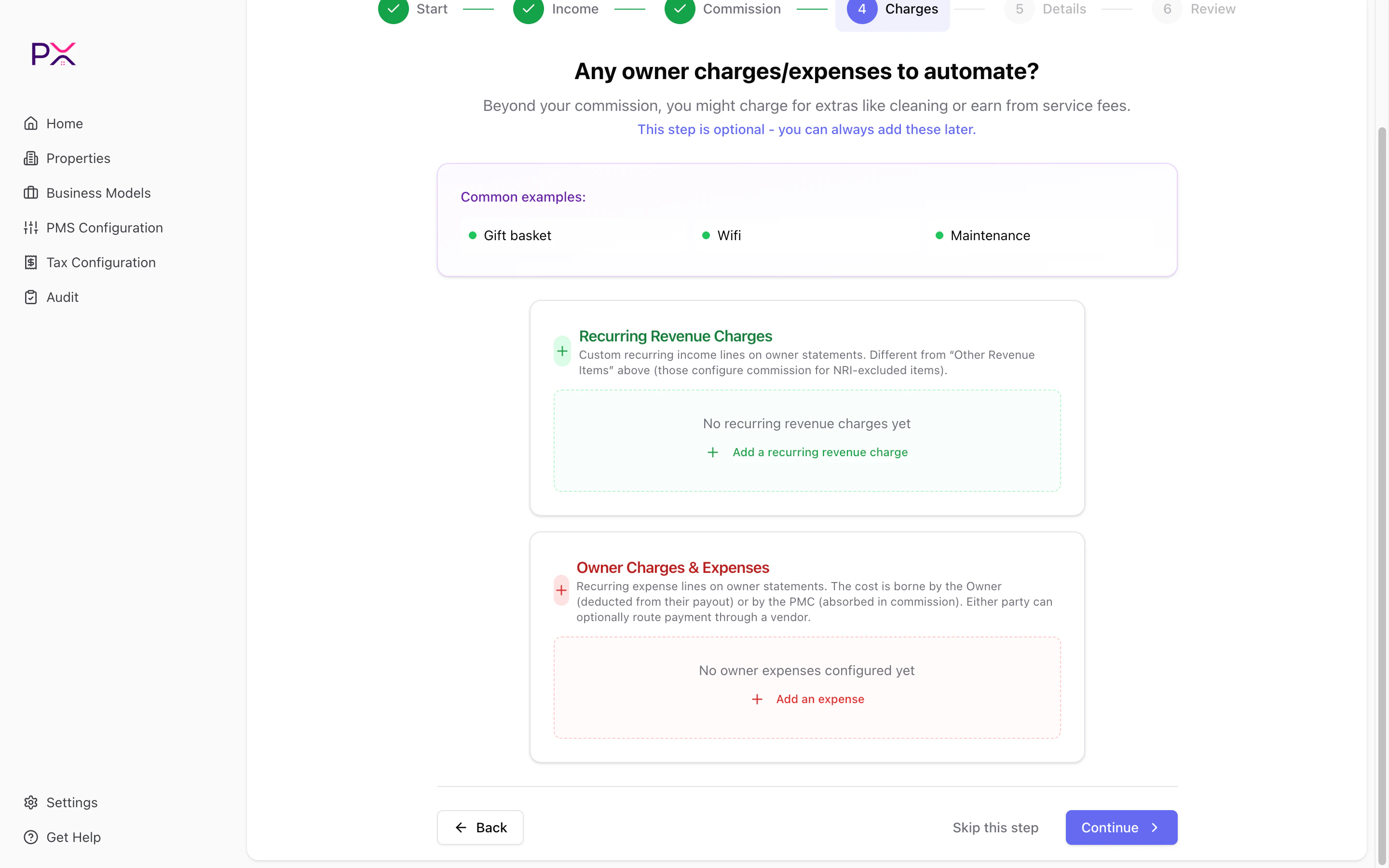
Step 4 - Recurring charges
Step 5 - details and listings
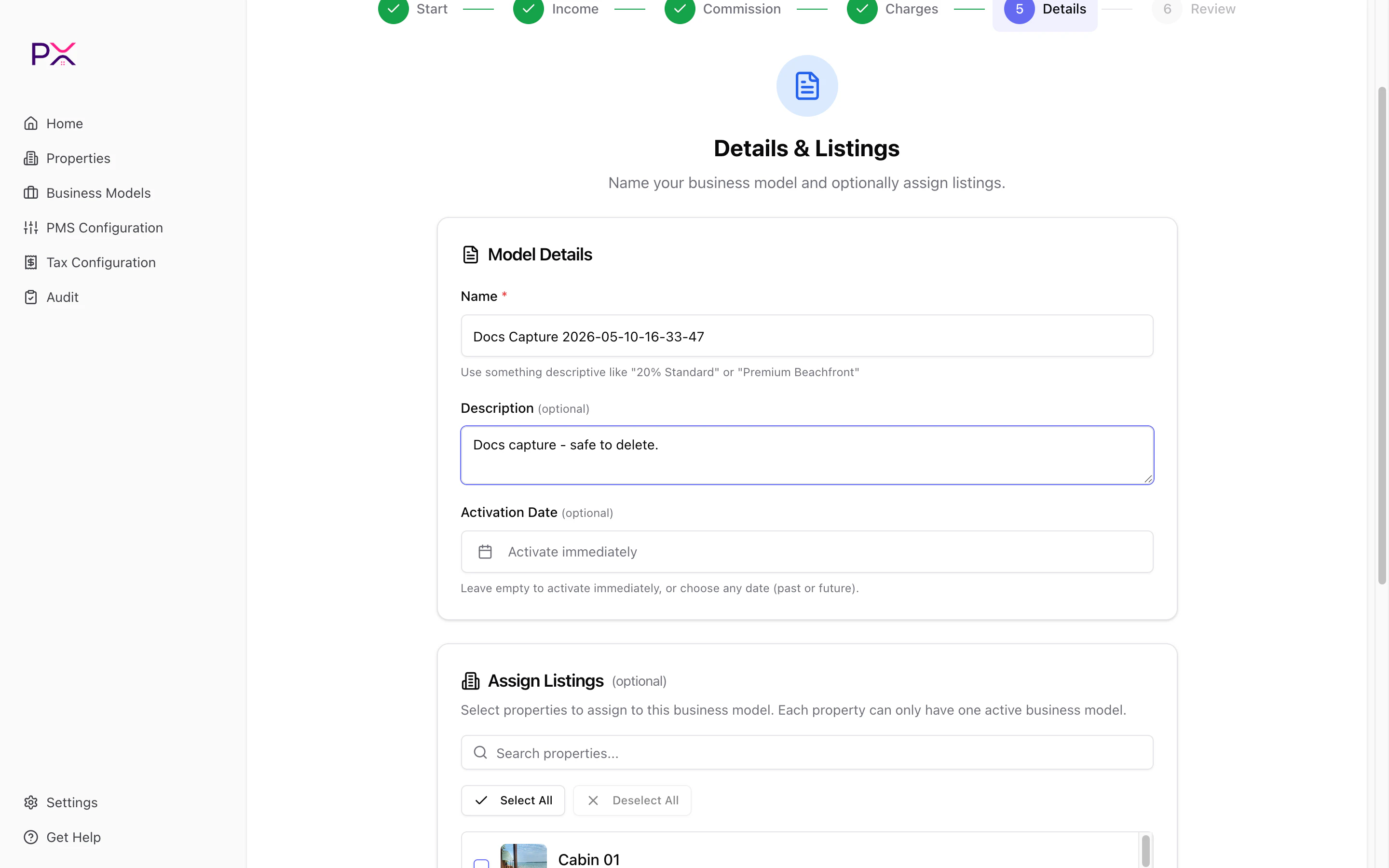
Step 5 - Details and listings
Step 6 - review and create
A summary of every section. Click Save to persist the model. PX:- Validates required fields.
- Saves the model in Draft status.
- Once you activate and assign listings, queues a diagnostics run for every assigned property.
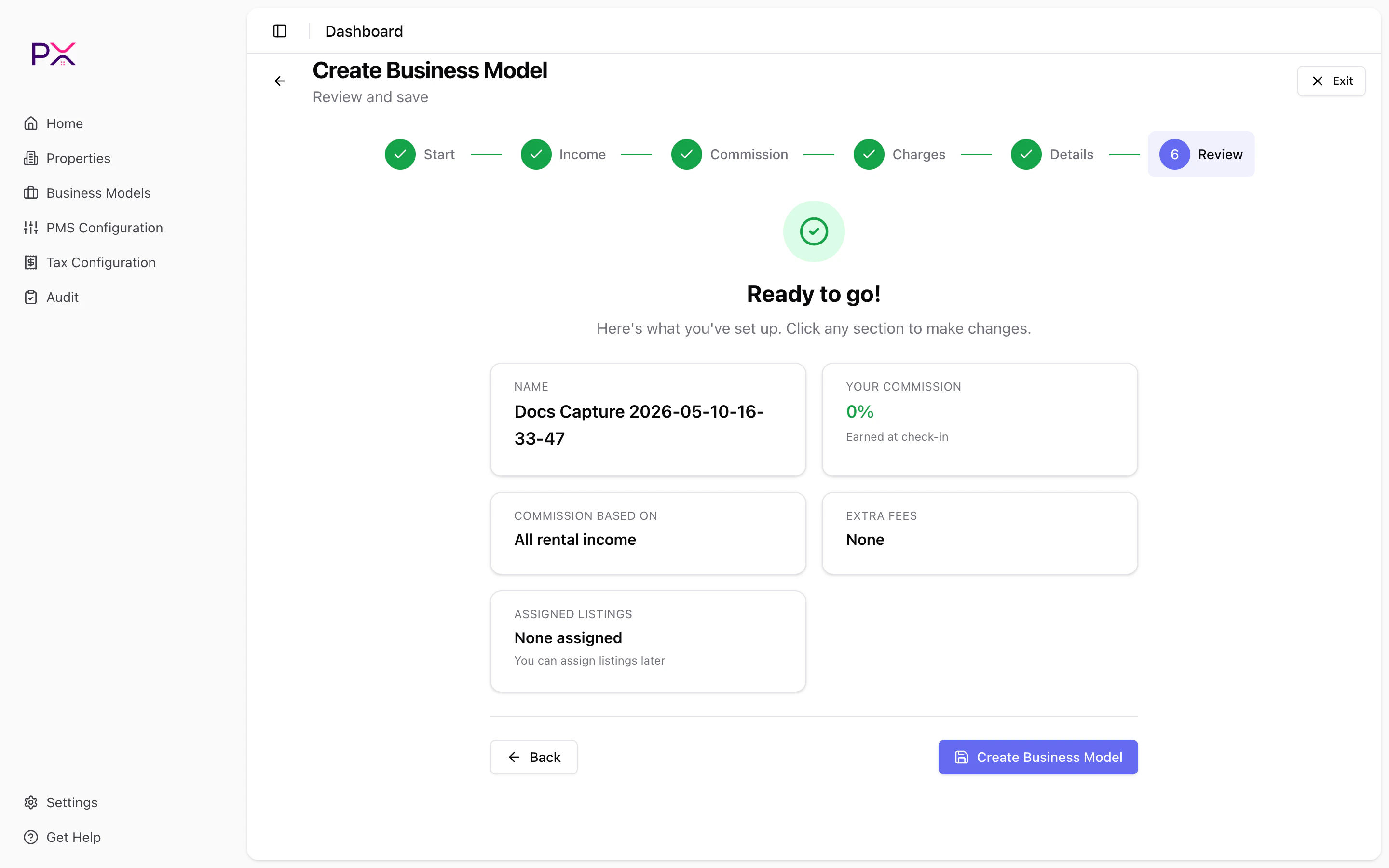
Step 6 - Review and create
Editing later
Open any model from the list to edit. Saving rule changes on an active model creates a new version (the original stays in place for historical audits). You can also:- Duplicate - clone the model with
Copyappended to the name. Use this for what-if scenarios. - Deactivate - unassign all listings and set status to Inactive.
- Archive - hide from the default list. Reversible if you remove the Archived filter.
Common pitfalls
- Forgetting to set an activation date. Without one, audits will not pick the model up. Set it on day one of the period the model covers.
- Duplicating instead of editing. If you make a small rate change, edit and let PX version it - duplicate creates a parallel model that is not automatically reconciled with prior history.
- Activating without assigning properties. Active + zero listings is allowed but does nothing useful. Assign before you walk away.
- Mixing income and expense items. PX treats them as mutually exclusive. An item should appear in one bucket, not both.