

- From the wizard - the final review step has an Assign properties action.
- From the business model edit screen - any time after creation.
Assigning from the wizard
The Create-a-business-model wizard’s Details & Listings step has the listings picker built in. Tick the properties this model should govern, then continue to the review step. PX saves the assignment when you click Save on the review step.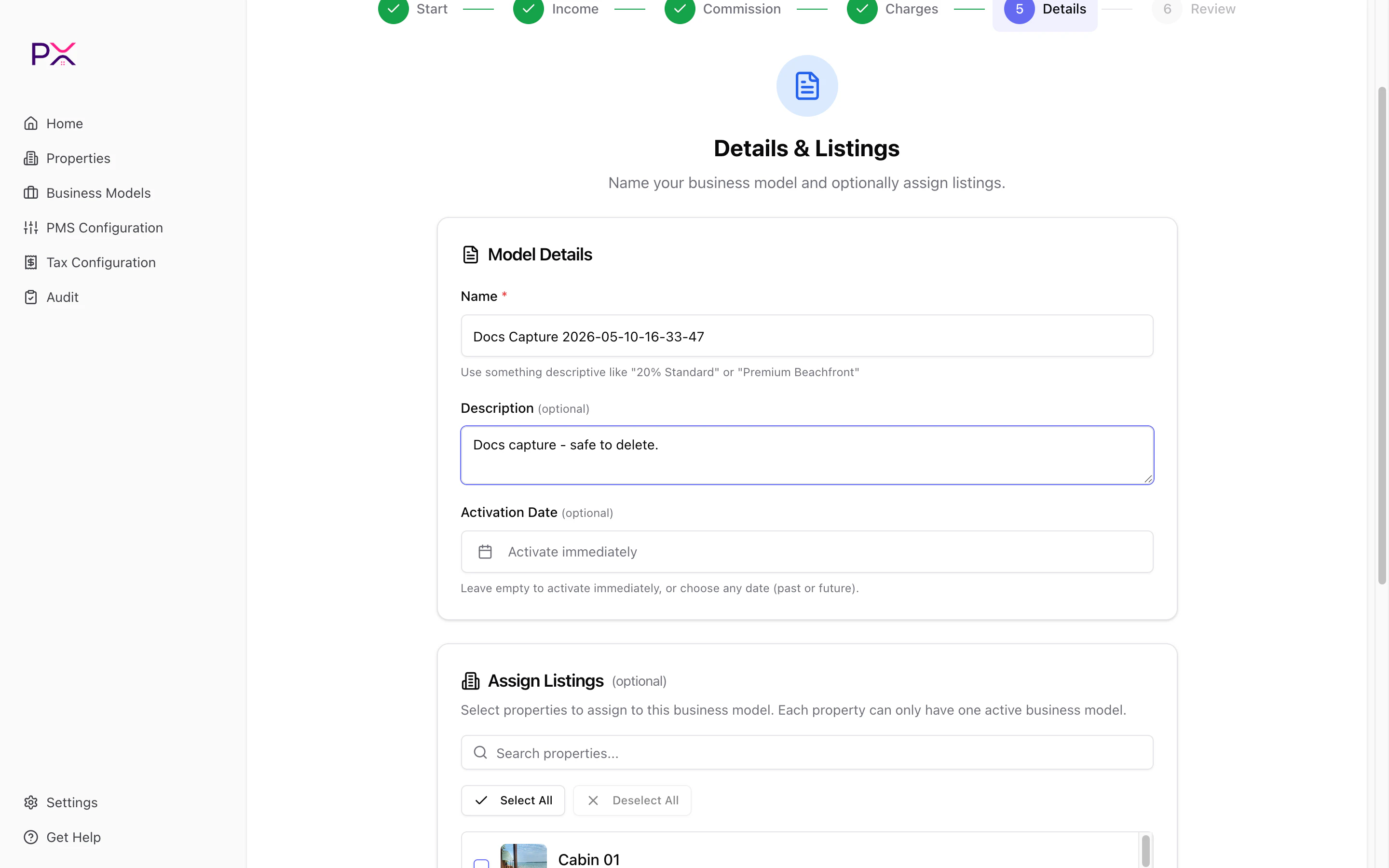
Assign listings inside the wizard
Assigning from the model
For an existing model:- Open Business Models in the sidebar.
- Click the model name to open it.
- Click Assign properties.
- The picker dialog opens with a search box and a multi-select list of every property in your account.
- Tick the properties this model governs.
- Click Save assignments.
One model per property
Each property can only have one active business model at a time. Assigning a model to a property that already has one replaces the previous assignment. This is a deliberate constraint - it keeps audits unambiguous (PX always knows which model to use for a given reservation). If you need to change the model on an active property:- Assign the new model. The old assignment is removed.
- Run an audit on a date range that overlaps with the change to check for transition findings.
Effective dates
Each business model has an activation date. PX uses this date plus the property’s assignment record to decide which model applies to a given reservation:- The reservation’s check-in date is compared against the active assignment’s effective range.
- If a property had Model A before March 1 and Model B after, March 1 is the cutoff and PX uses each model only for reservations whose check-in falls in its range.
Bulk assignment patterns
If you have many properties on the same management agreement:- Same model for all - create one model and assign it to every property.
- Tier-based - create one model per tier (Standard 20%, Premium 25%, Trust 15%) and assign properties accordingly.
- Owner-based - create one model per owner. Useful when each owner has bespoke commission terms.
- Channel-based - one model with channel conditions on commission. Single model, dynamic rate.
Removing an assignment
To unassign a model from a property:- From the model picker - uncheck the property and Save.
- From the property - currently you can only do this from the model side.
What happens when you assign
When you click Save assignments on an active model:- The assignment row is created (or updated) in PX.
- A diagnostics batch job is queued for every newly assigned property.
- Findings show up on the property detail page and in the next audit you run.