> ## Documentation Index
> Fetch the complete documentation index at: https://docs.pxaccounting.com/llms.txt
> Use this file to discover all available pages before exploring further.
# Manage properties
> Browse your portfolio, search and filter, toggle auto-fix, and trigger a sync.
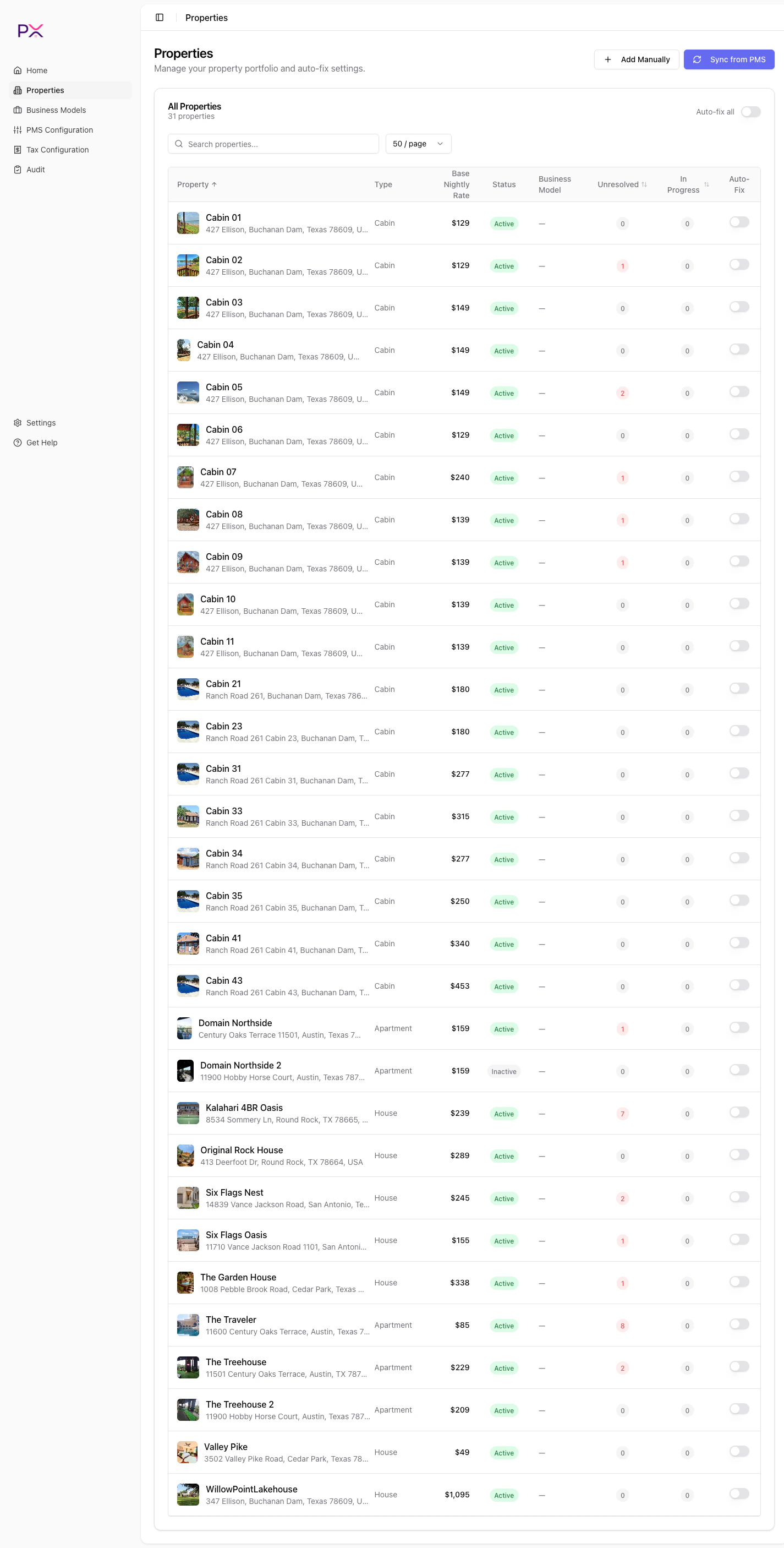
The **Properties** page is your portfolio at a glance and the entry point for drilling into a single listing.
 ## Header actions
* **Add Manually** - opens a form to create a property that is not in your PMS. Useful for off-platform inventory you want tracked in PX.
* **Sync from \[PMS]** - triggers a full re-fetch of your listings. The button label changes to match your active provider.
## The table
| Column | What it shows |
| ----------------- | ------------------------------------------------------------------------------- |
| Name | Property name with thumbnail. Sortable. Click to open the property detail page. |
| Type | The PMS property type (apartment, house, etc.). |
| Base Nightly Rate | Guesty only - hidden for OwnerRez accounts. |
| Status | Active or Inactive. |
| Business Model | The business model assigned to this property (or empty). |
| Unresolved | Count of unresolved findings. Sortable. |
| In Progress | Count of findings currently being auto-fixed. Sortable. |
| Auto-Fix | Per-property toggle. |
Above the table:
* **Search properties...** - filters the table by property name in real time.
* **Page size** dropdown - 25 / 50 / 100 / 200 per page. Defaults to 50.
* **Auto-fix all** toggle in the card header - flips auto-fix on or off for every property at once.
Pagination controls (**Previous**, **Next**, **Page X of Y**) appear at the bottom.
## First-time experience
If you just connected a PMS and have not synced yet, the page is empty and PX automatically triggers a sync in the background. You will see a loading state, then the table populates.
If you have not configured PMS credentials, the empty state prompts: **Configure your PMS credentials in Settings, then sync.**
## Auto-fix toggles
There are two layers:
* **Per property** - the toggle on each row, which is the default control.
* **Globally** - the **Auto-fix all** toggle in the header. Flipping this updates every property at once.
When auto-fix is on for a property:
* Unresolved findings on that property show **Fix in Progress** instead of the **Start Fix** / **Dismiss** buttons.
* PX processes the fixes asynchronously - you do not have to wait on the page.
When auto-fix is off:
* Findings stay unresolved until you act on them from the property detail page.
See [Auto-fix](/properties/auto-fix) for the full behavior.
## Triggering a sync
Click **Sync from \[PMS]** to re-fetch your listings. Sync is idempotent - running it twice is safe and only updates rows where data changed.
If a sync fails, an error banner appears at the top of the page with the reason. The most common causes are:
* Expired credentials (re-connect under Settings).
* PMS rate limit hit (wait, then retry).
* A specific listing failed to parse - PX skips it and continues; the rest still sync.
## What's next
Issues, reservations, and PMS config for a single listing.
What auto-fix does and when to use it.
## Header actions
* **Add Manually** - opens a form to create a property that is not in your PMS. Useful for off-platform inventory you want tracked in PX.
* **Sync from \[PMS]** - triggers a full re-fetch of your listings. The button label changes to match your active provider.
## The table
| Column | What it shows |
| ----------------- | ------------------------------------------------------------------------------- |
| Name | Property name with thumbnail. Sortable. Click to open the property detail page. |
| Type | The PMS property type (apartment, house, etc.). |
| Base Nightly Rate | Guesty only - hidden for OwnerRez accounts. |
| Status | Active or Inactive. |
| Business Model | The business model assigned to this property (or empty). |
| Unresolved | Count of unresolved findings. Sortable. |
| In Progress | Count of findings currently being auto-fixed. Sortable. |
| Auto-Fix | Per-property toggle. |
Above the table:
* **Search properties...** - filters the table by property name in real time.
* **Page size** dropdown - 25 / 50 / 100 / 200 per page. Defaults to 50.
* **Auto-fix all** toggle in the card header - flips auto-fix on or off for every property at once.
Pagination controls (**Previous**, **Next**, **Page X of Y**) appear at the bottom.
## First-time experience
If you just connected a PMS and have not synced yet, the page is empty and PX automatically triggers a sync in the background. You will see a loading state, then the table populates.
If you have not configured PMS credentials, the empty state prompts: **Configure your PMS credentials in Settings, then sync.**
## Auto-fix toggles
There are two layers:
* **Per property** - the toggle on each row, which is the default control.
* **Globally** - the **Auto-fix all** toggle in the header. Flipping this updates every property at once.
When auto-fix is on for a property:
* Unresolved findings on that property show **Fix in Progress** instead of the **Start Fix** / **Dismiss** buttons.
* PX processes the fixes asynchronously - you do not have to wait on the page.
When auto-fix is off:
* Findings stay unresolved until you act on them from the property detail page.
See [Auto-fix](/properties/auto-fix) for the full behavior.
## Triggering a sync
Click **Sync from \[PMS]** to re-fetch your listings. Sync is idempotent - running it twice is safe and only updates rows where data changed.
If a sync fails, an error banner appears at the top of the page with the reason. The most common causes are:
* Expired credentials (re-connect under Settings).
* PMS rate limit hit (wait, then retry).
* A specific listing failed to parse - PX skips it and continues; the rest still sync.
## What's next
Issues, reservations, and PMS config for a single listing.
What auto-fix does and when to use it.