> ## Documentation Index
> Fetch the complete documentation index at: https://docs.pxaccounting.com/llms.txt
> Use this file to discover all available pages before exploring further.
# Connect OwnerRez
> Authorize PX Accounting with OwnerRez and build your audit baseline catalog.
OwnerRez uses a one-click OAuth flow. There is nothing to copy and paste - you click a button in PX, sign in to OwnerRez, and grant access.
 ## Before you start
You will need:
* An OwnerRez account with API access enabled (most plans include this; contact OwnerRez support if API is locked).
* An owner-level login - sub-users may not have permission to authorize third-party apps.
## Step 1 - authorize PX
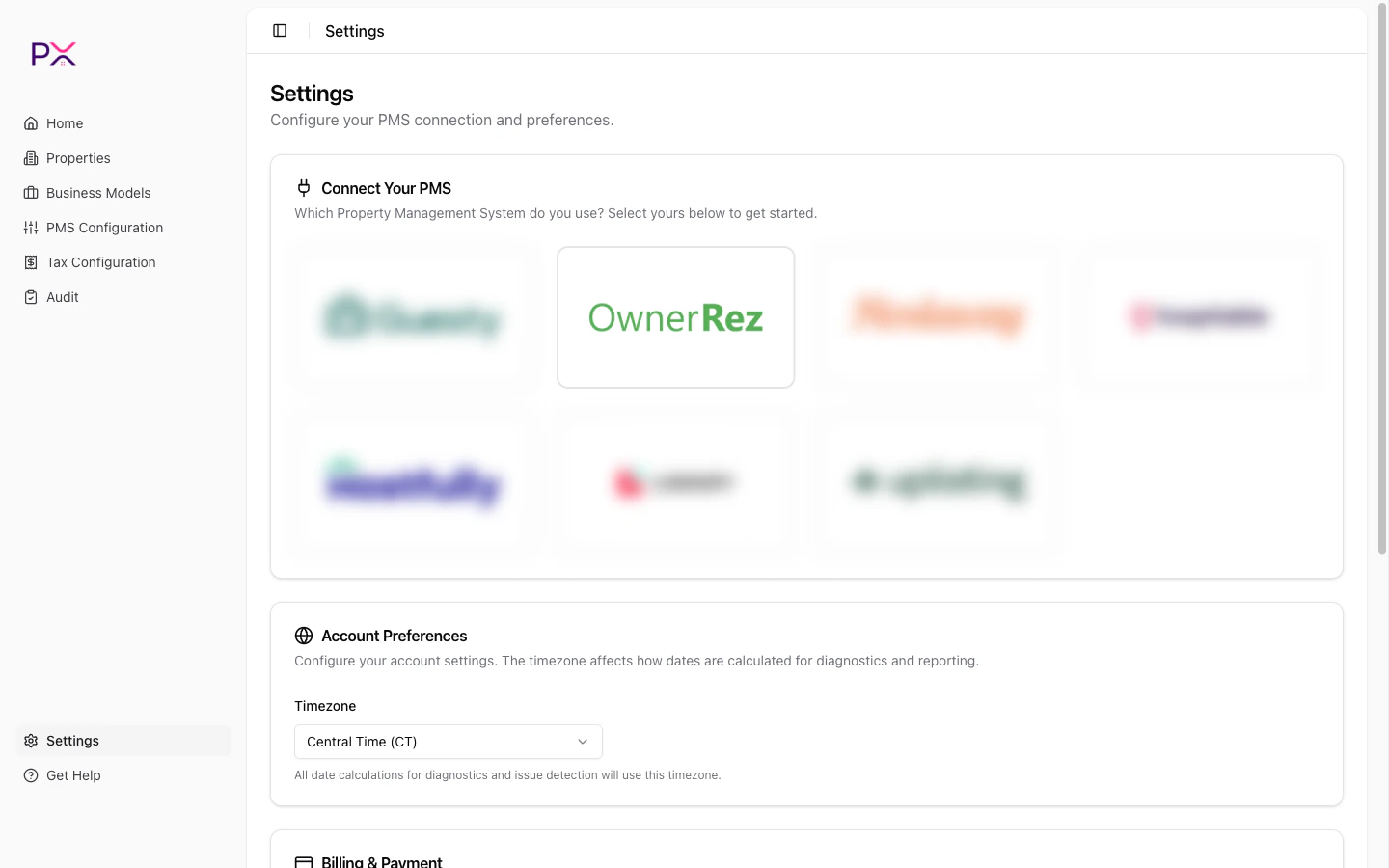
1. In PX, open **Settings**.
2. In the **PMS Connection** card, pick **OwnerRez**.
3. Click **Connect with OwnerRez**.
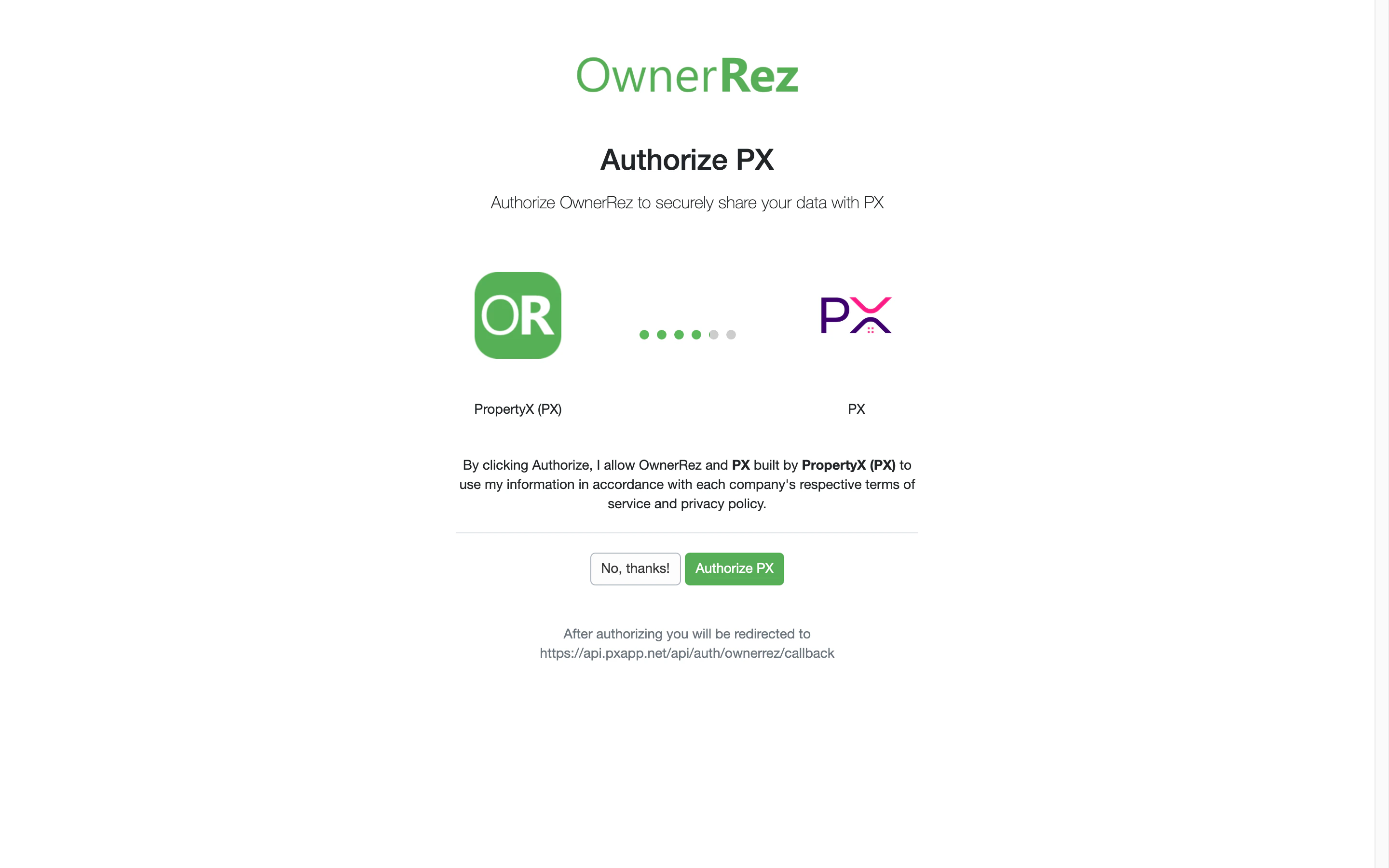
4. Sign in to OwnerRez when prompted.
5. On the consent screen, click **Authorize PX**.
## Before you start
You will need:
* An OwnerRez account with API access enabled (most plans include this; contact OwnerRez support if API is locked).
* An owner-level login - sub-users may not have permission to authorize third-party apps.
## Step 1 - authorize PX
1. In PX, open **Settings**.
2. In the **PMS Connection** card, pick **OwnerRez**.
3. Click **Connect with OwnerRez**.
4. Sign in to OwnerRez when prompted.
5. On the consent screen, click **Authorize PX**.
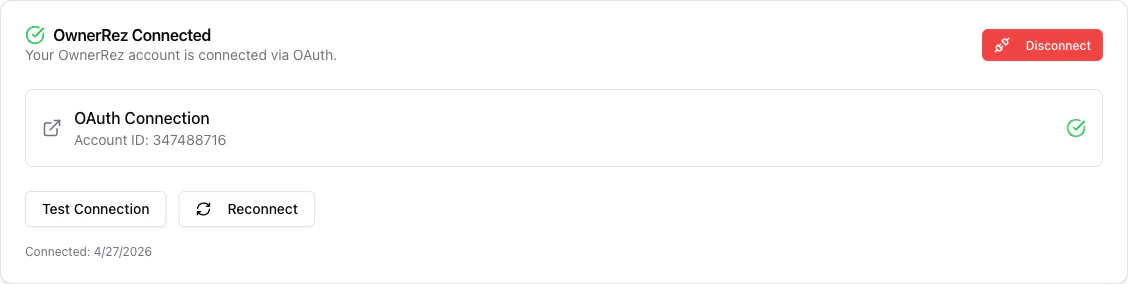
 OwnerRez redirects you back to PX. The **Integration Status** panel now shows green lights for **Admin**, **OAuth**, and **Webhook**.
 ## Step 2 - confirm the OwnerRez catalog
This step is unique to OwnerRez. **You must do it before audits return useful results.**
The moment you authorize the connection, PX:
1. Scans your last 18 months of bookings.
2. Infers a catalog of taxes, fees, and commission rates from the line items it sees.
3. Loads them into your **OwnerRez Catalog** marked `inferred`, ready for review.
You then:
1. Open **PMS Configuration** in the sidebar.
2. Walk through each row and:
* Click **Confirm** if the inferred rate matches what you actually charge.
* **Edit** the rate, unit (percent vs fixed), or applicability scope if needed.
* Click **Add row** for any tax or fee PX did not pick up.
* **Archive** entries that are out of date.
3. Use **Detect from bookings** later if you want to rescan after a rate change or new booking history.
Entries can be in one of four statuses:
* **inferred** - PX detected this from booking history. Not yet used by audits.
* **user-added** - you created it manually.
* **confirmed** - reviewed and approved. Used by audits.
* **archived** - hidden, not used.
Audits use **confirmed** and **user-added** rows only. If the catalog has no usable rows, audits short-circuit with a `CATALOG_EMPTY` finding instead of running.
See [OwnerRez Catalog](/pms-configuration/ownerrez-catalog) for the full UI walkthrough.
Where do you actually configure these rates? On OwnerRez itself - **Settings -> Taxes** (account-wide), **Settings -> Surcharges** (fees), and **Property Management -> Setup & Configuration** (owner commissions). PX's catalog is your audit baseline; OwnerRez is the system of record.
## What PX reads from OwnerRez
PX has **read-only** access. Nothing is written back.
**Properties** - id, name, address, bedrooms / bathrooms / max guests, currency, owner id.
*Synced on connect and on OwnerRez `property` webhooks.*
**Owners** - id, first / last name, email, properties owned.
*Synced with the parent property.*
**Reservations (bookings)** - id, property, status, check-in / check-out, guest name and count, channel and the channel's reservation number, currency, totals (amount, paid, balance, refunded, host fees), block flag, cancellation snapshot.
*Synced on demand, on `booking` webhooks, and during audits.*
**Per-charge financial data** - line amount and type (accommodation / surcharge / tax / expense), taxable flag, per-charge owner-vs-commission split. Plus payments, refunds, and deposits read separately so payouts can be reconciled to bookings.
*Synced with the parent booking and on `payment` / `refund` / `deposit` webhooks.*
**Tax / fee / commission catalog** - inferred from the last 18 months of bookings, then confirmed by you in **PMS Configuration -> OwnerRez Catalog**. OwnerRez's UI stays the system of record; PX's catalog is the audit baseline.
*Built on **Detect from bookings**; not synced thereafter.*
**Webhook events** - `entity_create` / `entity_update` / `entity_delete` on bookings, properties, payments, refunds, and deposits, plus `application_authorization_revoked` (cleanly tears down the OAuth credentials).
## Removing the connection
Open **Settings**, scroll to the **PMS Connection** card, and click **Delete**. This revokes the OAuth token, unregisters webhooks, and leaves your existing PX data in place.
## Troubleshooting
**OAuth pop-up does not return to PX.**
Pop-up blockers are a common cause. Allow pop-ups for `pxapp.net` and try again.
**Webhook status is red.**
OwnerRez may have rejected the webhook URL. Verify your OwnerRez plan includes webhook access and click **Refresh**.
**Audits return no results.**
The OwnerRez catalog is probably empty. Open **PMS Configuration**, run **Detect from bookings**, and confirm at least the taxes and any commission rules you charge.
**A booking has no inferred catalog rules.**
This is expected for one-off charges (cleaning fee on a single trip, manual adjustment). PX only infers rules that repeat. Add custom rows in the catalog for anything systematic.
## What's next
Confirm and edit the audit baseline.
Once the catalog is confirmed, run your first audit.
## Step 2 - confirm the OwnerRez catalog
This step is unique to OwnerRez. **You must do it before audits return useful results.**
The moment you authorize the connection, PX:
1. Scans your last 18 months of bookings.
2. Infers a catalog of taxes, fees, and commission rates from the line items it sees.
3. Loads them into your **OwnerRez Catalog** marked `inferred`, ready for review.
You then:
1. Open **PMS Configuration** in the sidebar.
2. Walk through each row and:
* Click **Confirm** if the inferred rate matches what you actually charge.
* **Edit** the rate, unit (percent vs fixed), or applicability scope if needed.
* Click **Add row** for any tax or fee PX did not pick up.
* **Archive** entries that are out of date.
3. Use **Detect from bookings** later if you want to rescan after a rate change or new booking history.
Entries can be in one of four statuses:
* **inferred** - PX detected this from booking history. Not yet used by audits.
* **user-added** - you created it manually.
* **confirmed** - reviewed and approved. Used by audits.
* **archived** - hidden, not used.
Audits use **confirmed** and **user-added** rows only. If the catalog has no usable rows, audits short-circuit with a `CATALOG_EMPTY` finding instead of running.
See [OwnerRez Catalog](/pms-configuration/ownerrez-catalog) for the full UI walkthrough.
Where do you actually configure these rates? On OwnerRez itself - **Settings -> Taxes** (account-wide), **Settings -> Surcharges** (fees), and **Property Management -> Setup & Configuration** (owner commissions). PX's catalog is your audit baseline; OwnerRez is the system of record.
## What PX reads from OwnerRez
PX has **read-only** access. Nothing is written back.
**Properties** - id, name, address, bedrooms / bathrooms / max guests, currency, owner id.
*Synced on connect and on OwnerRez `property` webhooks.*
**Owners** - id, first / last name, email, properties owned.
*Synced with the parent property.*
**Reservations (bookings)** - id, property, status, check-in / check-out, guest name and count, channel and the channel's reservation number, currency, totals (amount, paid, balance, refunded, host fees), block flag, cancellation snapshot.
*Synced on demand, on `booking` webhooks, and during audits.*
**Per-charge financial data** - line amount and type (accommodation / surcharge / tax / expense), taxable flag, per-charge owner-vs-commission split. Plus payments, refunds, and deposits read separately so payouts can be reconciled to bookings.
*Synced with the parent booking and on `payment` / `refund` / `deposit` webhooks.*
**Tax / fee / commission catalog** - inferred from the last 18 months of bookings, then confirmed by you in **PMS Configuration -> OwnerRez Catalog**. OwnerRez's UI stays the system of record; PX's catalog is the audit baseline.
*Built on **Detect from bookings**; not synced thereafter.*
**Webhook events** - `entity_create` / `entity_update` / `entity_delete` on bookings, properties, payments, refunds, and deposits, plus `application_authorization_revoked` (cleanly tears down the OAuth credentials).
## Removing the connection
Open **Settings**, scroll to the **PMS Connection** card, and click **Delete**. This revokes the OAuth token, unregisters webhooks, and leaves your existing PX data in place.
## Troubleshooting
**OAuth pop-up does not return to PX.**
Pop-up blockers are a common cause. Allow pop-ups for `pxapp.net` and try again.
**Webhook status is red.**
OwnerRez may have rejected the webhook URL. Verify your OwnerRez plan includes webhook access and click **Refresh**.
**Audits return no results.**
The OwnerRez catalog is probably empty. Open **PMS Configuration**, run **Detect from bookings**, and confirm at least the taxes and any commission rules you charge.
**A booking has no inferred catalog rules.**
This is expected for one-off charges (cleaning fee on a single trip, manual adjustment). PX only infers rules that repeat. Add custom rows in the catalog for anything systematic.
## What's next
Confirm and edit the audit baseline.
Once the catalog is confirmed, run your first audit.