> ## Documentation Index
> Fetch the complete documentation index at: https://docs.pxaccounting.com/llms.txt
> Use this file to discover all available pages before exploring further.
# Connect Lodgify
> Get your Lodgify API key and connect it to PX Accounting.
PX Accounting connects to Lodgify with an API key from your Lodgify account settings.
 ## Before you start
You will need:
* A Lodgify plan that includes public API access. Some plans do not - if the API key field is empty, you will need to contact Lodgify support to have one provisioned.
* Owner or admin login.
## Step 1 - locate your API key
1. Sign in to Lodgify.
2. Open **Settings** -> **Public API**.
3. Copy the **API key** shown on the page.
For background, see Lodgify's docs: [Authorization](https://docs.lodgify.com/docs/authorization).
If the API key field is empty:
* Contact Lodgify support and ask them to provision an API key for your account. Self-serve issuance is not always available.
* Confirm your plan includes API access.
The Lodgify API key carries full read and write scope. Treat it as a production credential.
## Step 2 - paste the key into PX
1. In PX, open **Settings**.
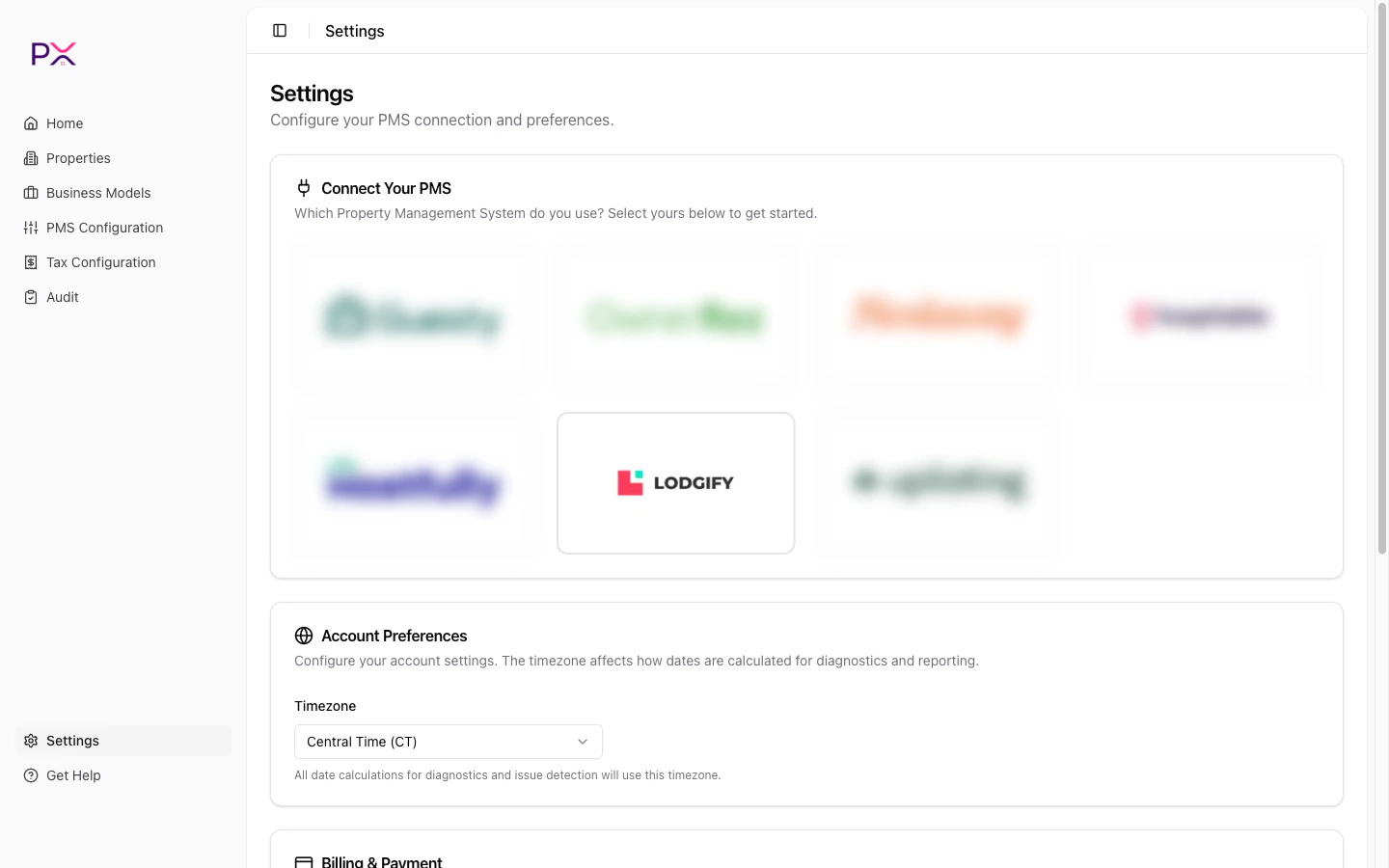
2. In the **PMS Connection** card, pick **Lodgify**.
3. Paste the **API key**.
4. Click **Save credentials**.
PX validates the key and the **Integration Status** panel shows three lights: **Admin**, **OAuth**, and **Webhook**.
## What PX reads from Lodgify
PX has **read-only** access. The Lodgify key technically carries write scope, but PX never uses it - nothing is written back.
**Properties** - id, name, address, bedrooms / bathrooms / max guests, property type, currency, active flag, thumbnail.
*Synced on connect, on `property` webhooks, and on Properties -> Sync from Lodgify.*
**Owners** - id, first / last name, email, phone.
*Synced with the parent property.*
**Reservations** - id, property, status, check-in / check-out, booking date, guest details, guest count, channel and confirmation code, currency, totals.
*Synced on demand, on `booking` webhooks, and during audits.*
**Per-charge financial data** - line amount and type (accommodation / fee / tax / discount), taxable flag, per-night accommodation breakdown, per-reservation totals, payments.
*Synced with the parent reservation; payments also via `payment` webhooks.*
**Tax catalog** - rates, names, applicability per property.
*Synced on Tax Configuration -> Refresh from PMS.*
**Webhook events** - booking created / updated / canceled, property created / updated, payment received / refunded.
## Removing the connection
Open **Settings**, scroll to the **PMS Connection** card, and click **Delete**. The key is wiped from PX and webhooks are unregistered.
## Troubleshooting
**Admin status is red.**
The API key is wrong or has been rotated. Pull the latest value from Lodgify and update PX.
**API key field is empty in Lodgify.**
Contact Lodgify support to have one provisioned.
**Webhook status is red.**
Verify your Lodgify plan includes webhook delivery. Click **Refresh** in PX after confirming.
## Before you start
You will need:
* A Lodgify plan that includes public API access. Some plans do not - if the API key field is empty, you will need to contact Lodgify support to have one provisioned.
* Owner or admin login.
## Step 1 - locate your API key
1. Sign in to Lodgify.
2. Open **Settings** -> **Public API**.
3. Copy the **API key** shown on the page.
For background, see Lodgify's docs: [Authorization](https://docs.lodgify.com/docs/authorization).
If the API key field is empty:
* Contact Lodgify support and ask them to provision an API key for your account. Self-serve issuance is not always available.
* Confirm your plan includes API access.
The Lodgify API key carries full read and write scope. Treat it as a production credential.
## Step 2 - paste the key into PX
1. In PX, open **Settings**.
2. In the **PMS Connection** card, pick **Lodgify**.
3. Paste the **API key**.
4. Click **Save credentials**.
PX validates the key and the **Integration Status** panel shows three lights: **Admin**, **OAuth**, and **Webhook**.
## What PX reads from Lodgify
PX has **read-only** access. The Lodgify key technically carries write scope, but PX never uses it - nothing is written back.
**Properties** - id, name, address, bedrooms / bathrooms / max guests, property type, currency, active flag, thumbnail.
*Synced on connect, on `property` webhooks, and on Properties -> Sync from Lodgify.*
**Owners** - id, first / last name, email, phone.
*Synced with the parent property.*
**Reservations** - id, property, status, check-in / check-out, booking date, guest details, guest count, channel and confirmation code, currency, totals.
*Synced on demand, on `booking` webhooks, and during audits.*
**Per-charge financial data** - line amount and type (accommodation / fee / tax / discount), taxable flag, per-night accommodation breakdown, per-reservation totals, payments.
*Synced with the parent reservation; payments also via `payment` webhooks.*
**Tax catalog** - rates, names, applicability per property.
*Synced on Tax Configuration -> Refresh from PMS.*
**Webhook events** - booking created / updated / canceled, property created / updated, payment received / refunded.
## Removing the connection
Open **Settings**, scroll to the **PMS Connection** card, and click **Delete**. The key is wiped from PX and webhooks are unregistered.
## Troubleshooting
**Admin status is red.**
The API key is wrong or has been rotated. Pull the latest value from Lodgify and update PX.
**API key field is empty in Lodgify.**
Contact Lodgify support to have one provisioned.
**Webhook status is red.**
Verify your Lodgify plan includes webhook delivery. Click **Refresh** in PX after confirming.