> ## Documentation Index
> Fetch the complete documentation index at: https://docs.pxaccounting.com/llms.txt
> Use this file to discover all available pages before exploring further.
# Connect Hostaway
> Generate a Hostaway API key and connect it to PX Accounting.
PX Accounting connects to Hostaway with an Account ID and a Secret Key generated inside Hostaway.
 ## Before you start
You will need:
* An admin user on your Hostaway account with permission to manage the Public API.
* The ability to copy the Secret Key once it is shown - Hostaway only displays it in the modal at creation time.
## Step 1 - generate Hostaway credentials
1. Sign in to Hostaway.
2. Go to **Settings** -> **Hostaway API**.
* Direct link: [dashboard.hostaway.com/settings/hostaway-api](https://dashboard.hostaway.com/settings/hostaway-api)
3. Click **Create**.
4. Pick **Hostaway Public API** as the partner (this is what PX uses).
5. Hostaway shows your **Account ID** and a **Secret Key** in a modal.
The Secret Key is shown **only once**. Copy it before closing the modal. If you lose it, generate a new one.
For background, see Hostaway's article: [Public API account and secret key](https://support.hostaway.com/hc/en-us/articles/360002576293).
## Step 2 - paste credentials into PX
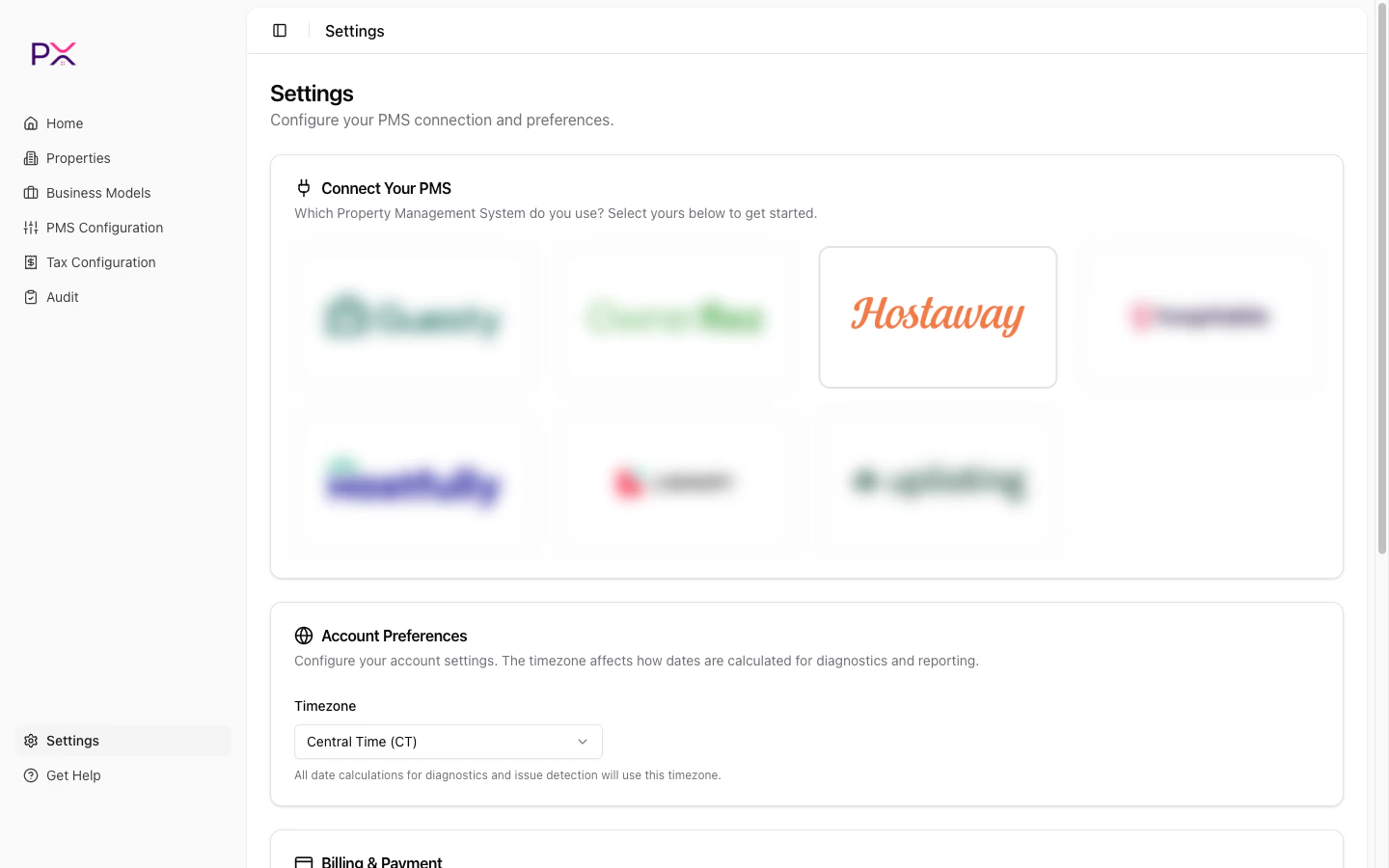
1. In PX, open **Settings**.
2. In the **PMS Connection** card, pick **Hostaway**.
3. Paste your **Account ID** and **Secret Key**.
4. Click **Save credentials**.
PX validates the credentials and the **Integration Status** panel shows three lights: **Admin**, **OAuth**, and **Webhook**.
## What PX reads from Hostaway
PX has **read-only** access. Nothing is written back.
**Properties** - id, name, address (with lat / lng), bedrooms / bathrooms / max guests, property type, currency, cleaning fee, base nightly rate, minimum-stay default, active flag, thumbnail.
*Synced on connect, on `listing.*` webhooks, and on Properties -> Sync from Hostaway.*
**Owners** - id, first / last name, email, phone, properties owned.
*Synced with the parent property.*
**Reservations** - id, listing, status, check-in / check-out, booking date, guest details, guest count breakdown, channel and confirmation codes, currency, totals (amount, paid, balance, refunded), cancellation snapshot.
*Synced on demand, on `reservation.*` webhooks, and during audits.*
**Per-charge financial data** - line amount and type (accommodation / cleaning / fee / tax), taxable flag, per-night accommodation breakdown, per-reservation totals (subtotal, taxes, host service fee, commission, owner payout, net income), channel-platform fees, security deposit and damage protection.
*Synced with the parent reservation.*
**Tax catalog** - account-level rates, applicability, and per-channel sync settings.
*Synced on Tax Configuration -> Refresh from PMS.*
**Webhook events** - listing created / updated / deleted, reservation created / updated / canceled, payment received / refunded.
## Removing the connection
Open **Settings**, scroll to the **PMS Connection** card, and click **Delete**. This removes the credentials from PX and unregisters webhooks.
## Troubleshooting
**Admin status is red after saving credentials.**
The Account ID is wrong or the API token has been revoked. Generate a new one.
**Webhook status is red.**
Hostaway plan limits or webhook endpoint conflicts can cause this. Confirm your plan includes webhooks and click **Refresh**.
**Access tokens stop working after a long time.**
Hostaway access tokens (derived from key + secret) expire after 24 months. Re-issue the key in Hostaway and update PX.
## Before you start
You will need:
* An admin user on your Hostaway account with permission to manage the Public API.
* The ability to copy the Secret Key once it is shown - Hostaway only displays it in the modal at creation time.
## Step 1 - generate Hostaway credentials
1. Sign in to Hostaway.
2. Go to **Settings** -> **Hostaway API**.
* Direct link: [dashboard.hostaway.com/settings/hostaway-api](https://dashboard.hostaway.com/settings/hostaway-api)
3. Click **Create**.
4. Pick **Hostaway Public API** as the partner (this is what PX uses).
5. Hostaway shows your **Account ID** and a **Secret Key** in a modal.
The Secret Key is shown **only once**. Copy it before closing the modal. If you lose it, generate a new one.
For background, see Hostaway's article: [Public API account and secret key](https://support.hostaway.com/hc/en-us/articles/360002576293).
## Step 2 - paste credentials into PX
1. In PX, open **Settings**.
2. In the **PMS Connection** card, pick **Hostaway**.
3. Paste your **Account ID** and **Secret Key**.
4. Click **Save credentials**.
PX validates the credentials and the **Integration Status** panel shows three lights: **Admin**, **OAuth**, and **Webhook**.
## What PX reads from Hostaway
PX has **read-only** access. Nothing is written back.
**Properties** - id, name, address (with lat / lng), bedrooms / bathrooms / max guests, property type, currency, cleaning fee, base nightly rate, minimum-stay default, active flag, thumbnail.
*Synced on connect, on `listing.*` webhooks, and on Properties -> Sync from Hostaway.*
**Owners** - id, first / last name, email, phone, properties owned.
*Synced with the parent property.*
**Reservations** - id, listing, status, check-in / check-out, booking date, guest details, guest count breakdown, channel and confirmation codes, currency, totals (amount, paid, balance, refunded), cancellation snapshot.
*Synced on demand, on `reservation.*` webhooks, and during audits.*
**Per-charge financial data** - line amount and type (accommodation / cleaning / fee / tax), taxable flag, per-night accommodation breakdown, per-reservation totals (subtotal, taxes, host service fee, commission, owner payout, net income), channel-platform fees, security deposit and damage protection.
*Synced with the parent reservation.*
**Tax catalog** - account-level rates, applicability, and per-channel sync settings.
*Synced on Tax Configuration -> Refresh from PMS.*
**Webhook events** - listing created / updated / deleted, reservation created / updated / canceled, payment received / refunded.
## Removing the connection
Open **Settings**, scroll to the **PMS Connection** card, and click **Delete**. This removes the credentials from PX and unregisters webhooks.
## Troubleshooting
**Admin status is red after saving credentials.**
The Account ID is wrong or the API token has been revoked. Generate a new one.
**Webhook status is red.**
Hostaway plan limits or webhook endpoint conflicts can cause this. Confirm your plan includes webhooks and click **Refresh**.
**Access tokens stop working after a long time.**
Hostaway access tokens (derived from key + secret) expire after 24 months. Re-issue the key in Hostaway and update PX.