> ## Documentation Index
> Fetch the complete documentation index at: https://docs.pxaccounting.com/llms.txt
> Use this file to discover all available pages before exploring further.
# Connect Guesty
> Generate Guesty API credentials and connect them to PX Accounting.
PX Accounting connects to Guesty using the **Open API** OAuth flow. You will paste a Client ID and Client Secret into PX, and PX exchanges them for an access token that it stores encrypted.
 ## Before you start
You will need:
* An admin user on your Guesty account.
* Permission to create OAuth applications under **Integrations** -> **API**.
## Step 1 - generate Guesty API credentials
1. Sign in to Guesty.
2. In the side nav, open **Integrations** -> **OAuth applications**.
3. Click **New application** at the top right.
4. Enter a name (`PX Accounting`) and the same in description, then create it.
5. Copy the generated **Client ID** and **Client Secret** before closing the page.
For background, see Guesty's [Open API quick-start guide](https://open-api-docs.guesty.com/docs/quick-start-guide). The Open API is for direct PMS customers; Marketplace and Channel partners use Guesty's partner program instead.
The credentials grant read access to listings, reservations, and accounting data. PX never writes back to Guesty.
Save the Client Secret somewhere safe before you leave the Guesty page - Guesty does not show it again.
## Step 2 - paste credentials into PX
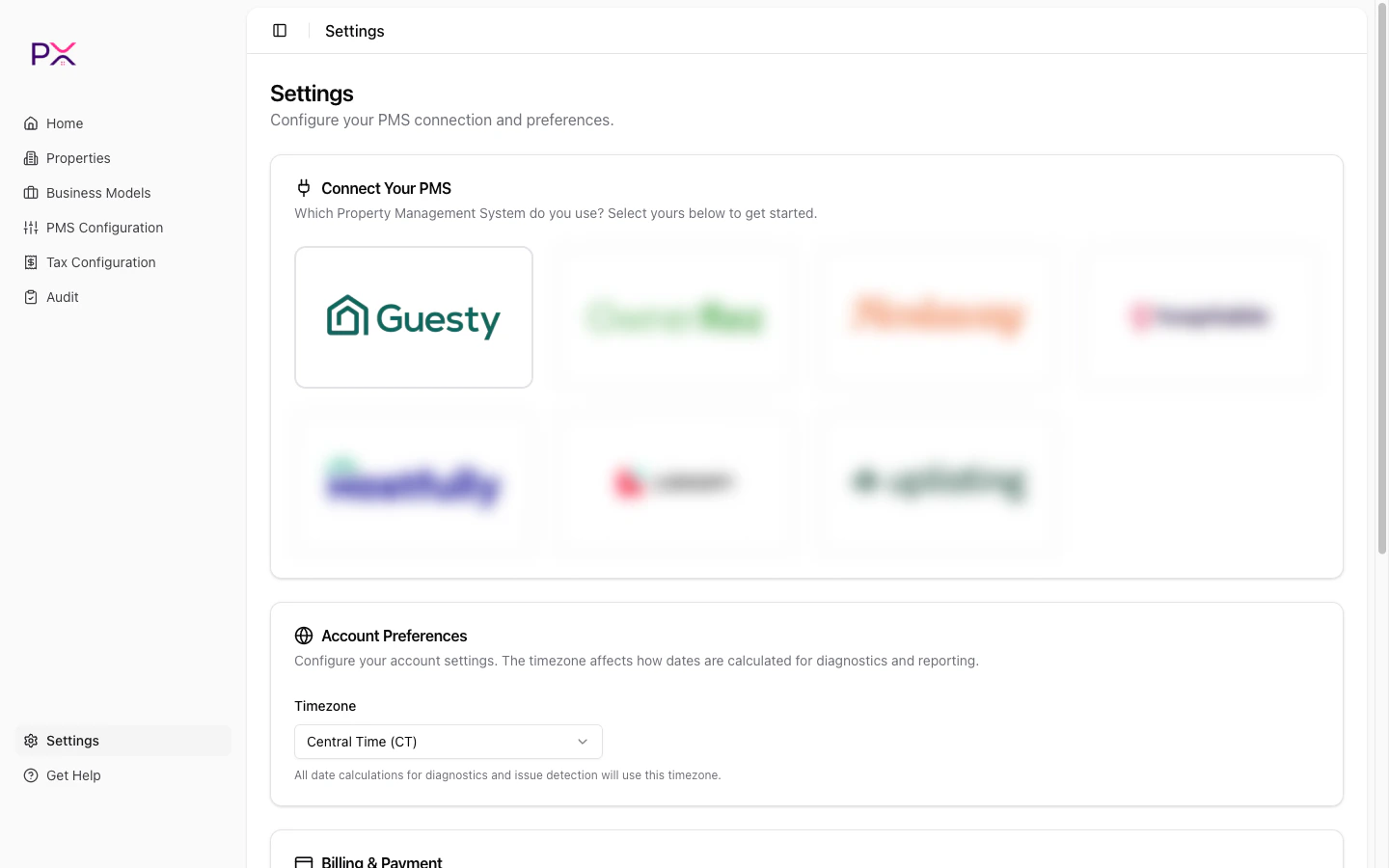
1. In PX, open **Settings**.
2. In the **PMS Connection** card, pick **Guesty**.
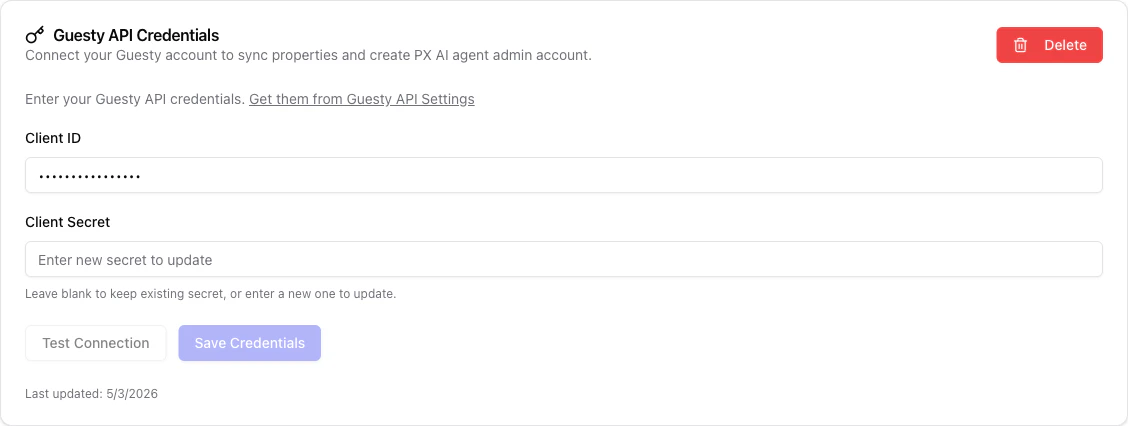
3. Paste the **Client ID** and **Client Secret**.
4. Click **Save credentials**.
PX validates the credentials immediately. On success the **Integration Status** panel below the card shows three lights:
* **Admin** - PX can authenticate against the Guesty admin API.
* **OAuth** - the access token was issued and stored encrypted.
* **Webhook** - PX registered its webhook endpoint with your account.
If any light is red, click **Refresh** to retry. The error message under each light tells you what failed (most commonly: wrong Client ID, expired Client Secret, or insufficient scopes).
## Before you start
You will need:
* An admin user on your Guesty account.
* Permission to create OAuth applications under **Integrations** -> **API**.
## Step 1 - generate Guesty API credentials
1. Sign in to Guesty.
2. In the side nav, open **Integrations** -> **OAuth applications**.
3. Click **New application** at the top right.
4. Enter a name (`PX Accounting`) and the same in description, then create it.
5. Copy the generated **Client ID** and **Client Secret** before closing the page.
For background, see Guesty's [Open API quick-start guide](https://open-api-docs.guesty.com/docs/quick-start-guide). The Open API is for direct PMS customers; Marketplace and Channel partners use Guesty's partner program instead.
The credentials grant read access to listings, reservations, and accounting data. PX never writes back to Guesty.
Save the Client Secret somewhere safe before you leave the Guesty page - Guesty does not show it again.
## Step 2 - paste credentials into PX
1. In PX, open **Settings**.
2. In the **PMS Connection** card, pick **Guesty**.
3. Paste the **Client ID** and **Client Secret**.
4. Click **Save credentials**.
PX validates the credentials immediately. On success the **Integration Status** panel below the card shows three lights:
* **Admin** - PX can authenticate against the Guesty admin API.
* **OAuth** - the access token was issued and stored encrypted.
* **Webhook** - PX registered its webhook endpoint with your account.
If any light is red, click **Refresh** to retry. The error message under each light tells you what failed (most commonly: wrong Client ID, expired Client Secret, or insufficient scopes).
 ## What PX reads from Guesty
PX has **read-only** access. Nothing is written back.
**Properties** - id, name, address, bedrooms / bathrooms / accommodates, currency, default cleaning fee, active flag, thumbnail.
*Synced on connect, on Guesty `listing.*` webhooks, and on Properties -> Sync from Guesty.*
**Reservations** - id, listing, status, check-in / check-out, booking date, guest name and count, channel, confirmation code, currency, totals (amount, paid, balance, refunded), cancellation snapshot.
*Synced on demand (Property detail), on `reservation.*` webhooks, and during audits.*
**Per-charge financial data** - line amount and type (accommodation / fee / expense / tax), taxable flag, per-night accommodation breakdown, per-reservation totals.
*Synced with the parent reservation.*
**Tax catalog** - account-level and per-listing taxes: rates, applicability, metadata.
*Synced on Tax Configuration -> Refresh from PMS.*
**Webhook events** - `listing.new` / `updated` / `removed`, `reservation.new` / `updated`, and `payments.*` (acknowledged - financial state is re-read from the reservation, not the webhook payload, so a missed event never causes drift).
## Removing the connection
Open **Settings**, scroll to the **PMS Connection** card, and click **Delete**. This:
* Removes the encrypted credentials.
* Unregisters the webhook.
* Leaves your existing PX data (properties, business models, audit history) in place.
You can reconnect anytime by repeating the steps above.
## Troubleshooting
**Admin status is red after saving credentials.**
The Client ID is wrong or the application was deleted in Guesty. Re-create it and paste fresh credentials.
**OAuth status is red.**
The Client Secret is wrong or expired. Generate a new secret in Guesty and update PX.
**Webhook status is red.**
PX could not register its webhook. Most often this is a Guesty plan limitation - some plans cap the number of webhooks. Remove an unused webhook in Guesty and click **Refresh** in PX.
**Sync runs but no properties appear.**
Check that the listings are marked active in Guesty. Also confirm the Guesty user that authorized the app has visibility into the listings (sub-accounts may be restricted).
## What's next
What gets synced when - and what stays cached.
Browse your synced portfolio and toggle auto-fix.
## What PX reads from Guesty
PX has **read-only** access. Nothing is written back.
**Properties** - id, name, address, bedrooms / bathrooms / accommodates, currency, default cleaning fee, active flag, thumbnail.
*Synced on connect, on Guesty `listing.*` webhooks, and on Properties -> Sync from Guesty.*
**Reservations** - id, listing, status, check-in / check-out, booking date, guest name and count, channel, confirmation code, currency, totals (amount, paid, balance, refunded), cancellation snapshot.
*Synced on demand (Property detail), on `reservation.*` webhooks, and during audits.*
**Per-charge financial data** - line amount and type (accommodation / fee / expense / tax), taxable flag, per-night accommodation breakdown, per-reservation totals.
*Synced with the parent reservation.*
**Tax catalog** - account-level and per-listing taxes: rates, applicability, metadata.
*Synced on Tax Configuration -> Refresh from PMS.*
**Webhook events** - `listing.new` / `updated` / `removed`, `reservation.new` / `updated`, and `payments.*` (acknowledged - financial state is re-read from the reservation, not the webhook payload, so a missed event never causes drift).
## Removing the connection
Open **Settings**, scroll to the **PMS Connection** card, and click **Delete**. This:
* Removes the encrypted credentials.
* Unregisters the webhook.
* Leaves your existing PX data (properties, business models, audit history) in place.
You can reconnect anytime by repeating the steps above.
## Troubleshooting
**Admin status is red after saving credentials.**
The Client ID is wrong or the application was deleted in Guesty. Re-create it and paste fresh credentials.
**OAuth status is red.**
The Client Secret is wrong or expired. Generate a new secret in Guesty and update PX.
**Webhook status is red.**
PX could not register its webhook. Most often this is a Guesty plan limitation - some plans cap the number of webhooks. Remove an unused webhook in Guesty and click **Refresh** in PX.
**Sync runs but no properties appear.**
Check that the listings are marked active in Guesty. Also confirm the Guesty user that authorized the app has visibility into the listings (sub-accounts may be restricted).
## What's next
What gets synced when - and what stays cached.
Browse your synced portfolio and toggle auto-fix.