> ## Documentation Index
> Fetch the complete documentation index at: https://docs.pxaccounting.com/llms.txt
> Use this file to discover all available pages before exploring further.
# Quickstart
> Connect your PMS and run your first audit.
This walkthrough takes you from a fresh account to a complete audit. Set aside about 15 minutes the first time.
Open [pxapp.net](https://pxapp.net) and sign in. Use Google, Microsoft, or email - whichever you registered with.
First-time visitors are taken straight to **Settings** because PX needs a PMS connection before it can do anything useful.
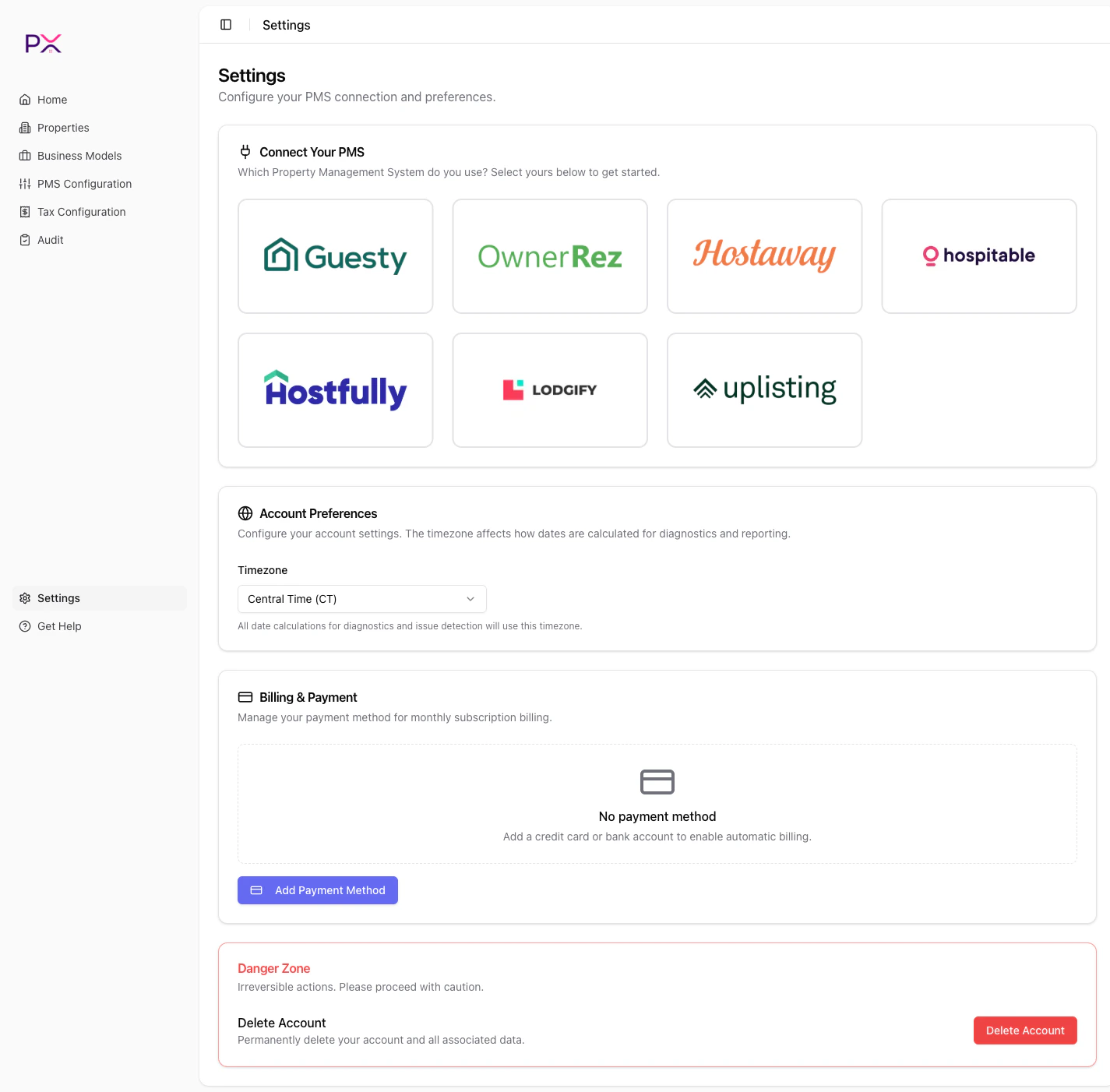
On the **Settings** page, find the **PMS Connection** card and pick your provider. Each PMS has a dedicated setup guide:
* [Connect Guesty](/integrations/connect-guesty)
* [Connect OwnerRez](/integrations/connect-ownerrez)
* [Connect Hostaway](/integrations/connect-hostaway)
* [Connect Hospitable](/integrations/connect-hospitable)
* [Connect Hostfully](/integrations/connect-hostfully)
* [Connect Lodgify](/integrations/connect-lodgify)
* [Connect Uplisting](/integrations/connect-uplisting)
Once connected, the **Integration Status** panel shows green lights for Admin, OAuth, and Webhook, and your properties are pulled in automatically.
 Open **Tax Configuration**. PX reads the taxes you have set up in your PMS and shows them in two tabs:
* **Account-level** - taxes that apply to every listing.
* **Per-listing** - listings grouped by whether they inherit account taxes or override them.
Most users only need to do two things on this page:
1. **Set channel sync overrides** if a tax should not sync to specific channels (Airbnb, Booking.com, etc.). PX uses these overrides during audits.
2. **Run the Airbnb remittance wizard** to tell PX which taxes Airbnb collects on your behalf. Findings for Airbnb-remitted taxes are suppressed once configured.
Read [Tax Configuration overview](/tax-configuration/overview) before changing anything in production.
Open the **Audits** page.
* Pick a **start date** and **end date** (the range cannot exceed 62 days).
* Optionally pick one **listing** (or leave as "All Listings").
* Click **Generate Audit**.
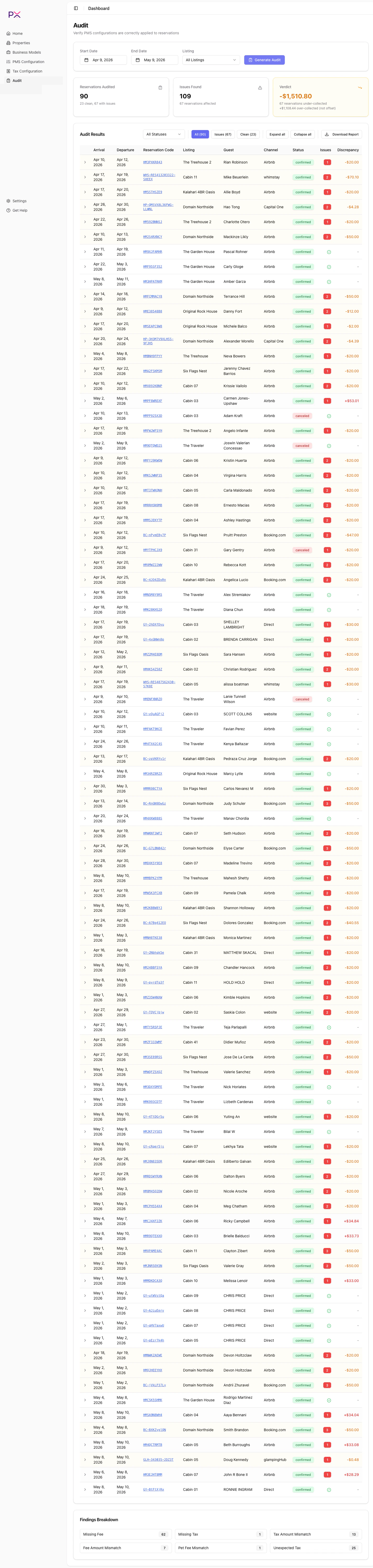
PX queues a background job and shows a progress card. When it finishes you see:
* Three summary cards: **Reservations Audited**, **Issues Found**, **Verdict**.
* A results table - one row per reservation, expandable to show line items and findings.
* A **Findings Breakdown** card with counts by finding type.
* A **Download Report** button to export the audit as a PDF.
Read [Run an audit](/audit/run-an-audit) for what each finding type means.
Open **Tax Configuration**. PX reads the taxes you have set up in your PMS and shows them in two tabs:
* **Account-level** - taxes that apply to every listing.
* **Per-listing** - listings grouped by whether they inherit account taxes or override them.
Most users only need to do two things on this page:
1. **Set channel sync overrides** if a tax should not sync to specific channels (Airbnb, Booking.com, etc.). PX uses these overrides during audits.
2. **Run the Airbnb remittance wizard** to tell PX which taxes Airbnb collects on your behalf. Findings for Airbnb-remitted taxes are suppressed once configured.
Read [Tax Configuration overview](/tax-configuration/overview) before changing anything in production.
Open the **Audits** page.
* Pick a **start date** and **end date** (the range cannot exceed 62 days).
* Optionally pick one **listing** (or leave as "All Listings").
* Click **Generate Audit**.
PX queues a background job and shows a progress card. When it finishes you see:
* Three summary cards: **Reservations Audited**, **Issues Found**, **Verdict**.
* A results table - one row per reservation, expandable to show line items and findings.
* A **Findings Breakdown** card with counts by finding type.
* A **Download Report** button to export the audit as a PDF.
Read [Run an audit](/audit/run-an-audit) for what each finding type means.
 ## Where to go next
Severity, expected vs actual, and what each finding means.
Add a card or bank account to keep your subscription active.
Timezone, integration status, and account preferences.
## Where to go next
Severity, expected vs actual, and what each finding means.
Add a card or bank account to keep your subscription active.
Timezone, integration status, and account preferences.