> ## Documentation Index
> Fetch the complete documentation index at: https://docs.pxaccounting.com/llms.txt
> Use this file to discover all available pages before exploring further.
# Create a business model
> Walk through the six-step wizard to build a new business model.
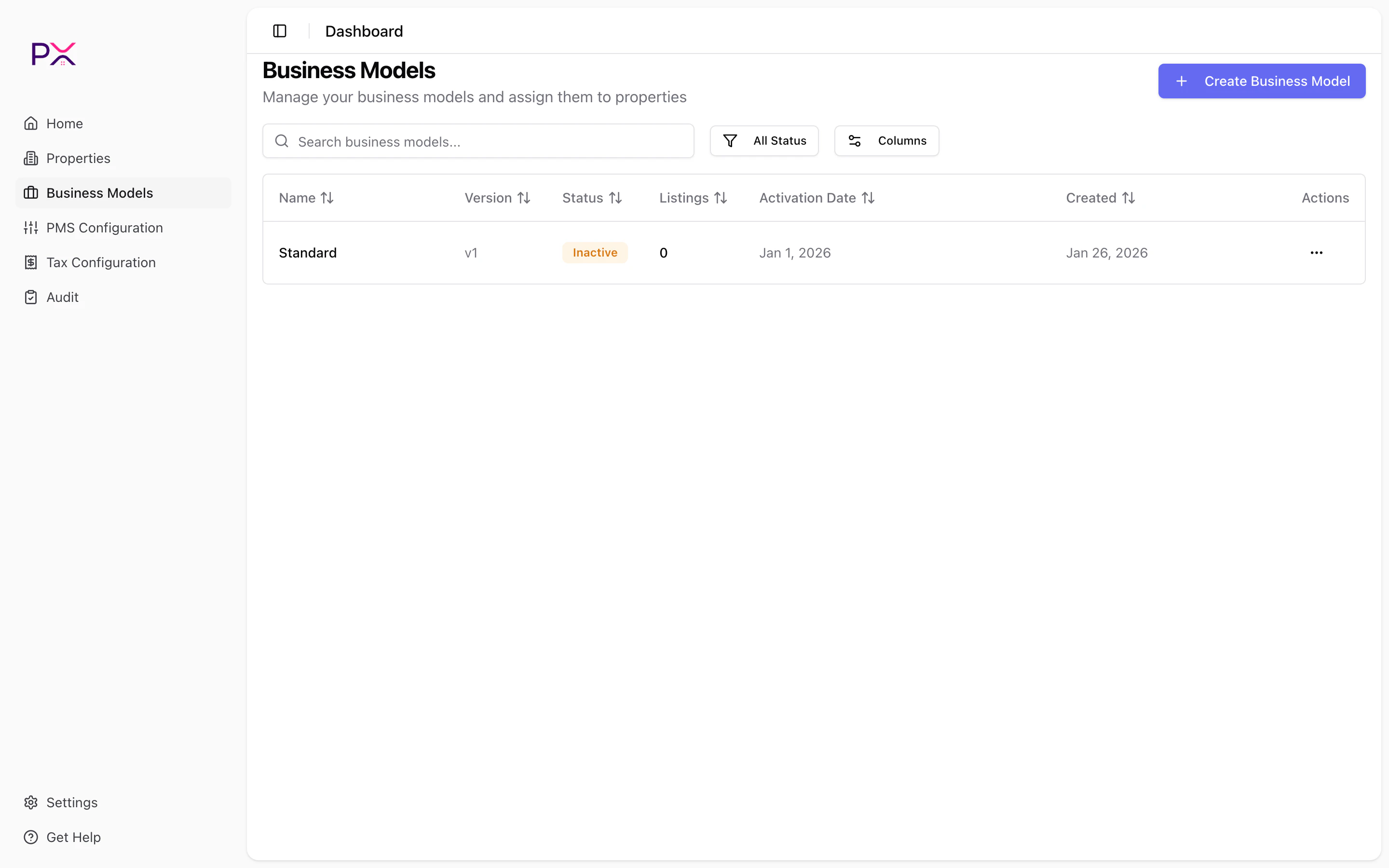
Open **Business Models** in the sidebar and click **Create Business Model** to launch the wizard.
 ## Step 1 - welcome
A quick intro screen explaining what the wizard sets up. Click **Let's Get Started** to continue.
The model is created in **Draft** status when you save it at the end of the wizard.
## Step 1 - welcome
A quick intro screen explaining what the wizard sets up. Click **Let's Get Started** to continue.
The model is created in **Draft** status when you save it at the end of the wizard.
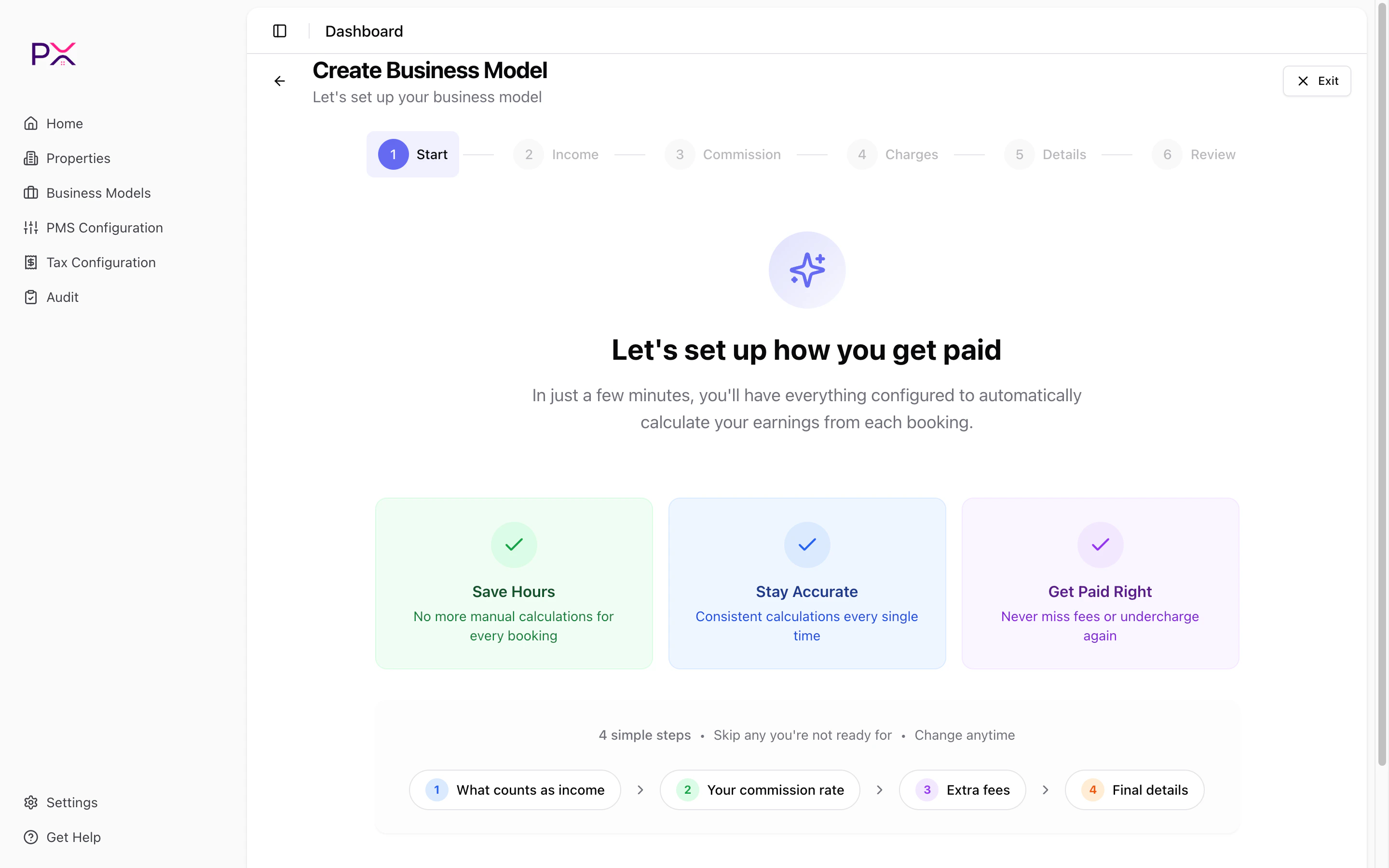 ## Step 2 - what counts as income
Define which fees count as **income** vs **expense** for the purpose of net rental income.
* **Income items** - check the items you want included in net rental income. Anything checked here adds to revenue when audits compute the income total.
* **Expense items** - check the items you treat as deductions from gross revenue.
* **Excluded items** (expandable) - everything else that PX detects but should not affect the income total. Useful for refunds, security deposits, and pass-through fees.
You can re-classify items later - changing them creates a new version of the model. See [Net rental income](/business-models/net-rental-income) for the full reference.
## Step 2 - what counts as income
Define which fees count as **income** vs **expense** for the purpose of net rental income.
* **Income items** - check the items you want included in net rental income. Anything checked here adds to revenue when audits compute the income total.
* **Expense items** - check the items you treat as deductions from gross revenue.
* **Excluded items** (expandable) - everything else that PX detects but should not affect the income total. Useful for refunds, security deposits, and pass-through fees.
You can re-classify items later - changing them creates a new version of the model. See [Net rental income](/business-models/net-rental-income) for the full reference.
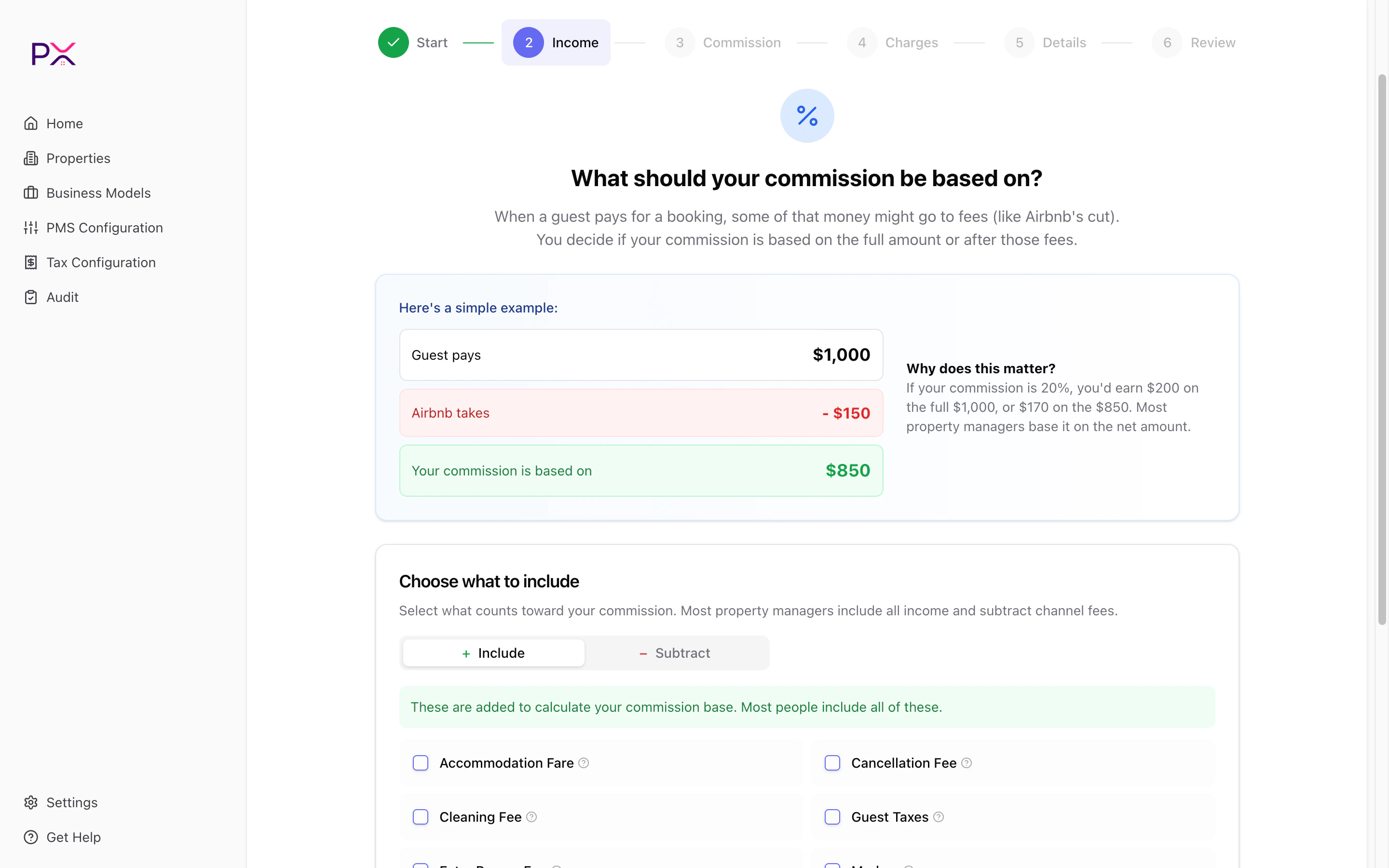 ## Step 3 - your commission rate
Set the percentage you keep from each booking and when that revenue is recognized.
* **Commission rate** - the default percent you earn (e.g. `20`).
* **Recognition timing** - **When guest checks in**, **When guest checks out**, or **Daily** (spread per-night).
* **Owner GST/VAT on commission** (optional) - charge the owner a tax on top of commission. Pick a category and percent.
* **Per-channel overrides** (optional) - different rates for different channels (e.g. Airbnb 18%, Vrbo 22%).
See [Commission](/business-models/commission) for the full reference.
## Step 3 - your commission rate
Set the percentage you keep from each booking and when that revenue is recognized.
* **Commission rate** - the default percent you earn (e.g. `20`).
* **Recognition timing** - **When guest checks in**, **When guest checks out**, or **Daily** (spread per-night).
* **Owner GST/VAT on commission** (optional) - charge the owner a tax on top of commission. Pick a category and percent.
* **Per-channel overrides** (optional) - different rates for different channels (e.g. Airbnb 18%, Vrbo 22%).
See [Commission](/business-models/commission) for the full reference.
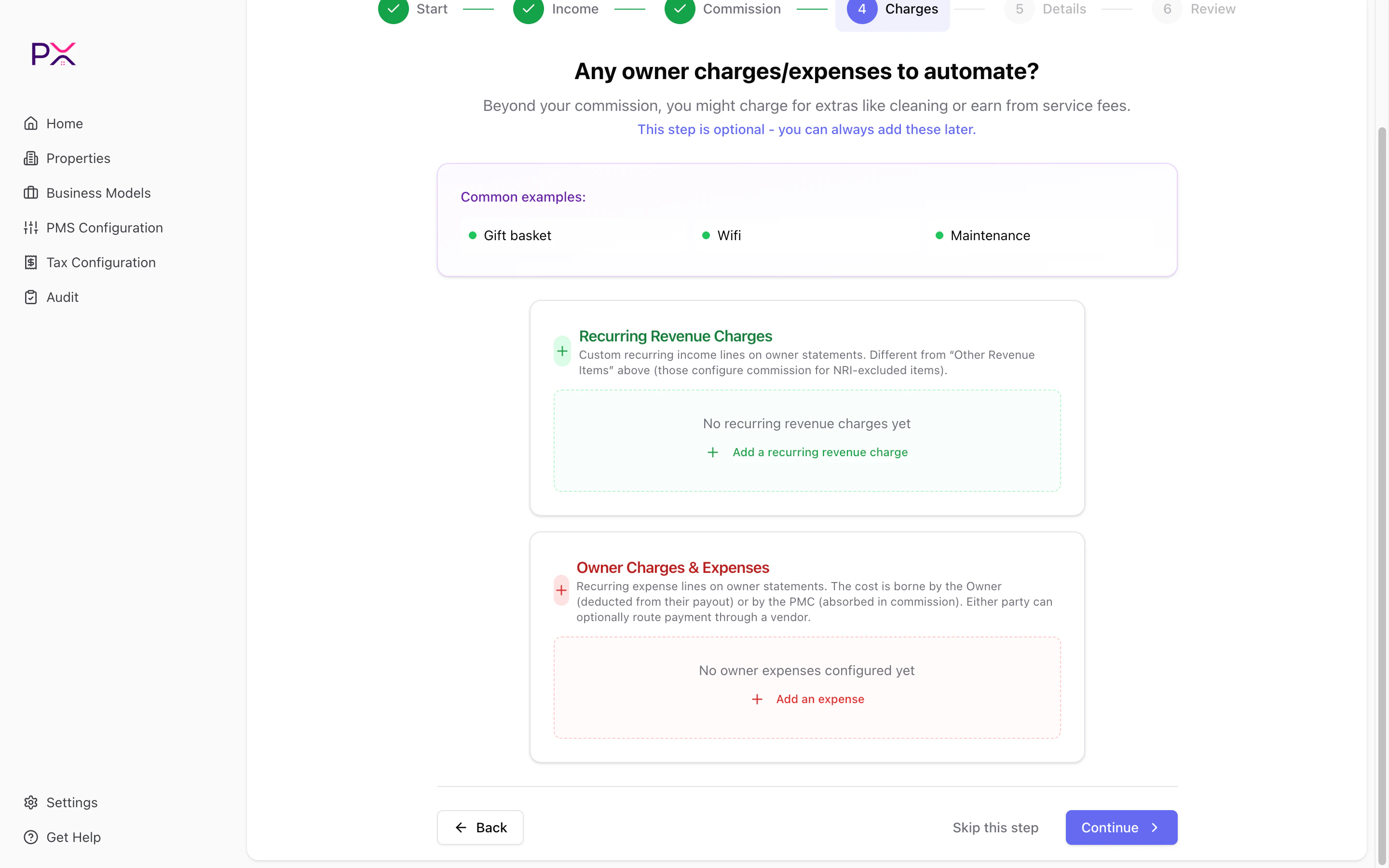
 ## Step 4 - recurring charges (optional)
Add charges that recur on every reservation - cleaning, gift baskets, wifi, maintenance, owner-paid insurance, and so on.
There are two buckets:
* **Revenue items** - amounts that flow to you as income.
* **Owner charges and expenses** - amounts the owner pays out.
Each entry has a name, category, amount (fixed or variable), per-stay vs per-night basis, recognition timing, and optional owner VAT/GST and channel exclusions. You can skip this step entirely and add charges later. See [Trust account](/business-models/trust-account) for the full reference.
## Step 4 - recurring charges (optional)
Add charges that recur on every reservation - cleaning, gift baskets, wifi, maintenance, owner-paid insurance, and so on.
There are two buckets:
* **Revenue items** - amounts that flow to you as income.
* **Owner charges and expenses** - amounts the owner pays out.
Each entry has a name, category, amount (fixed or variable), per-stay vs per-night basis, recognition timing, and optional owner VAT/GST and channel exclusions. You can skip this step entirely and add charges later. See [Trust account](/business-models/trust-account) for the full reference.
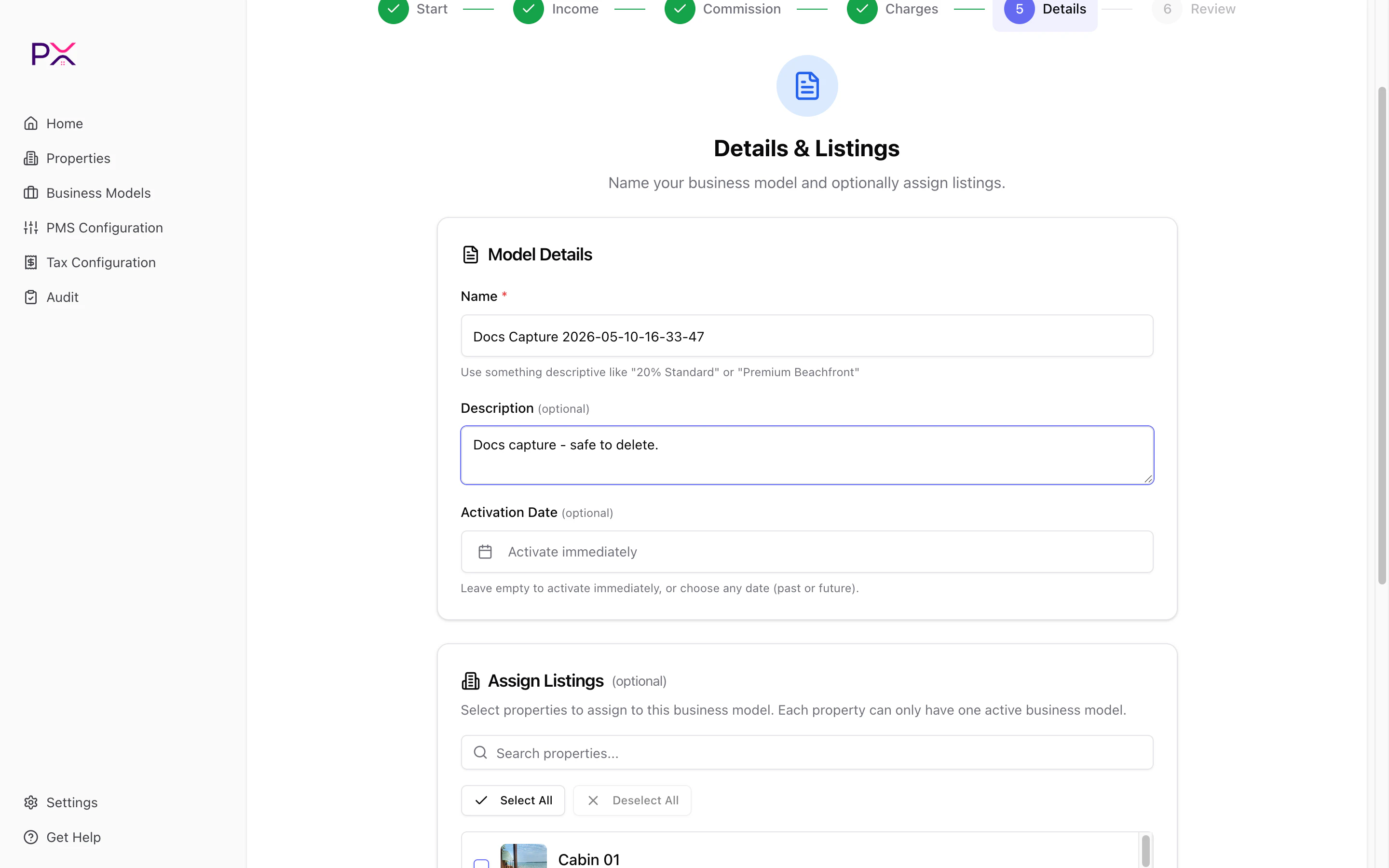
 ## Step 5 - details and listings
| Field | Meaning |
| ------------------- | ------------------------------------------------------------------------------------------------------------------------------------------------------------------------------ |
| **Name** (required) | A short label like `Standard Management 20%` or `Premium Beachfront`. Shows on every assigned property. |
| **Description** | Optional notes. |
| **Activation date** | The date the model becomes effective. Audits and diagnostics for reservations on or after this date use this model; reservations before it use whatever model was active then. |
| **Listings** | Tick the properties this model should govern. You can also leave the picker empty here and assign later from the model detail page. |
## Step 5 - details and listings
| Field | Meaning |
| ------------------- | ------------------------------------------------------------------------------------------------------------------------------------------------------------------------------ |
| **Name** (required) | A short label like `Standard Management 20%` or `Premium Beachfront`. Shows on every assigned property. |
| **Description** | Optional notes. |
| **Activation date** | The date the model becomes effective. Audits and diagnostics for reservations on or after this date use this model; reservations before it use whatever model was active then. |
| **Listings** | Tick the properties this model should govern. You can also leave the picker empty here and assign later from the model detail page. |
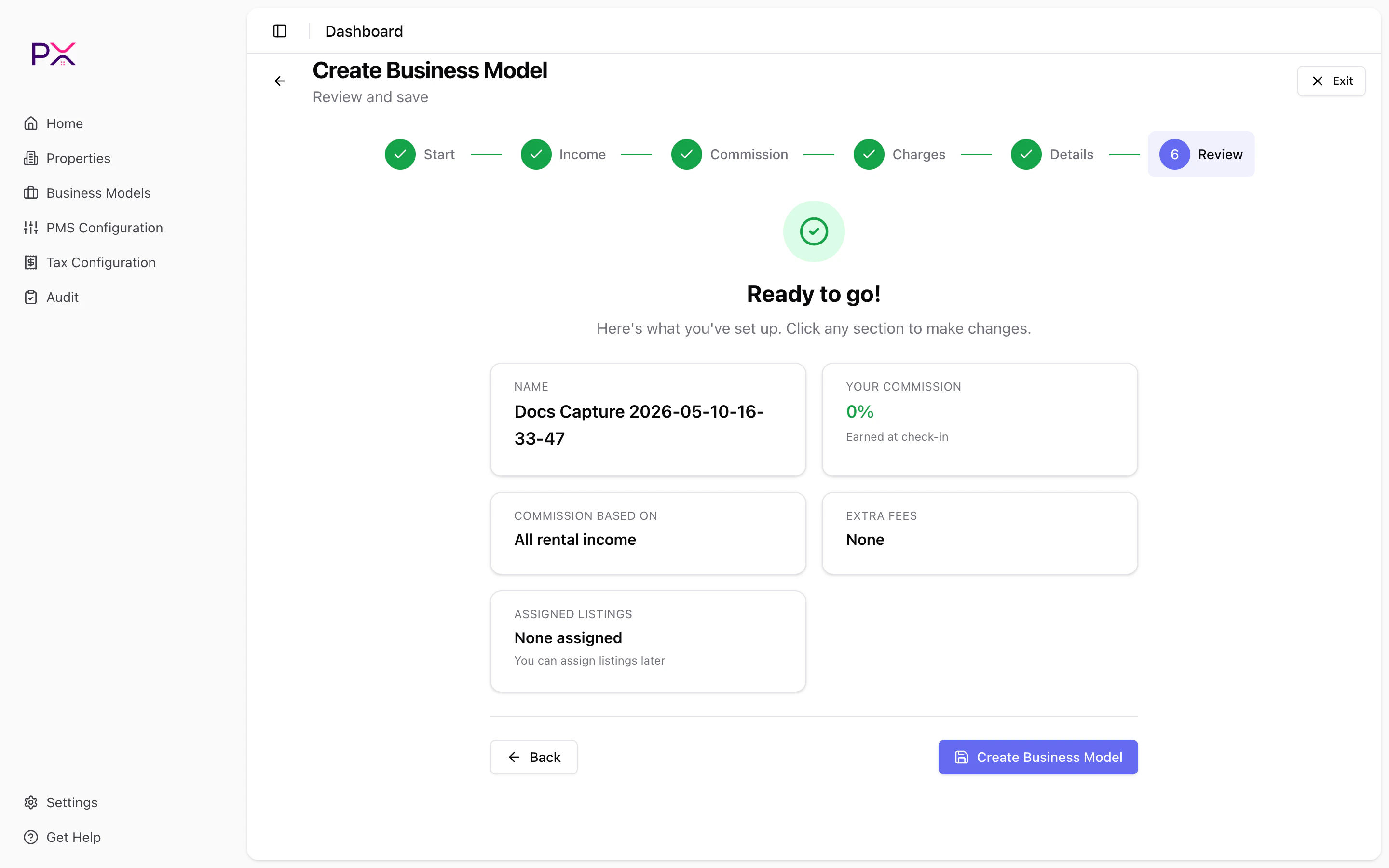
 ## Step 6 - review and create
A summary of every section. Click **Save** to persist the model. PX:
1. Validates required fields.
2. Saves the model in **Draft** status.
3. Once you activate and assign listings, queues a diagnostics run for every assigned property.
## Step 6 - review and create
A summary of every section. Click **Save** to persist the model. PX:
1. Validates required fields.
2. Saves the model in **Draft** status.
3. Once you activate and assign listings, queues a diagnostics run for every assigned property.
 ## Editing later
Open any model from the list to edit. Saving rule changes on an active model creates a new version (the original stays in place for historical audits).
You can also:
* **Duplicate** - clone the model with `Copy` appended to the name. Use this for what-if scenarios.
* **Deactivate** - unassign all listings and set status to Inactive.
* **Archive** - hide from the default list. Reversible if you remove the Archived filter.
## Common pitfalls
* **Forgetting to set an activation date.** Without one, audits will not pick the model up. Set it on day one of the period the model covers.
* **Duplicating instead of editing.** If you make a small rate change, edit and let PX version it - duplicate creates a parallel model that is not automatically reconciled with prior history.
* **Activating without assigning properties.** Active + zero listings is allowed but does nothing useful. Assign before you walk away.
* **Mixing income and expense items.** PX treats them as mutually exclusive. An item should appear in one bucket, not both.
## Editing later
Open any model from the list to edit. Saving rule changes on an active model creates a new version (the original stays in place for historical audits).
You can also:
* **Duplicate** - clone the model with `Copy` appended to the name. Use this for what-if scenarios.
* **Deactivate** - unassign all listings and set status to Inactive.
* **Archive** - hide from the default list. Reversible if you remove the Archived filter.
## Common pitfalls
* **Forgetting to set an activation date.** Without one, audits will not pick the model up. Set it on day one of the period the model covers.
* **Duplicating instead of editing.** If you make a small rate change, edit and let PX version it - duplicate creates a parallel model that is not automatically reconciled with prior history.
* **Activating without assigning properties.** Active + zero listings is allowed but does nothing useful. Assign before you walk away.
* **Mixing income and expense items.** PX treats them as mutually exclusive. An item should appear in one bucket, not both.