> ## Documentation Index
> Fetch the complete documentation index at: https://docs.pxaccounting.com/llms.txt
> Use this file to discover all available pages before exploring further.
# Assign properties
> Pick which properties a business model governs and re-assign safely.
A business model is only useful once it is assigned to one or more properties. There are two places to assign:
* **From the wizard** - the final review step has an **Assign properties** action.
* **From the business model edit screen** - any time after creation.
## Assigning from the wizard
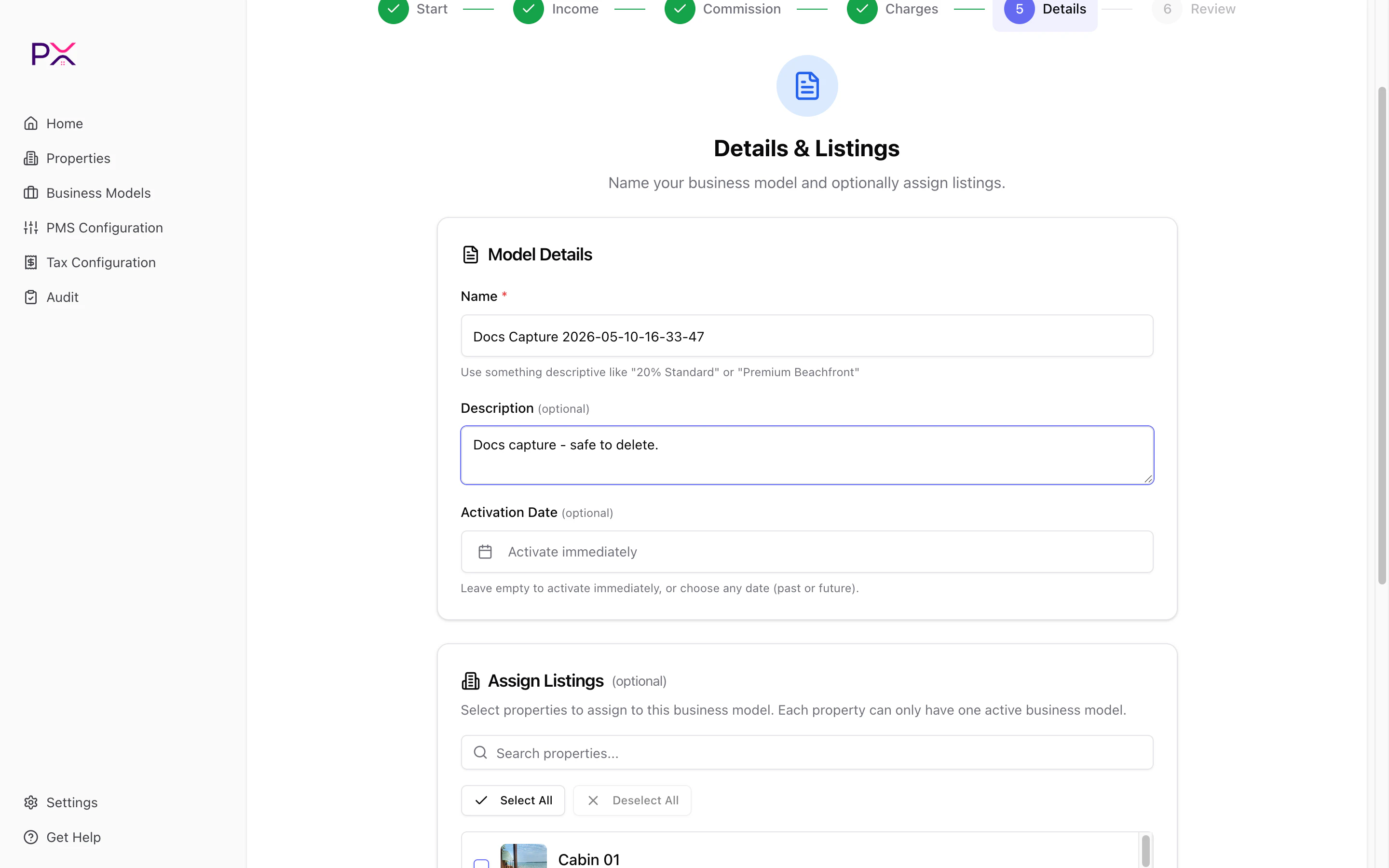
The Create-a-business-model wizard's **Details & Listings** step has the listings picker built in. Tick the properties this model should govern, then continue to the review step. PX saves the assignment when you click **Save** on the review step.
 ## Assigning from the model
For an existing model:
1. Open **Business Models** in the sidebar.
2. Click the model name to open it.
3. Click **Assign properties**.
4. The picker dialog opens with a search box and a multi-select list of every property in your account.
5. Tick the properties this model governs.
6. Click **Save assignments**.
PX persists the assignment immediately. If the model is **active**, audits and diagnostics start using the model for the assigned properties on their next run.
## One model per property
Each property can only have **one** active business model at a time. Assigning a model to a property that already has one **replaces** the previous assignment.
This is a deliberate constraint - it keeps audits unambiguous (PX always knows which model to use for a given reservation). If you need to change the model on an active property:
1. Assign the new model. The old assignment is removed.
2. Run an audit on a date range that overlaps with the change to check for transition findings.
## Effective dates
Each business model has an activation date. PX uses this date plus the property's assignment record to decide which model applies to a given reservation:
* The reservation's check-in date is compared against the active assignment's effective range.
* If a property had Model A before March 1 and Model B after, March 1 is the cutoff and PX uses each model only for reservations whose check-in falls in its range.
This means re-assigning models is safe for historical data - past audits remain consistent because they use the model that was active at the time.
## Bulk assignment patterns
If you have many properties on the same management agreement:
* **Same model for all** - create one model and assign it to every property.
* **Tier-based** - create one model per tier (Standard 20%, Premium 25%, Trust 15%) and assign properties accordingly.
* **Owner-based** - create one model per owner. Useful when each owner has bespoke commission terms.
* **Channel-based** - one model with channel conditions on commission. Single model, dynamic rate.
## Removing an assignment
To unassign a model from a property:
* **From the model picker** - uncheck the property and Save.
* **From the property** - currently you can only do this from the model side.
To take a model out of service entirely without deleting it, click **Deactivate** on the model. This unassigns every property and sets status to Inactive. The model is preserved for history.
## What happens when you assign
When you click **Save assignments** on an **active** model:
1. The assignment row is created (or updated) in PX.
2. A diagnostics batch job is queued for every newly assigned property.
3. Findings show up on the property detail page and in the next audit you run.
When you assign on a **draft** model, no diagnostics run yet - PX waits for the model to be activated.
## Re-assigning after a model edit
If you edit an active model's rules, PX creates a new version automatically. The version bump triggers a diagnostics re-run for every property assigned to the model so existing findings are recomputed against the new rules.
You do not have to re-assign properties - assignments persist across versions.
## Assigning from the model
For an existing model:
1. Open **Business Models** in the sidebar.
2. Click the model name to open it.
3. Click **Assign properties**.
4. The picker dialog opens with a search box and a multi-select list of every property in your account.
5. Tick the properties this model governs.
6. Click **Save assignments**.
PX persists the assignment immediately. If the model is **active**, audits and diagnostics start using the model for the assigned properties on their next run.
## One model per property
Each property can only have **one** active business model at a time. Assigning a model to a property that already has one **replaces** the previous assignment.
This is a deliberate constraint - it keeps audits unambiguous (PX always knows which model to use for a given reservation). If you need to change the model on an active property:
1. Assign the new model. The old assignment is removed.
2. Run an audit on a date range that overlaps with the change to check for transition findings.
## Effective dates
Each business model has an activation date. PX uses this date plus the property's assignment record to decide which model applies to a given reservation:
* The reservation's check-in date is compared against the active assignment's effective range.
* If a property had Model A before March 1 and Model B after, March 1 is the cutoff and PX uses each model only for reservations whose check-in falls in its range.
This means re-assigning models is safe for historical data - past audits remain consistent because they use the model that was active at the time.
## Bulk assignment patterns
If you have many properties on the same management agreement:
* **Same model for all** - create one model and assign it to every property.
* **Tier-based** - create one model per tier (Standard 20%, Premium 25%, Trust 15%) and assign properties accordingly.
* **Owner-based** - create one model per owner. Useful when each owner has bespoke commission terms.
* **Channel-based** - one model with channel conditions on commission. Single model, dynamic rate.
## Removing an assignment
To unassign a model from a property:
* **From the model picker** - uncheck the property and Save.
* **From the property** - currently you can only do this from the model side.
To take a model out of service entirely without deleting it, click **Deactivate** on the model. This unassigns every property and sets status to Inactive. The model is preserved for history.
## What happens when you assign
When you click **Save assignments** on an **active** model:
1. The assignment row is created (or updated) in PX.
2. A diagnostics batch job is queued for every newly assigned property.
3. Findings show up on the property detail page and in the next audit you run.
When you assign on a **draft** model, no diagnostics run yet - PX waits for the model to be activated.
## Re-assigning after a model edit
If you edit an active model's rules, PX creates a new version automatically. The version bump triggers a diagnostics re-run for every property assigned to the model so existing findings are recomputed against the new rules.
You do not have to re-assign properties - assignments persist across versions.