> ## Documentation Index
> Fetch the complete documentation index at: https://docs.pxaccounting.com/llms.txt
> Use this file to discover all available pages before exploring further.
# Run an audit
> Step-by-step walkthrough of generating an audit and reading the results.
Open the **Audits** page in the sidebar.
 ## Set the parameters
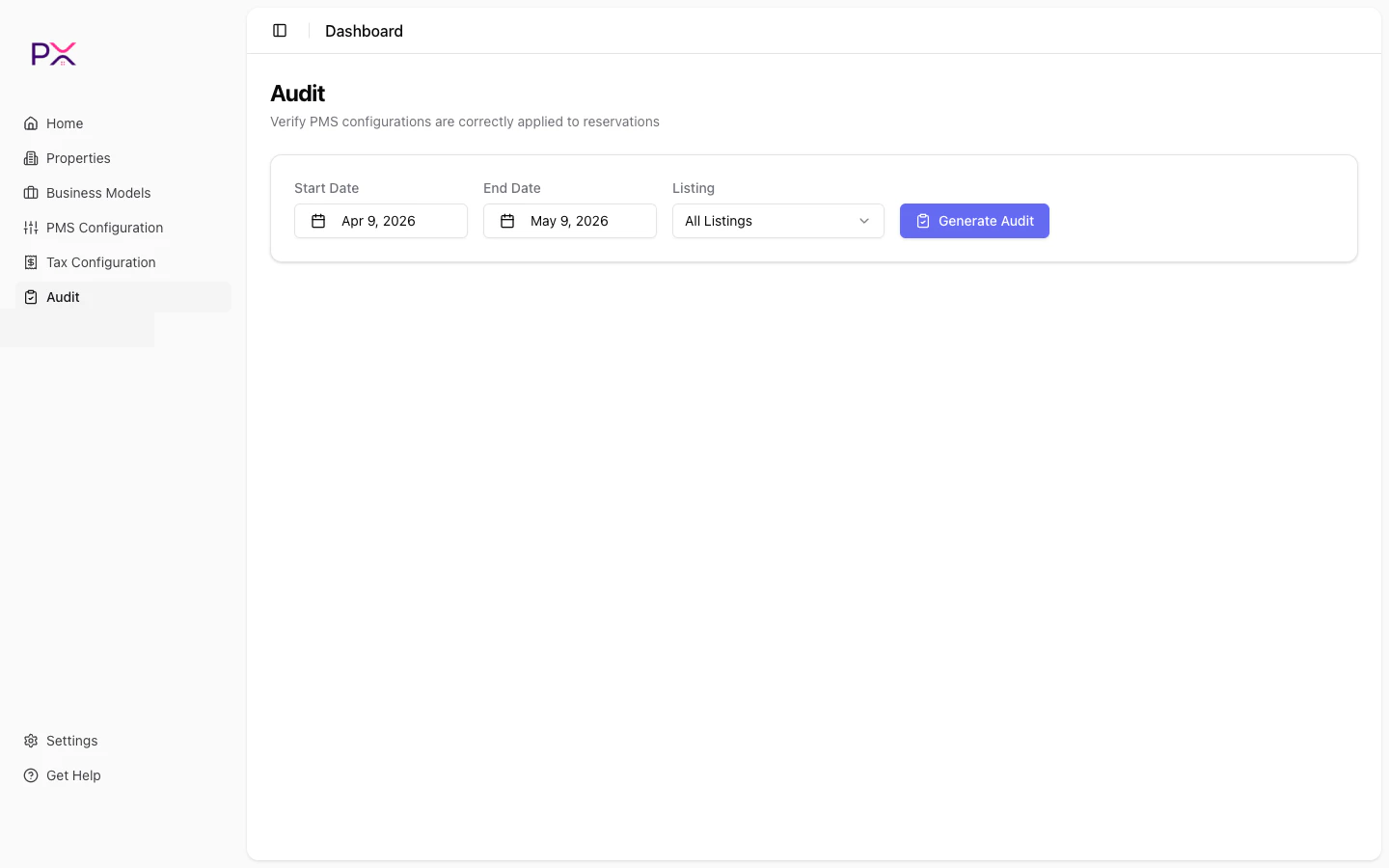
Three controls at the top:
* **Start Date** - calendar picker.
* **End Date** - calendar picker.
* **Listing** - dropdown of `All Listings` plus every property in your account.
Validation messages appear below if something is wrong:
* *"Date range exceeds 62 days"* - shorten the window.
* *"Start date must be before end date."* - flip the dates.
Click **Generate Audit** to start.
## Watch progress
While the audit runs, a loading card appears with:
* A spinning icon.
* The elapsed time since the run started.
* Status text: **Running Audit...**
You can leave the page - the audit continues in the background and the results are persisted under an audit ID. Coming back to the Audits page picks up where you left off.
## Read the results
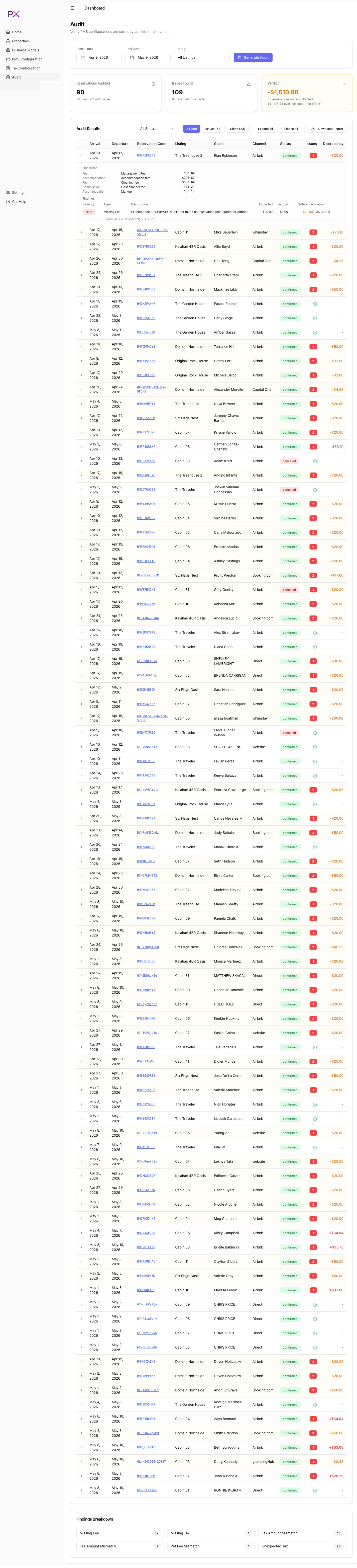
Three components show up when the audit completes.
### Summary cards
| Card | Meaning |
| ------------------------ | -------------------------------------------------------------------------------------------------------------------- |
| **Reservations Audited** | Total bookings checked. |
| **Issues Found** | Reservations with at least one finding. |
| **Verdict** | `All Clear`, `Under-collected with amount`, or `Over-collected with amount`. The amount is the net financial impact. |
### Results table
Columns:
| Column | Meaning |
| ---------------- | -------------------------------------------------------- |
| (expand arrow) | Click to expand the row and see line items and findings. |
| Arrival | Check-in date. |
| Departure | Check-out date. |
| Reservation Code | Confirmation code, linked to the PMS where applicable. |
| Listing | Property name. |
| Guest | Guest name. |
| Channel | Booking channel. |
| Status | Confirmed, canceled, etc. |
| Issues | Count of findings, or a green checkmark if clean. |
| Discrepancy | Net dollar difference for the booking. |
Above the table, three controls:
* **Status filter** - dropdown of statuses present in the results.
* **All / Issues / Clean** - quick filter to all rows, only rows with findings, or only clean rows.
* **Expand all / Collapse all** - bulk expansion of every row.
### Findings breakdown
A grid of finding types with count badges. Click any type to filter the results table to bookings with that finding.
## Drill into a reservation
Click the expand arrow on any row to see:
* **Line items** - the rent, fees, taxes, and expenses on the booking with amounts.
* **Findings** - one row per finding, showing:
* Severity badge (error / warning / info).
* Type label.
* Description.
* Expected amount.
* Actual amount.
* Difference (signed).
* Config source (which configuration drove the expectation).
* Reasoning (the formula PX used).
Use this view to understand exactly why a finding fired. Most disputes resolve as soon as you read the reasoning - either the booking is wrong, the configuration is wrong, or there is a one-off circumstance you can document.
## Set the parameters
Three controls at the top:
* **Start Date** - calendar picker.
* **End Date** - calendar picker.
* **Listing** - dropdown of `All Listings` plus every property in your account.
Validation messages appear below if something is wrong:
* *"Date range exceeds 62 days"* - shorten the window.
* *"Start date must be before end date."* - flip the dates.
Click **Generate Audit** to start.
## Watch progress
While the audit runs, a loading card appears with:
* A spinning icon.
* The elapsed time since the run started.
* Status text: **Running Audit...**
You can leave the page - the audit continues in the background and the results are persisted under an audit ID. Coming back to the Audits page picks up where you left off.
## Read the results
Three components show up when the audit completes.
### Summary cards
| Card | Meaning |
| ------------------------ | -------------------------------------------------------------------------------------------------------------------- |
| **Reservations Audited** | Total bookings checked. |
| **Issues Found** | Reservations with at least one finding. |
| **Verdict** | `All Clear`, `Under-collected with amount`, or `Over-collected with amount`. The amount is the net financial impact. |
### Results table
Columns:
| Column | Meaning |
| ---------------- | -------------------------------------------------------- |
| (expand arrow) | Click to expand the row and see line items and findings. |
| Arrival | Check-in date. |
| Departure | Check-out date. |
| Reservation Code | Confirmation code, linked to the PMS where applicable. |
| Listing | Property name. |
| Guest | Guest name. |
| Channel | Booking channel. |
| Status | Confirmed, canceled, etc. |
| Issues | Count of findings, or a green checkmark if clean. |
| Discrepancy | Net dollar difference for the booking. |
Above the table, three controls:
* **Status filter** - dropdown of statuses present in the results.
* **All / Issues / Clean** - quick filter to all rows, only rows with findings, or only clean rows.
* **Expand all / Collapse all** - bulk expansion of every row.
### Findings breakdown
A grid of finding types with count badges. Click any type to filter the results table to bookings with that finding.
## Drill into a reservation
Click the expand arrow on any row to see:
* **Line items** - the rent, fees, taxes, and expenses on the booking with amounts.
* **Findings** - one row per finding, showing:
* Severity badge (error / warning / info).
* Type label.
* Description.
* Expected amount.
* Actual amount.
* Difference (signed).
* Config source (which configuration drove the expectation).
* Reasoning (the formula PX used).
Use this view to understand exactly why a finding fired. Most disputes resolve as soon as you read the reasoning - either the booking is wrong, the configuration is wrong, or there is a one-off circumstance you can document.
 ## Export the audit as a PDF
Click **Download Report** above the results table to export the audit as a PDF. See [Export PDF](/audit/export-pdf) for what the PDF contains and how to share it.
## Re-running
Audits do not auto-refresh. To re-run with the same parameters:
1. Set the date range and listing again.
2. Click **Generate Audit**.
Each audit gets a fresh ID. There is no concept of "updating" a past audit - just generate a new one.
## Common patterns
### Period close audit
Run on the 1st of each month for the previous month:
* Start: 1st of last month.
* End: last day of last month.
* Listing: All Listings.
Save the resulting PDF to your accounting folder.
### Single-property investigation
When a specific property has unresolved findings on its detail page:
* Listing: that property.
* Range: a 7-day or 14-day window around the affected reservation.
Narrow scope means faster results and easier reading.
### Pre-statement reconciliation
Before sending owner statements:
* Range: the statement period.
* Listing: All Listings (or per-property if you statement individually).
Resolve any UNDERPAID or OVERPAID findings before publishing the statement.
## Troubleshooting
**The audit returns zero results.**
Check the listing filter - if you picked a property with no reservations in the window, results will be empty. Also verify the PMS is still connected (Integration Status under Settings).
**The audit fails with an error.**
The most common cause is a transient PMS rate limit. Wait a minute and try again. If the failure persists, check Integration Status; expired credentials produce repeatable failures.
## Export the audit as a PDF
Click **Download Report** above the results table to export the audit as a PDF. See [Export PDF](/audit/export-pdf) for what the PDF contains and how to share it.
## Re-running
Audits do not auto-refresh. To re-run with the same parameters:
1. Set the date range and listing again.
2. Click **Generate Audit**.
Each audit gets a fresh ID. There is no concept of "updating" a past audit - just generate a new one.
## Common patterns
### Period close audit
Run on the 1st of each month for the previous month:
* Start: 1st of last month.
* End: last day of last month.
* Listing: All Listings.
Save the resulting PDF to your accounting folder.
### Single-property investigation
When a specific property has unresolved findings on its detail page:
* Listing: that property.
* Range: a 7-day or 14-day window around the affected reservation.
Narrow scope means faster results and easier reading.
### Pre-statement reconciliation
Before sending owner statements:
* Range: the statement period.
* Listing: All Listings (or per-property if you statement individually).
Resolve any UNDERPAID or OVERPAID findings before publishing the statement.
## Troubleshooting
**The audit returns zero results.**
Check the listing filter - if you picked a property with no reservations in the window, results will be empty. Also verify the PMS is still connected (Integration Status under Settings).
**The audit fails with an error.**
The most common cause is a transient PMS rate limit. Wait a minute and try again. If the failure persists, check Integration Status; expired credentials produce repeatable failures.