> ## Documentation Index
> Fetch the complete documentation index at: https://docs.pxaccounting.com/llms.txt
> Use this file to discover all available pages before exploring further.
# Month-end close
> Run the audit and diagnostics for one month and review the combined result in a single place.
**Month-End Close** runs both of PX's audits over a single month and puts the combined result on one page: the [Financial Audit](/audit/run-an-audit) (fees, taxes, and commission) and the [Accounting Audit](/audit/accounting-audit) (ledger and guest-money integrity). Use it as the monthly ritual you hand to your accountant.
Despite the name, you can run a close at any time of the month, as often as you like. It runs on demand for whichever month you pick, so you can check an in-progress month mid-month, re-run after fixing something, or close a month from last quarter. Nothing about it is tied to the calendar rolling over.
Open **Month-End Close** in the sidebar.
 Month-End Close is on for all accounts by default. If the sidebar entry is missing, it has been disabled for your user - contact support. PX sends you back to Home if you open the page directly while it is disabled.
## Running a close
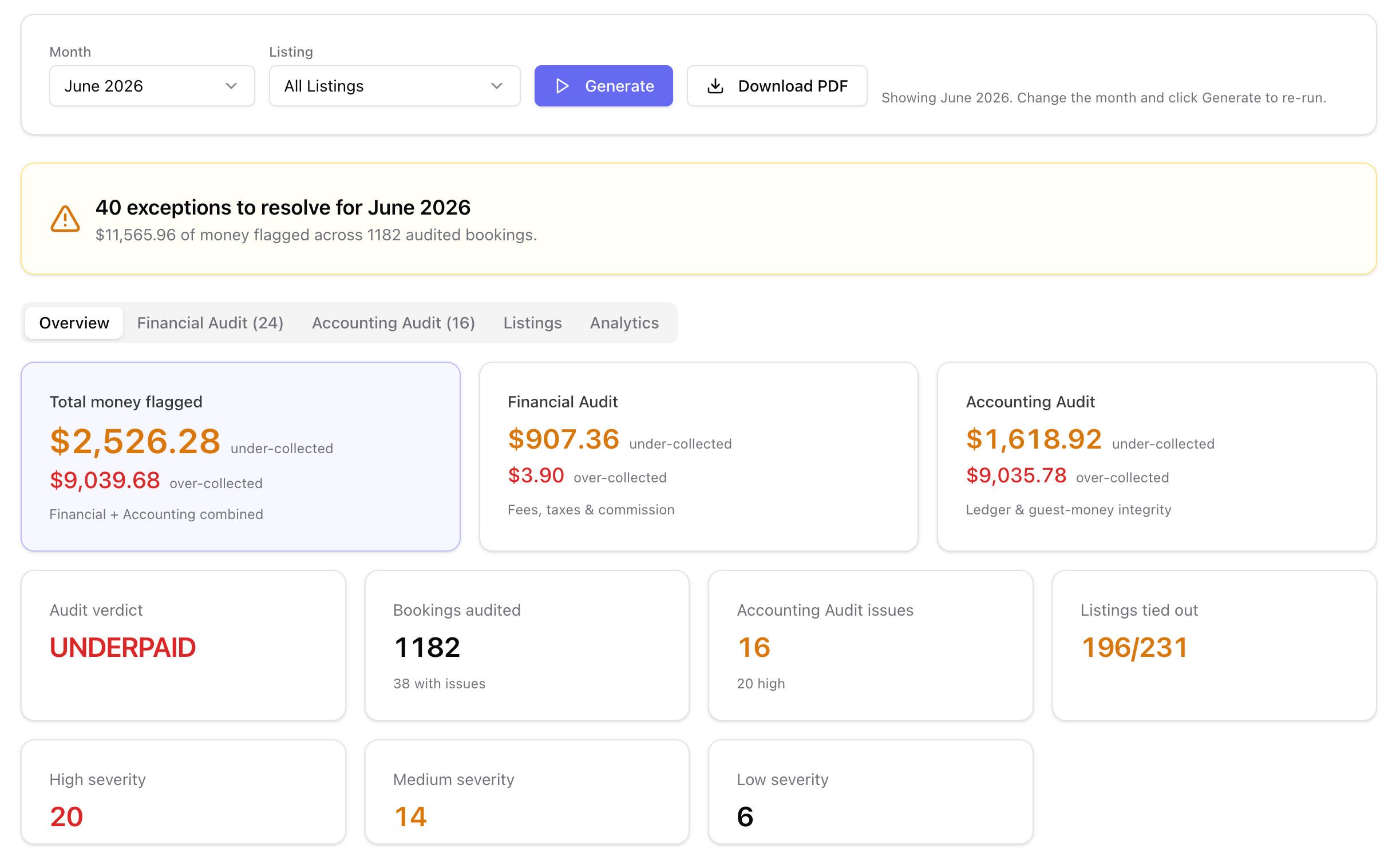
The controls sit in a card at the top of the page:
* **Month** - the month to close.
* **Listing** - a single property, or **All Listings** (the default).
* **Generate** - starts the run. The button reads *Running...* while it works.
If you have not run anything yet, the page reads *Pick a month and click Generate to run the close*.
A run moves through three phases, with elapsed seconds beneath: *Starting audit and diagnostics*, *Running audit and diagnostics for the month*, then *Combining results*. You can leave the page open while it works.
Once a result is on screen, a hint tells you what you are looking at: *Showing ``. Change the month and click Generate to re-run.*
### Download PDF
**Download PDF** appears next to **Generate** after a run completes. The PDF is scoped to the month and the listing you selected, so a single-listing close exports that listing only.
## Reading the result
A banner at the top gives you the headline:
| Banner | Meaning |
| --------------------------------------------------- | ------------------------------------------------------------------------ |
| Green - *Books balance for ``* | No exceptions. Nothing to resolve. |
| Amber - *`` exceptions to resolve for ``* | The subtitle gives the money flagged and how many bookings were audited. |
| Red - *Close could not be completed for ``* | The run failed. PX shows the reason. |
When a close fails, PX suppresses the numbers below the banner rather than showing zeros - an empty *0 flagged / CLEAN* body under a red banner would read as a clean month. If Guesty rate-limited the request, wait a few minutes and click **Generate** again. Guesty applies both a per-minute throttle and a daily authorization cap, and the daily cap clears in hours rather than minutes, so the message tells you which one you hit.
### Warnings that qualify a result
These appear above the tabs and mean the numbers are incomplete rather than clean:
**Some listings could not be audited** - the close is partial and may understate leakage.
**Ledger checks did not run** - Guesty reports no Accounting Add-on for the account, so journal entries could not be read. Re-running will not help; the add-on has to be enabled in Guesty.
**Ledger checks were skipped for some reservations** - a journal-entry fetch failed. Re-run to complete them.
**The audit window could not be trimmed to this month** - the audit and diagnostics may cover different date ranges.
**Config sync incomplete for this close** - the point-in-time rate history did not fully reconcile, so a recent fee, tax, or markup change may not be reflected. Re-run the close; if it recurs, check the configuration sync.
## Overview tab
Three money boxes split the exposure, and the total is exactly the other two added together:
* **Total money flagged** - Financial + Accounting combined.
* **Financial Audit** - fees, taxes and commission.
* **Accounting Audit** - ledger and guest-money integrity.
Each box separates **under-collected** from **over-collected**. The Accounting box may add a note that money was *booked in the wrong period (timing, not a collection gap)* - that figure is a period problem, not money you failed to collect, so it sits outside the under/over split.
Below the boxes, seven tiles summarize the month:
| Tile | What it tells you |
| -------------------------------- | ---------------------------------------------------------------------------------------------------------------------------------------- |
| **Audit verdict** | The Financial Audit's overall call, in caps - `CLEAN` when nothing is flagged, otherwise the dominant problem (for example `UNDERPAID`). |
| **Bookings audited** | How many bookings PX checked, and how many had issues. |
| **Accounting Audit issues** | Issue count, with the high-severity count beneath. |
| **Listings tied out** | How many listings reconciled, out of the total. |
| **High / Medium / Low severity** | Exception counts by severity. |
## Financial Audit tab
The full Financial Audit results table for the month, identical to the one on the **Financial Audit** page - see [Audits overview](/audit/overview) for how to read it. Column preferences here are stored separately, so you can lay the two tables out differently.
## Accounting Audit tab
Reservation and folio integrity issues for the month. Four cards sit above the list: **Unresolved** and **Fix in Progress** for this close, plus **Total Issues (All Time)** and **Fixed (All Time)**, which are running account totals rather than monthly figures. The list itself defaults to **Open only** so it shows outstanding work.
You can mark issues fixed, start a fix, dismiss, or reopen them from this tab, one at a time or in bulk. Resolving an issue removes it from the exception counts and the money flagged for this close, so the headline banner and the Overview figures update as you work.
See [Accounting Audit](/audit/accounting-audit) for the filters, the bulk actions, and how to read an individual issue.
If you have no business models configured, this tab prompts you to set them up. Revenue-recognition and fee-allocation checks cannot run without them. See [Business models](/business-models/overview).
## Listings tab
A sortable per-listing breakdown, so you can see which properties account for the month's exposure.
Month-End Close is on for all accounts by default. If the sidebar entry is missing, it has been disabled for your user - contact support. PX sends you back to Home if you open the page directly while it is disabled.
## Running a close
The controls sit in a card at the top of the page:
* **Month** - the month to close.
* **Listing** - a single property, or **All Listings** (the default).
* **Generate** - starts the run. The button reads *Running...* while it works.
If you have not run anything yet, the page reads *Pick a month and click Generate to run the close*.
A run moves through three phases, with elapsed seconds beneath: *Starting audit and diagnostics*, *Running audit and diagnostics for the month*, then *Combining results*. You can leave the page open while it works.
Once a result is on screen, a hint tells you what you are looking at: *Showing ``. Change the month and click Generate to re-run.*
### Download PDF
**Download PDF** appears next to **Generate** after a run completes. The PDF is scoped to the month and the listing you selected, so a single-listing close exports that listing only.
## Reading the result
A banner at the top gives you the headline:
| Banner | Meaning |
| --------------------------------------------------- | ------------------------------------------------------------------------ |
| Green - *Books balance for ``* | No exceptions. Nothing to resolve. |
| Amber - *`` exceptions to resolve for ``* | The subtitle gives the money flagged and how many bookings were audited. |
| Red - *Close could not be completed for ``* | The run failed. PX shows the reason. |
When a close fails, PX suppresses the numbers below the banner rather than showing zeros - an empty *0 flagged / CLEAN* body under a red banner would read as a clean month. If Guesty rate-limited the request, wait a few minutes and click **Generate** again. Guesty applies both a per-minute throttle and a daily authorization cap, and the daily cap clears in hours rather than minutes, so the message tells you which one you hit.
### Warnings that qualify a result
These appear above the tabs and mean the numbers are incomplete rather than clean:
**Some listings could not be audited** - the close is partial and may understate leakage.
**Ledger checks did not run** - Guesty reports no Accounting Add-on for the account, so journal entries could not be read. Re-running will not help; the add-on has to be enabled in Guesty.
**Ledger checks were skipped for some reservations** - a journal-entry fetch failed. Re-run to complete them.
**The audit window could not be trimmed to this month** - the audit and diagnostics may cover different date ranges.
**Config sync incomplete for this close** - the point-in-time rate history did not fully reconcile, so a recent fee, tax, or markup change may not be reflected. Re-run the close; if it recurs, check the configuration sync.
## Overview tab
Three money boxes split the exposure, and the total is exactly the other two added together:
* **Total money flagged** - Financial + Accounting combined.
* **Financial Audit** - fees, taxes and commission.
* **Accounting Audit** - ledger and guest-money integrity.
Each box separates **under-collected** from **over-collected**. The Accounting box may add a note that money was *booked in the wrong period (timing, not a collection gap)* - that figure is a period problem, not money you failed to collect, so it sits outside the under/over split.
Below the boxes, seven tiles summarize the month:
| Tile | What it tells you |
| -------------------------------- | ---------------------------------------------------------------------------------------------------------------------------------------- |
| **Audit verdict** | The Financial Audit's overall call, in caps - `CLEAN` when nothing is flagged, otherwise the dominant problem (for example `UNDERPAID`). |
| **Bookings audited** | How many bookings PX checked, and how many had issues. |
| **Accounting Audit issues** | Issue count, with the high-severity count beneath. |
| **Listings tied out** | How many listings reconciled, out of the total. |
| **High / Medium / Low severity** | Exception counts by severity. |
## Financial Audit tab
The full Financial Audit results table for the month, identical to the one on the **Financial Audit** page - see [Audits overview](/audit/overview) for how to read it. Column preferences here are stored separately, so you can lay the two tables out differently.
## Accounting Audit tab
Reservation and folio integrity issues for the month. Four cards sit above the list: **Unresolved** and **Fix in Progress** for this close, plus **Total Issues (All Time)** and **Fixed (All Time)**, which are running account totals rather than monthly figures. The list itself defaults to **Open only** so it shows outstanding work.
You can mark issues fixed, start a fix, dismiss, or reopen them from this tab, one at a time or in bulk. Resolving an issue removes it from the exception counts and the money flagged for this close, so the headline banner and the Overview figures update as you work.
See [Accounting Audit](/audit/accounting-audit) for the filters, the bulk actions, and how to read an individual issue.
If you have no business models configured, this tab prompts you to set them up. Revenue-recognition and fee-allocation checks cannot run without them. See [Business models](/business-models/overview).
## Listings tab
A sortable per-listing breakdown, so you can see which properties account for the month's exposure.
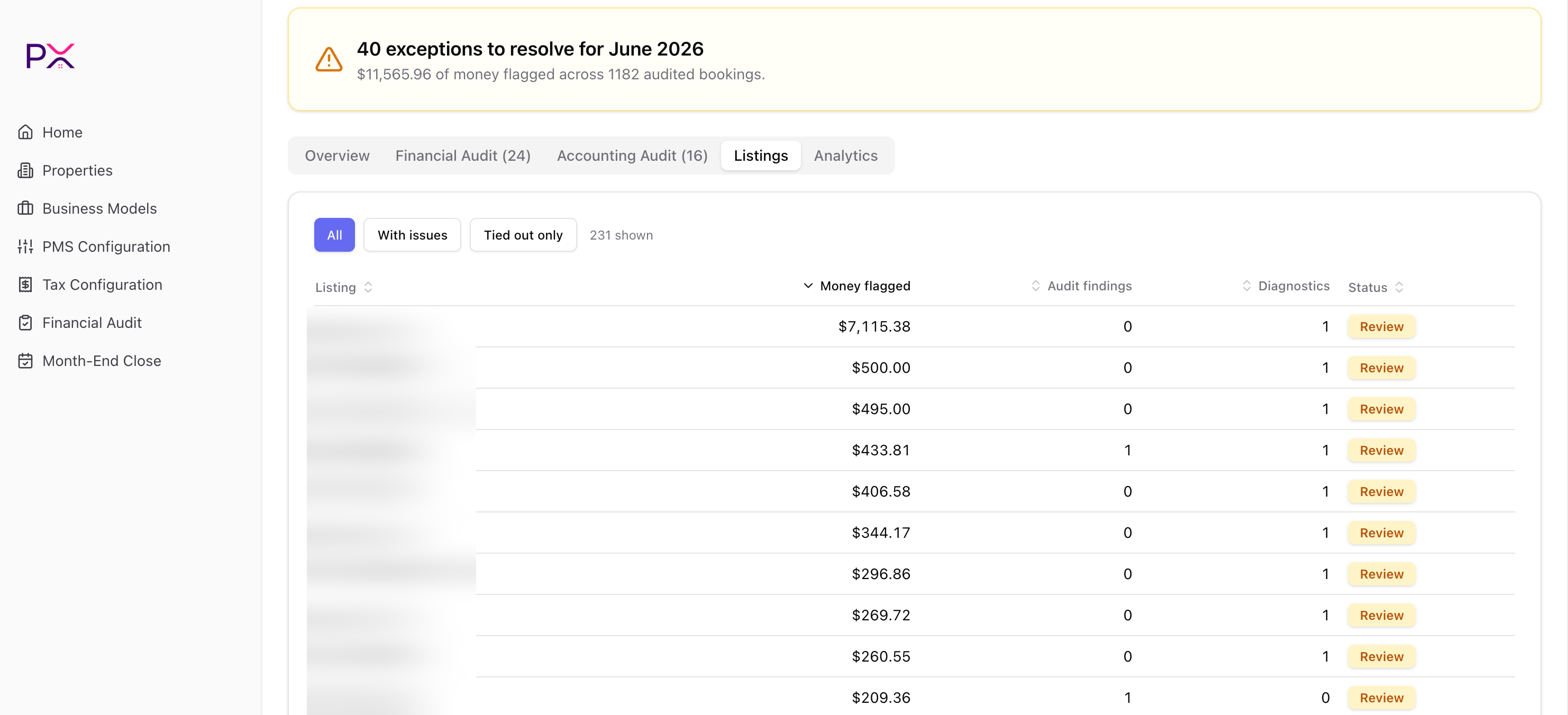 Filter with **All**, **With issues**, or **Tied out only**. The count of visible rows sits beside the filters, so on a large portfolio you can tell at a glance how much the filter removed.
| Column | What it shows |
| ------------------ | --------------------------------------------------------------------- |
| **Listing** | Property name. |
| **Money flagged** | Combined financial and accounting exposure for that listing. |
| **Audit findings** | Financial Audit findings. |
| **Diagnostics** | Accounting Audit issues. |
| **Status** | **Tied out** when the listing reconciled, **Review** when it did not. |
Click any column header to sort. The table opens sorted by **Money flagged**, descending, which puts your largest problems first.
A listing can show **Review** with zero Audit findings: one Accounting Audit issue is enough to hold it open. Check the **Diagnostics** column before assuming a clean Financial Audit means a clean listing.
## Analytics tab
Five charts over the same month.
Filter with **All**, **With issues**, or **Tied out only**. The count of visible rows sits beside the filters, so on a large portfolio you can tell at a glance how much the filter removed.
| Column | What it shows |
| ------------------ | --------------------------------------------------------------------- |
| **Listing** | Property name. |
| **Money flagged** | Combined financial and accounting exposure for that listing. |
| **Audit findings** | Financial Audit findings. |
| **Diagnostics** | Accounting Audit issues. |
| **Status** | **Tied out** when the listing reconciled, **Review** when it did not. |
Click any column header to sort. The table opens sorted by **Money flagged**, descending, which puts your largest problems first.
A listing can show **Review** with zero Audit findings: one Accounting Audit issue is enough to hold it open. Check the **Diagnostics** column before assuming a clean Financial Audit means a clean listing.
## Analytics tab
Five charts over the same month.
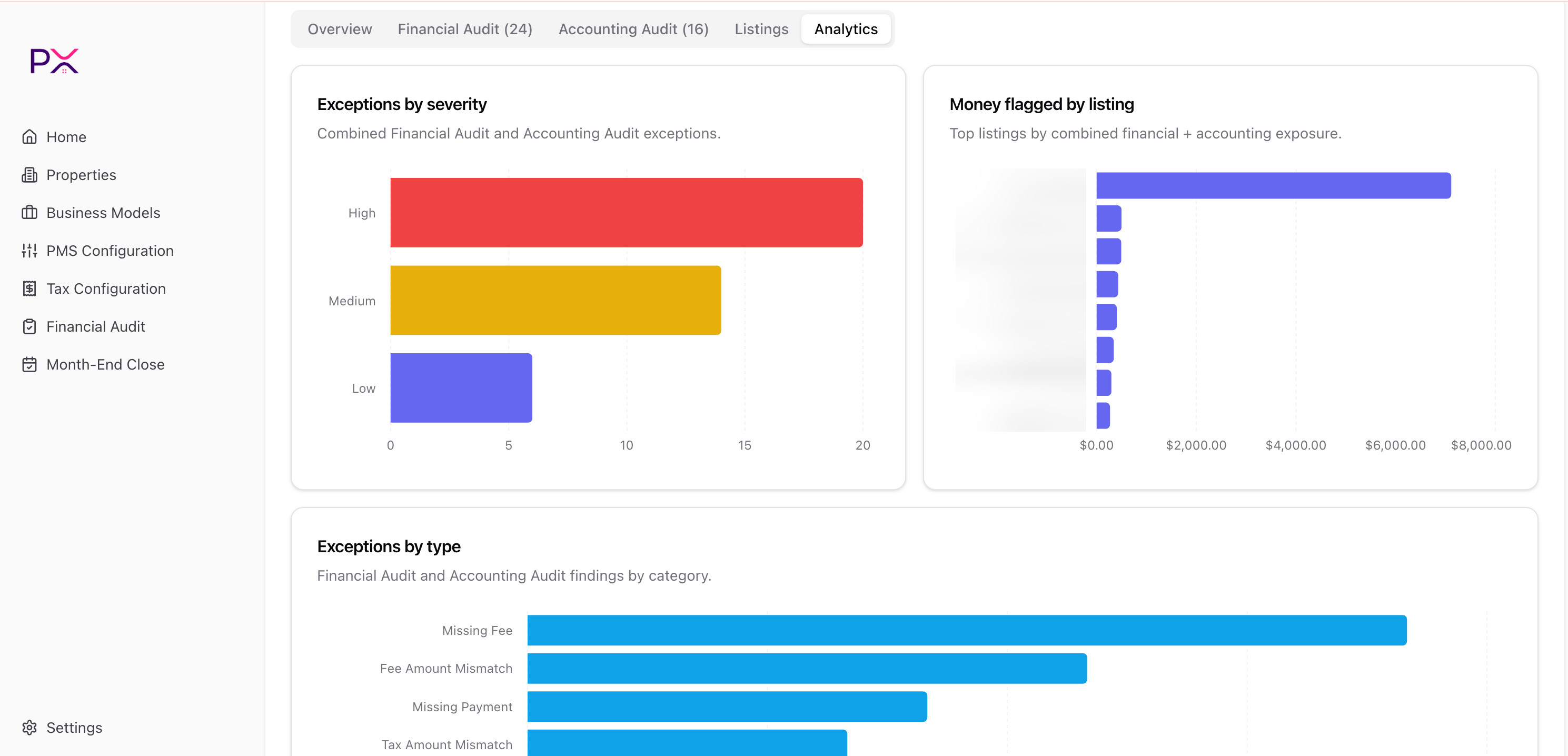 * **Exceptions by severity** - combined Financial and Accounting exceptions, split high / medium / low. These are the same counts as the severity tiles on the Overview tab.
* **Money flagged by listing** - your most exposed listings, ranked by combined financial and accounting exposure. Useful for deciding which property to work first.
* **Exceptions by severity** - combined Financial and Accounting exceptions, split high / medium / low. These are the same counts as the severity tiles on the Overview tab.
* **Money flagged by listing** - your most exposed listings, ranked by combined financial and accounting exposure. Useful for deciding which property to work first.
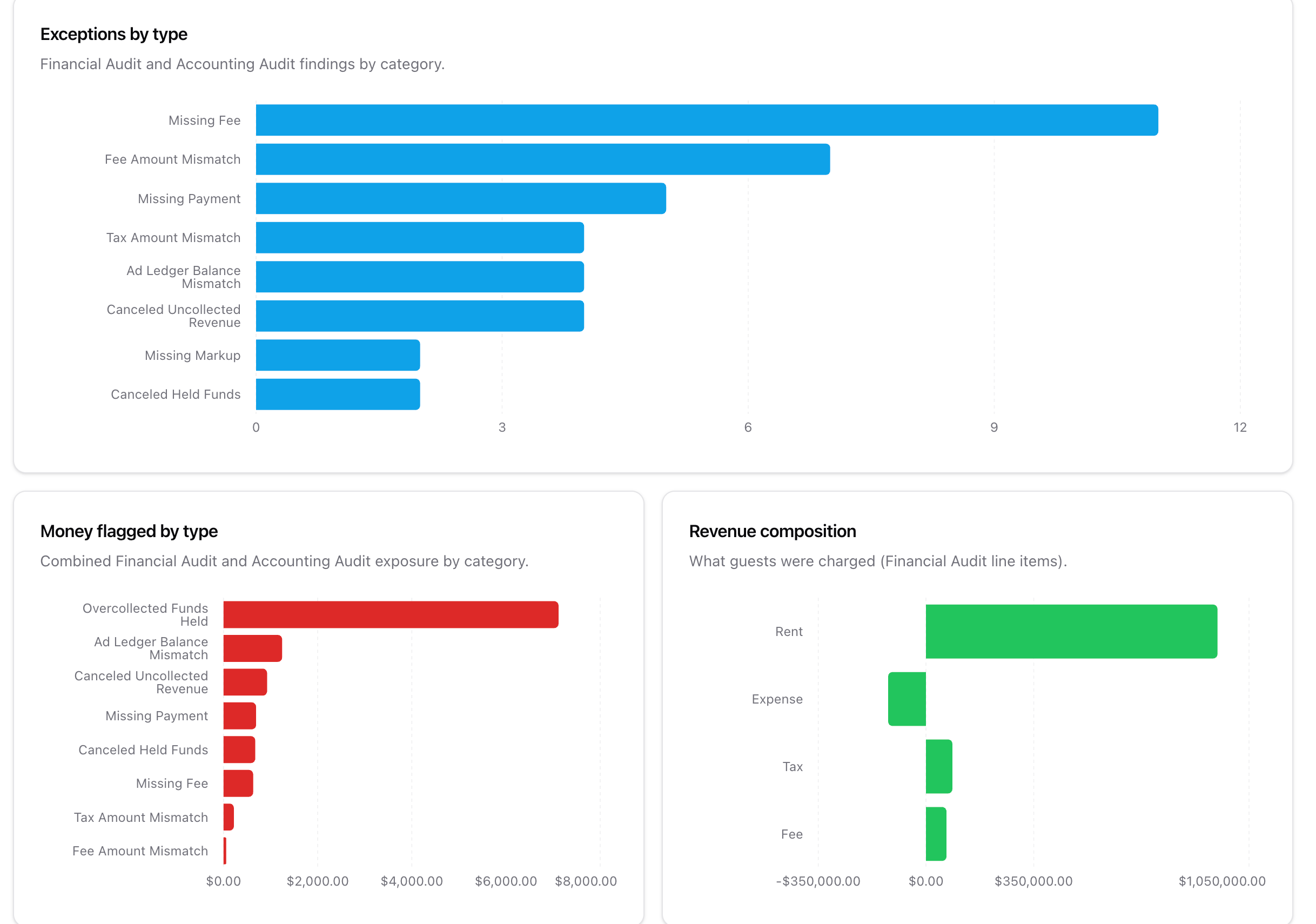 * **Exceptions by type** - findings by category across both audits, so you can see whether the month is dominated by one recurring problem. Categories are the human-readable check names, such as *Missing Fee*, *Fee Amount Mismatch*, *Missing Payment*, *Tax Amount Mismatch*, *Ad Ledger Balance Mismatch*, or *Canceled Uncollected Revenue*.
* **Money flagged by type** - the same categories ranked by dollars rather than count. The two often disagree: the most frequent exception is rarely the most expensive one, so read them together before deciding where to spend time.
* **Revenue composition** - what guests were charged, from Financial Audit line items, broken into **Rent**, **Expense**, **Tax**, and **Fee**. Expenses plot to the left of zero because they reduce what reaches the owner, so the axis runs negative as well as positive.
Each chart shows an empty message instead of an axis when the month has nothing to plot.
## What's next
How to read an individual finding.
What each class of check looks for.
* **Exceptions by type** - findings by category across both audits, so you can see whether the month is dominated by one recurring problem. Categories are the human-readable check names, such as *Missing Fee*, *Fee Amount Mismatch*, *Missing Payment*, *Tax Amount Mismatch*, *Ad Ledger Balance Mismatch*, or *Canceled Uncollected Revenue*.
* **Money flagged by type** - the same categories ranked by dollars rather than count. The two often disagree: the most frequent exception is rarely the most expensive one, so read them together before deciding where to spend time.
* **Revenue composition** - what guests were charged, from Financial Audit line items, broken into **Rent**, **Expense**, **Tax**, and **Fee**. Expenses plot to the left of zero because they reduce what reaches the owner, so the axis runs negative as well as positive.
Each chart shows an empty message instead of an axis when the month has nothing to plot.
## What's next
How to read an individual finding.
What each class of check looks for.