> ## Documentation Index
> Fetch the complete documentation index at: https://docs.pxaccounting.com/llms.txt
> Use this file to discover all available pages before exploring further.
# Accounting Audit
> Ledger and guest-money integrity checks, and how to work through the issues they raise.
The **Accounting Audit** checks that money and books line up: that guest payments landed, that ledger entries balance, that cancellations did not leave funds stranded, and that postings fall in the period they belong to.
It is the counterpart to the [Financial Audit](/audit/run-an-audit), which checks whether the right *amounts* were charged. The Financial Audit asks "is this booking priced and taxed correctly?" The Accounting Audit asks "did the money and the bookkeeping end up where they should?"
PX does not keep a ledger of its own. It reads the ledger your PMS produces and audits it. Where a check needs to know what a posting *should* have been, PX computes that expectation internally for the comparison only.
## Where it runs
The Accounting Audit runs as part of [Month-End Close](/audit/month-end-close). Pick a month, click **Generate**, and PX runs it alongside the Financial Audit. Results land in the **Accounting Audit** tab, with the issue count in the tab label.
You do not have to wait until the month is over. Month-End Close runs on demand, any day of the month, for any month you pick, so you can check an in-progress month as often as you like.
Issues also appear per property, on the **Overview** tab of any [property detail](/properties/property-detail) page, so you can work a single listing without opening a close.
## What it needs
Two things affect how much the Accounting Audit can check:
**The Guesty Accounting Add-on.** Ledger checks read journal entries. If Guesty reports no Accounting Add-on for your account, those checks cannot run and the close tells you so. Results are then **incomplete, not clean**, and re-running will not change that - the add-on has to be enabled in Guesty.
**Business models.** Revenue-recognition and fee-allocation checks compare postings against the model assigned to the property. Without an assigned, active [business model](/business-models/overview), those checks stay off. The Accounting Audit tab links you to Business Models when none are configured.
## What it checks
The exact mix depends on your PMS and on what your accounting data exposes. At a high level:
**Guest money** - payments that were never recorded, payments larger than the balance due, cash collected that does not match the total paid, and funds held beyond what the booking justifies.
**Ledger integrity** - entries that do not balance, expected entries that are missing entirely, and postings dated outside the period they belong to.
**Cancellations** - canceled bookings that left a non-zero owner balance, held funds that were never released, and revenue that stayed uncollected.
**Business-model conformance** - commission that is missing, short, or at the wrong rate; fees allocated to the wrong party; and amounts routed somewhere the model does not call for.
See [What an audit checks](/audit/check-categories) for how these group into check classes by PMS.
## Severity
Every issue carries a severity, and the close summarizes them as tiles:
| Severity | Treat it as |
| ---------- | ------------------------------------------------------- |
| **High** | Money is probably in the wrong place. Work these first. |
| **Medium** | Worth resolving before you close the period. |
| **Low** | Informational. Clear when convenient. |
## Working through issues
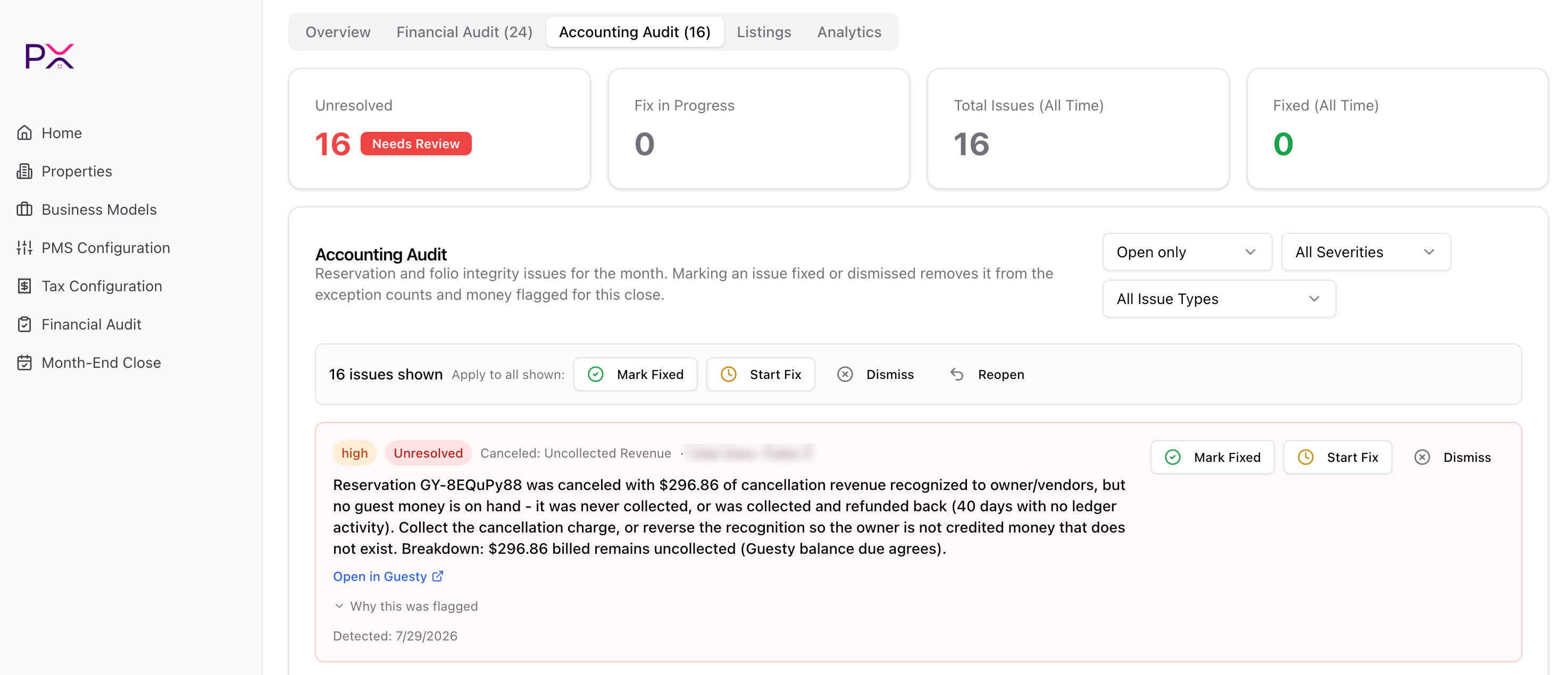 Four cards sit above the list. Two of them are scoped to the month you are closing, and two are not:
| Card | Scope |
| --------------------------- | --------------------------------------------------------------------------- |
| **Unresolved** | This close. Carries a **Needs Review** badge while the count is above zero. |
| **Fix in Progress** | This close. |
| **Total Issues (All Time)** | Every issue on the account, not just this month. |
| **Fixed (All Time)** | Every issue ever resolved on the account. |
Keep that difference in mind when the numbers do not appear to add up: the two all-time cards are a running total, not a monthly figure.
### Narrowing the list
Three dropdowns filter what you see:
* **Status** - **Open only**, **All statuses**, **Unresolved**, **Fix in progress**, **Fixed**, or **Dismissed**.
* **Severity** - **All Severities**, or one of high, medium, low.
* **Issue type** - **All Issue Types**, or a single check, such as *Canceled: Uncollected Revenue*.
### The lifecycle
Each issue moves through a short lifecycle:
| Status | Meaning |
| ------------------- | ---------------------------------------------------------- |
| **Unresolved** | New, untouched. |
| **Fix in progress** | You have started on it. PX records when. |
| **Fixed** | Resolved. |
| **Dismissed** | Closed without fixing - a false positive, or out of scope. |
**Unresolved** and **Fix in progress** together are what PX calls *open*.
Where you opened the list changes what you see first. In Month-End Close it starts on **Open only**, so marking an issue fixed clears it out of the working list. On a property page the panel is titled **Accounting Audit Log** and starts on **All statuses**, because there it doubles as the history for that listing. Resolved issues are never deleted in either place - they move out of the way, and the status filter brings them back.
### Acting on issues
Every issue row carries **Mark Fixed**, **Start Fix**, and **Dismiss** buttons.
A bar above the list applies the same actions in bulk, and it adds **Reopen** for putting resolved issues back. It reads *`` issues shown - Apply to all shown*, and that wording is exact: bulk actions hit every issue currently passing your filters, not a set you tick individually.
Bulk actions apply to everything the filters are showing. Narrow the list first - by severity, issue type, or status - and check the count in the bar before you click. To reopen a batch, filter to **Fixed** or **Dismissed**, confirm the count, then click **Reopen**.
Marking an issue fixed or dismissed removes it from the exception counts and the money flagged for that close. The headline banner and the Overview figures move as you work, so resolve issues because they are genuinely resolved, not to clear the number.
### What a row tells you
Each issue shows, in order: a **severity** badge, a **status** badge, the **check name** (for example *Canceled: Uncollected Revenue*), and the **listing** it belongs to. Beneath that:
* A plain-English explanation of what went wrong and what to do about it, usually ending in a numeric breakdown so you can see how PX arrived at the figure.
* **Open in Guesty** - jumps straight to the reservation in your PMS.
* **Why this was flagged** - expands to show the rule PX applied, why this particular booking tripped it, and what to check.
* **Detected** - the date PX first raised the issue.
## Letting PX close them for you
With [auto-fix](/properties/auto-fix) on for a property, PX moves unresolved issues into a queue and works them in the background. The per-issue **Start Fix** and **Dismiss** buttons are replaced by a **Fix in Progress** badge, and PX updates the status once the change is confirmed with your PMS.
Leave auto-fix off while you are onboarding, or when you want a human on every issue the first time around.
## Timing versus collection gaps
Some money the Accounting Audit flags is not money you failed to collect - it is money booked into the wrong period. Month-End Close reports this separately, as a note under the Accounting Audit money box reading *booked in the wrong period (timing, not a collection gap)*.
Read it that way when you reconcile: a timing figure means the period boundary is wrong, not that cash is missing.
## What's next
Run both audits over a month and review them together.
How to read an individual finding.
Four cards sit above the list. Two of them are scoped to the month you are closing, and two are not:
| Card | Scope |
| --------------------------- | --------------------------------------------------------------------------- |
| **Unresolved** | This close. Carries a **Needs Review** badge while the count is above zero. |
| **Fix in Progress** | This close. |
| **Total Issues (All Time)** | Every issue on the account, not just this month. |
| **Fixed (All Time)** | Every issue ever resolved on the account. |
Keep that difference in mind when the numbers do not appear to add up: the two all-time cards are a running total, not a monthly figure.
### Narrowing the list
Three dropdowns filter what you see:
* **Status** - **Open only**, **All statuses**, **Unresolved**, **Fix in progress**, **Fixed**, or **Dismissed**.
* **Severity** - **All Severities**, or one of high, medium, low.
* **Issue type** - **All Issue Types**, or a single check, such as *Canceled: Uncollected Revenue*.
### The lifecycle
Each issue moves through a short lifecycle:
| Status | Meaning |
| ------------------- | ---------------------------------------------------------- |
| **Unresolved** | New, untouched. |
| **Fix in progress** | You have started on it. PX records when. |
| **Fixed** | Resolved. |
| **Dismissed** | Closed without fixing - a false positive, or out of scope. |
**Unresolved** and **Fix in progress** together are what PX calls *open*.
Where you opened the list changes what you see first. In Month-End Close it starts on **Open only**, so marking an issue fixed clears it out of the working list. On a property page the panel is titled **Accounting Audit Log** and starts on **All statuses**, because there it doubles as the history for that listing. Resolved issues are never deleted in either place - they move out of the way, and the status filter brings them back.
### Acting on issues
Every issue row carries **Mark Fixed**, **Start Fix**, and **Dismiss** buttons.
A bar above the list applies the same actions in bulk, and it adds **Reopen** for putting resolved issues back. It reads *`` issues shown - Apply to all shown*, and that wording is exact: bulk actions hit every issue currently passing your filters, not a set you tick individually.
Bulk actions apply to everything the filters are showing. Narrow the list first - by severity, issue type, or status - and check the count in the bar before you click. To reopen a batch, filter to **Fixed** or **Dismissed**, confirm the count, then click **Reopen**.
Marking an issue fixed or dismissed removes it from the exception counts and the money flagged for that close. The headline banner and the Overview figures move as you work, so resolve issues because they are genuinely resolved, not to clear the number.
### What a row tells you
Each issue shows, in order: a **severity** badge, a **status** badge, the **check name** (for example *Canceled: Uncollected Revenue*), and the **listing** it belongs to. Beneath that:
* A plain-English explanation of what went wrong and what to do about it, usually ending in a numeric breakdown so you can see how PX arrived at the figure.
* **Open in Guesty** - jumps straight to the reservation in your PMS.
* **Why this was flagged** - expands to show the rule PX applied, why this particular booking tripped it, and what to check.
* **Detected** - the date PX first raised the issue.
## Letting PX close them for you
With [auto-fix](/properties/auto-fix) on for a property, PX moves unresolved issues into a queue and works them in the background. The per-issue **Start Fix** and **Dismiss** buttons are replaced by a **Fix in Progress** badge, and PX updates the status once the change is confirmed with your PMS.
Leave auto-fix off while you are onboarding, or when you want a human on every issue the first time around.
## Timing versus collection gaps
Some money the Accounting Audit flags is not money you failed to collect - it is money booked into the wrong period. Month-End Close reports this separately, as a note under the Accounting Audit money box reading *booked in the wrong period (timing, not a collection gap)*.
Read it that way when you reconcile: a timing figure means the period boundary is wrong, not that cash is missing.
## What's next
Run both audits over a month and review them together.
How to read an individual finding.